Build a simple compliance dashboard in Google Sheets for site jobs, certificates and photo evidence
Jump To...
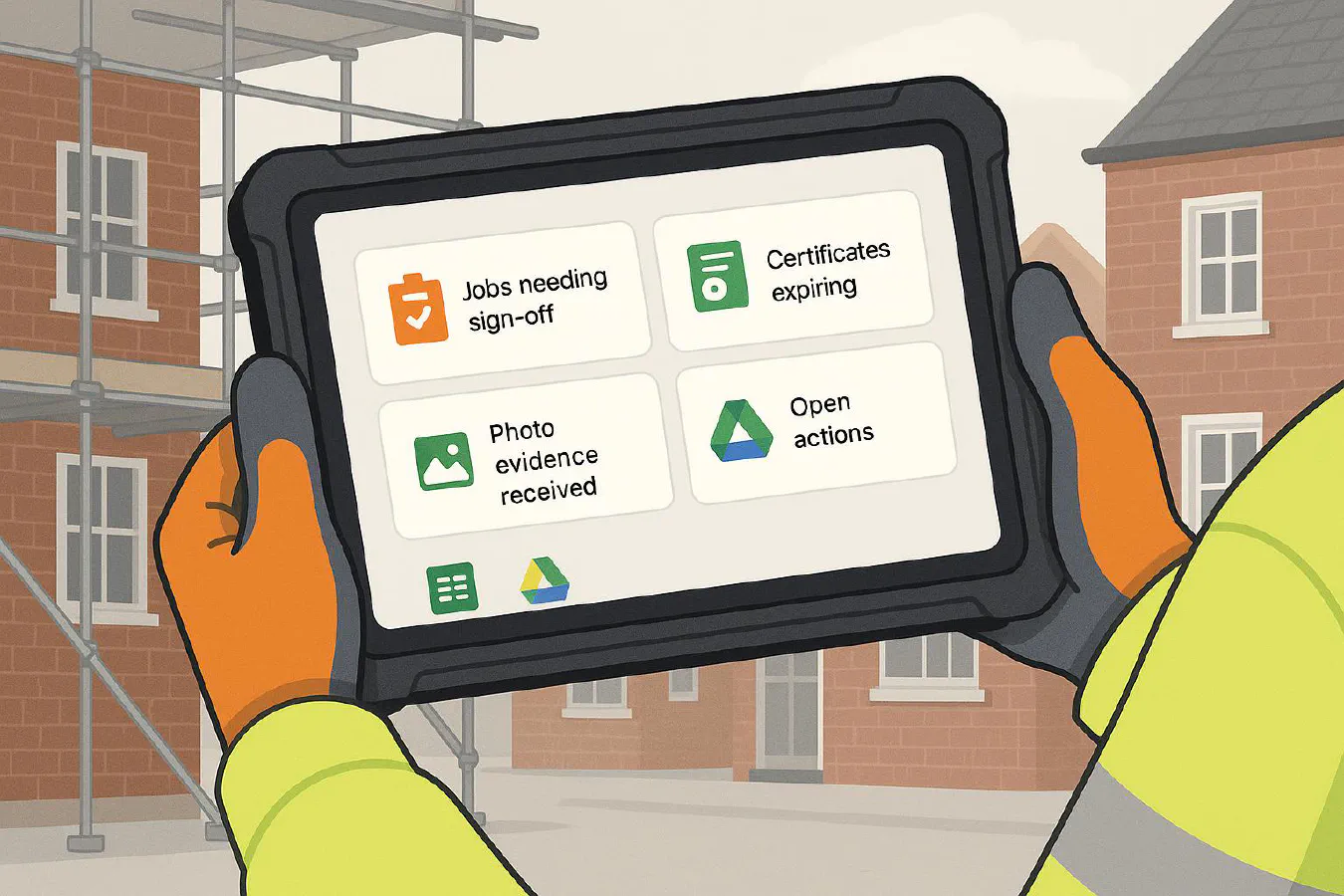
Engineer holding a tablet showing a compliance dashboard: jobs needing sign‑off, expiring certificates, photo evidence received and open actions
Quick answer
You can build a lightweight, auditable compliance dashboard in Google Sheets that pulls together:
- jobs needing sign‑off
- certificates expiring (e.g., gas, electrical, F‑gas, training cards)
- photo/video evidence received from site
- open actions and who’s responsible
Use Google Forms or WhatsApp uploads to collect site evidence, Google Drive to store files, and a single Google Sheet to power a simple status dashboard you can show to a client, principal contractor or Building Safety Regulator. It’s enough for most small to mid‑size teams and supports the “golden thread” principle for higher‑risk buildings.
Helpful references: HSE role pages for principal designer and principal contractor; GOV.UK guidance on the golden thread and design and building work duties.
Who this is for
- Micro to mid‑size UK trades businesses (1–50) in plumbing, electrical, HVAC, fire, roofing, joinery.
- Anyone acting as designer/contractor/PC on domestic or small commercial jobs who needs visible compliance control.
- Dutyholders on higher‑risk buildings who want a practical way to maintain the information trail.
How it works
At a glance:
- Capture
- Engineers submit a short form with job ID, location, checklist answers and photos/video. Easiest is a Google Form with File Upload to a Drive folder. If you run WhatsApp Business, you can forward media to a dedicated email or use Make/Zapier to save it straight into Drive.
- Store
- Files go into a neat Drive structure: /Jobs/2025/JOB‑1234/Photos, /Certificates, /Training. The Form writes rows to a “Submissions” sheet with timestamps and links to the files.
- Track
- Your master Google Sheet uses tabs: Jobs, Actions, Certificates, Evidence, and a Dashboard that shows counts, overdue items, and owners. Use simple formulas and conditional formatting.
- Report
- Share the Dashboard tab view‑only with clients or the principal contractor. For fancier reporting, link the Sheet to Looker Studio later.
Simple compliance dashboard concept for UK trades
Step-by-step setup
- Create the Google Form (10 minutes)
- Questions: Job ID, Site address, Dutyholder role (Engineer, Supervisor), Checklist (tick‑boxes), Notes, File upload (photos/videos). In Settings, collect email addresses and restrict to your domain if you use Google Workspace.
- Response destination: Create a new spreadsheet named “Compliance Dashboard”.
- Build your Drive folders (10 minutes)
- Create: Jobs, Certificates, Training, Templates, and inside Jobs create the year folders and an example job folder with Photos and Documents. Link that path in the Form description so engineers know where things end up.
- Structure the Google Sheet (30–40 minutes)
- Tabs to create:
- Jobs: job_id, client, site, start_date, planned_completion, principal_designer, principal_contractor, status (Planned/In progress/Ready for sign‑off/Complete), responsible_owner.
- Actions: action_id, job_id, action_text, due_date, owner, status (Open/Done), evidence_link.
- Certificates: type (Gas Safe, NICEIC, F‑gas, CSCS, first aid), holder, number, expiry_date, file_link, owner.
- Evidence: timestamp, job_id, checklist_passed (Yes/No), notes, file_links, submitted_by.
- Dashboard: small summary blocks using COUNTIF/COUNTIFS.
- Paste these formulas (copy/paste) {#dashboard-layout}
- Overdue actions count:
- =COUNTIFS(Actions!F:F,“Open”,Actions!D:D,"<"&TODAY())
- Jobs ready for sign‑off:
- =COUNTIF(Jobs!H:H,“Ready for sign‑off”)
- Certificates expiring in 30 days:
- =COUNTIFS(Certificates!E:E,">="&TODAY(),Certificates!E:E,"<="&TODAY()+30)
- Evidence received this week:
- =COUNTIFS(Evidence!A:A,">="&TODAY()-WEEKDAY(TODAY(),2)+1)
- Add conditional formatting (10 minutes)
- Actions tab: If status is Open and due_date < TODAY(), colour the row light red. If due today, amber.
- Certificates tab: If expiry in <= 30 days, amber; < 7 days, red.
- Create owner views (5 minutes)
- Data filter views by owner, so each supervisor can see their items.
- Share it (2 minutes)
- Dashboard tab Share > Anyone with the link View only. Never expose raw data tabs to clients.
Dashboard layout (copy this)
Use a simple 2x2 grid of KPI tiles:
- Jobs needing sign‑off
- Overdue actions
- Certificates expiring (30 days)
- Evidence received (this week)
Underneath add two tables:
- “What needs attention” (top 10 overdue actions, owner, job link)
- “Expiring certs” (type, holder, days left, file link)
Automations that save you hours
Option A: No‑code with Google only
- Email reminders: In the Sheet, use Extensions > Add‑ons (e.g., Form Publisher or simple Apps Script) to send a daily digest to each owner for their open actions and expiring certs.
- Calendar holds: Use Apps Script to push due actions to Google Calendar for the owner.
Option B: With Make or Zapier
- WhatsApp to Drive: When a message lands in your WhatsApp Business inbox, save photos to Drive, then append a row in Evidence with job_id from the message text.
- ServiceM8/Simpro/Tradify sync: Nightly, fetch open jobs and status and update the Jobs tab. Most platforms offer API or CSV export you can schedule.
- Xero training ledger: Keep training costs tidy by tagging training purchases and linking to the holder in your Certificates tab.
Caution on data
- Keep personal data minimal. Add a privacy note on your Form and make sure you’ve a retention policy. See GOV.UK guidance on the golden thread.
Pro tips for audits and the golden thread
- Label every evidence file with job_id and date (e.g., JOB‑1234_2025‑10‑01_valve‑change.jpg). It makes searching instant.
- Keep the roles clear on the Jobs tab: who is PD and who is PC. See HSE pages for PD and PC.
- For higher‑risk buildings, mirror the GOV.UK checklist for the golden thread and keep the safety case references in the job folder. Start here: GOV.UK golden thread guidance.
- Gateways: If you work on HRBs, make sure your completion pack includes PD/PC declarations as required by the 2023 procedures regulations. See legislation.gov.uk.
What are people saying on Reddit?
- r/googlesheets: Contractor asking for a Google Sheets dashboard for construction tracking, showing the appetite to avoid costly platforms: https://www.reddit.com/r/googlesheets/comments/1j6b1xw/construction_company_needing_a_google_sheet_with/
Related articles
- Create jobs from Outlook emails: ServiceM8, Jobber, Tradify and Simpro step-by-step
- Email to job: set up automatic job creation from enquiry emails (ServiceM8, Jobber, Tradify)
- Voicemail to job: auto‑transcribe missed calls and create jobs in ServiceM8, Jobber or Tradify
FAQs
Does this meet the Building Safety Act’s “golden thread” requirement?
Short answer: It supports it. The golden thread is about keeping the right information, accurate and accessible. A well‑structured Drive + Sheet setup fits the principles for many small teams. For higher‑risk buildings, follow the GOV.UK guidance for required content and security.
How do I get photos from WhatsApp into Drive without faff?
Use WhatsApp Business and either forward to a special email that Google Drive watches, or connect WhatsApp Business API via Make/Zapier to save media to the right /Jobs/JOB‑ID folder and log an Evidence row.
Can I pull job statuses from ServiceM8, Simpro or Tradify?
Yes. Most have CSV exports or APIs. Start with a nightly CSV export to Google Drive and use the Sheets Import function. Later you can use Make/Zapier to update the Jobs tab automatically.
Is this secure enough to share with clients or the principal contractor?
Yes, if you set permissions correctly. Share Dashboard as view‑only, keep raw tabs internal, and lock down Drive folders. Use Google Workspace access controls and avoid sharing personal data you don’t need.
Can I add Looker Studio later?
Yes. Looker Studio connects to Google Sheets. You can build prettier charts and a client‑friendly link without changing your data structure.
Ready to Transform Your Business?
Turn every engineer into your best engineer and solve recruitment bottlenecks
Join the TrainAR Waitlist