The 2026 Digital Handover Hack: QR Codes for Fast, Compliant O&M Packs (No CDE Required)
Jump To...
Close-up of a QR code label on a construction site asset, with a blurred team in hi-vis using tablets to access digital records – the essence of a 2026 digital handover hack.
Who this is for
- UK main contractors, specialist trades and M&E firms delivering residential, commercial or mixed-use projects.
- SME contractors who cannot justify a full-blown CDE but still need a robust digital ‘golden thread’ for clients, insurers and warranty providers.
- Site managers, contracts managers and project engineers responsible for closeout, O&M, and Gateway 3 submissions.
- FM teams and dutyholders inheriting buildings and needing asset information that is live, traceable and actually usable on site.
What this guide covers
- The legal and commercial drivers behind digital handover in 2026 (Gateway 3 and the golden thread).
- The core problems with traditional paper/PDF O&M packs for SMEs.
- How to use QR codes + simple cloud storage to create a practical, auditable digital handover workflow.
- A step‑by‑step implementation plan for QR-based asset tagging and document structure.
- What to include in a minimum-viable, compliant digital handover pack.
- Common compliance pitfalls, plus tools, templates and further training resources.
1. Why digital handover matters in 2026 (and why PDFs aren’t enough)
From 2026 onwards, the days of dropping a lever-arch file and a USB stick on the client’s desk are effectively over for serious projects.
Under the Building Safety Act 2022 and the new building control regime for Higher‑Risk Buildings (HRBs):
- Gateway 3 (completion) blocks occupation of an HRB until the Building Safety Regulator (BSR) is satisfied, issues a completion certificate, and confirms that the digital ‘golden thread’ of safety/asset information has been handed over.
- GOV.UK guidance – keeping information about a higher-risk building: GOV.UK golden thread
- GOV.UK guidance – Gateway 3 building control approval: GOV.UK HRB building control
The golden thread must:
- Be digital, structured and secure.
- Be kept up-to-date, with clear ownership and version control.
- Be usable by both dutyholders and end‑users (not just BIM managers).
Even on non‑HRB projects, the same logic is bleeding into:
- Client framework requirements.
- Insurer/warranty expectations.
- ISO 19650‑aligned “good practice” on information management.
- ISO 19650 overview: BSI ISO 19650
The catch: most SMEs do not have a Common Data Environment (CDE) license, a BIM team, or the headspace for another heavyweight system.
You still need:
- Traceability from physical asset → digital record.
- Live updates (new certificates, maintenance, remedial works).
- An audit trail that stands up to a BSR or warranty review.
That’s where QR‑enabled handover gives you a low‑friction, low‑cost route to compliance.
2. The SME reality: where handover usually goes wrong
Most small and mid‑size contractors recognise some version of this pattern on closeout:
- Handover panic: O&M compilation is left until the last few weeks. Everyone is trying to find test sheets, serial numbers and updated drawings while the client is shouting for keys.
- Subby chaos: Each subcontractor supplies documentation in a different format and structure. File names are inconsistent; some are missing entirely.
- No asset register: There’s no consistent list of maintainable assets with unique IDs, manufacturers, serial numbers and locations.
- Version confusion: O&M packs are cobbled together from email attachments and random folders; nobody can tell which certificate or drawing is the latest.
- Static evidence: Even when everything is collected, it’s usually frozen in a PDF – no link to ongoing inspections, remedial actions or updates.
- Client headaches: Six months later, the dutyholder can’t find the fire damper test certs or prove that a given fire door has been inspected as required.
None of this is acceptable under a golden thread mindset. The good news: you do not need a full CDE to fix it.
3. QR codes as the bridge between site and digital records
Think of a QR code as a doorway: it connects the physical installation—a fire door, fan coil, distribution board—to the live digital record for that exact asset.
3.1 What you should tag
Start with a risk‑based, maintainability‑based list:
- Life safety and fire:
- Fire doors and frames
- Fire and smoke dampers
- Smoke control equipment
- Fire alarm panels and sub‑panels
- Emergency lighting central batteries/inverters
- Critical M&E and plant:
- Distribution boards and main LV switchgear
- AHUs, fans, pumps, pressurisation units
- Boilers, heat pumps, CHP units
- Other maintainable assets:
- Lifts (if not already on the OEM system)
- Water treatment/legionella plant
- BMS outstations, key control panels
Not every outlet or grille needs a code. Focus on assets where future inspection, maintenance or replacement will matter for:
- Fire and life safety performance.
- Compliance (Regulation 10, warranties, manufacturer requirements).
- Operating costs and energy performance (Part L‑related systems).
3.2 Tag types and placement
You need tags that survive the environment and are easy to scan:
- Materials:
- Polyester or anodised aluminium labels for doors and internal areas.
- Metal or heavy‑duty plastic tags for plant rooms, roofs, external kit, washdown areas.
- Placement:
- On a fixed, non‑removable surface (door leaf edge, frame, panel front – not on a loose cover).
- At a sensible height/angle so a phone can scan it without gymnastics.
- Avoid moving parts or surfaces likely to be painted over.
For practical guidance, asset management tools like Fabrico outline maintenance QR best practice:
- QR codes for maintenance guide: Fabrico guide
4. What each QR code should link to
A QR code is just a pointer. The compliance value comes from what sits at the other end.
4.1 Use persistent URLs, not orphaned PDFs
You want each QR code to open a stable, managed home for that asset’s information. Options:
- General cloud storage:
- Microsoft 365 – SharePoint or Teams files.
- Google Drive.
- Dropbox.
- Specialist platforms:
- Digital handover/FM tools like Operance, Zutec, or maintenance/asset systems like itemit and Fabric.io.
The key rule: never hard‑link your QR to a file you might move or rename. Instead:
- Link to a folder, record page, or mini web portal for that asset.
- Maintain the same URL for the life of the building.
- Update contents within that location as information changes.
4.2 What the asset record should contain
As a baseline for each tagged asset:
- Core metadata:
- Asset ID (matches QR ID and asset register)
- Description and type (e.g. “FD60S corridor fire door, Level 03”)
- Location (building, floor, room/zone)
- Manufacturer, model, serial number
- Install date and installer
- Documents and records:
- Relevant as-built drawing snippet or reference.
- OEM O&M/manual and data sheet.
- Commissioning sheets, certificates, test reports.
- Photos of final install, labels, fire‑stopping, penetrations.
- Ongoing evidence:
- Inspection logs (e.g. fire door checks).
- Remedial actions and closure evidence.
- Replacement/upgrade records.
A good benchmark is how platforms like RiskBase handle QR‑tagged fire doors, where inspectors scan a code and log checks directly against that door:
- Door inspection workflow example: RiskBase door inspection
5. Step-by-step: building a QR-based digital handover workflow
This is a pragmatic approach that works even if you’re just using SharePoint or Google Drive plus a QR generator.
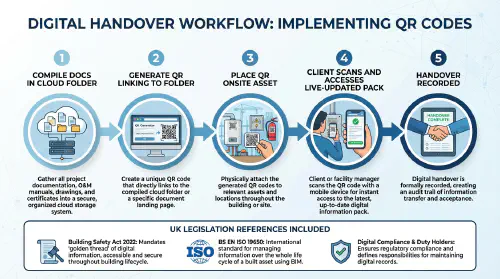
Infographic of a QR-based digital handover workflow: compile docs in a cloud folder, generate QR linked to that folder, place QR tags on assets, client scans to access the live-updated pack, with Gateway 3 and golden thread requirements referenced.
Step 1 – Design your folder and naming structure
Before you generate a single QR code:
- Create a project-level hierarchy in your chosen storage:
Project > 01 Handover & O&M > 01 As-Built DrawingsProject > 01 Handover & O&M > 02 O&M ManualsProject > 01 Handover & O&M > 03 Asset Registers & QRProject > 01 Handover & O&M > 04 Fire & Emergency FileProject > 01 Handover & O&M > 05 Certificates & TestsProject > 01 Handover & O&M > 06 Change Control
- Under O&M Manuals, break down by system/discipline or zone (e.g. electrical, mechanical, fire, lifts).
- Decide on a simple file naming convention:
ProjectCode_Zone_System_Description_Rev_YYYYMMDD
This aligns with ISO 19650 principles without drowning a small team in BIM jargon.
Step 2 – Build your asset register early
Create (or adapt) a simple asset register in Excel, Google Sheets or your asset tool:
- Columns for:
- QR/Asset ID
- Asset description and type
- Location
- Manufacturer/model/serial
- Tag status (ordered/installed)
- Linked URL (destination for the QR)
- Add columns for:
- Commissioned (Y/N, date)
- Certificates/tests linked (Y/N)
- Owner (trade/discipline, then client/FM owner in operations)
Populate this as you procure and install, not just at the end. Site teams can feed data via daily sheets, photos and snag apps.
For TrainAR users, pair this with our internal guides:
- “Digital handover pack with QR codes: set up O&M manuals and asset tags your client will actually use” – practical setup steps:
Digital handover pack with QR codes - “O&M manual for construction: what to include, UK checklists and a fast handover process” – content checklists and workflows:
O&M manual for construction
Step 3 – Standardise your O&M and evidence
Before you think “QR”, fix the content:
- Use O&M templates from tools like Zutec, Operance, NBS or your own standard packs:
- Zutec O&M solution: Zutec O&M manuals
- Operance digital handover overview: Operance digital handover
- Require subcontractors to:
- Use the same section headings and naming.
- Provide searchable PDFs/Docs, not scanned images where possible.
- Include as‑built not “for construction” drawings.
- Implement a simple photo protocol so site teams always capture:
- Before closing up voids/penetrations.
- Labelled equipment and serial plates.
- Final tested configuration and access routes.
(See TrainAR’s “6 photo protocol” for deeper guidance:
6-photo protocol for site evidence)
Step 4 – Create QR codes and map links
You have two main routes:
- DIY / low‑code approach:
- Use tools like QRCode Monkey or built‑in QR generators.
- For each asset, generate a QR that links to:
- The asset’s folder in SharePoint/Drive; or
- A small “asset summary” page with links underneath.
- Asset management tools:
- Systems like itemit, AssetTagz or Fabric.io generate and manage both:
- Unique asset IDs.
- QR codes and URL mapping.
- Example: tagging assets with itemit: itemit tagging guide
- Systems like itemit, AssetTagz or Fabric.io generate and manage both:
Record the final URL for each QR in your asset register.
Step 5 – Print, apply and test on site
- Order durable labels from suppliers like Seton or within your asset tool ecosystem.
- On site:
- Apply the tag in accordance with your tagging plan (location, height, orientation).
- Log the date and installer in the asset register.
- Test:
- Use a fresh mobile device (not logged into your admin account).
- Scan the QR; confirm it:
- Opens the correct asset page/folder.
- Has appropriate permissions (view/edit) for the intended user group.

A UK site manager scans a QR code on a newly installed M&E asset to retrieve live O&M documents, demonstrating how QR-enabled workflows connect site equipment directly to the digital golden thread.
Step 6 – Wrap up into a formal digital handover pack
For Gateway 3 and general client closeout, your digital handover pack should include:
- As-built drawings and fire plans (correctly referenced and versioned).
- O&M folders by system/zone.
- Asset register with:
- All tagged assets, QR IDs and URLs.
- Critical fields (location, manufacturer, install date, etc.).
- Fire and Emergency File (BSR‑aligned content).
- All compliance certificates and test records:
- Electrical, gas, fire, lifts, pressure systems, water treatment, etc.
- Change control log summarising design/installation changes.
- Commissioning evidence – sheets, balanced test results, photos.
- Handover statement:
- Confirms the digital pack has been transferred.
- Confirms the golden thread information has an owner and process.
This can be delivered as:
- A live digital environment (SharePoint site, Google Drive, or specialist app), plus
- A read‑only PDF index/snapshot for archiving and absolute emergencies.
6. Minimum-viable but compliant: what “good enough” looks like
You do not have to be perfect or BIM‑heavy to satisfy most BSR/client expectations. You do need:
- A consistent, documented structure for project information.
- A reliable, backed‑up storage location with:
- Version control.
- Access permissions.
- Audit logs (who changed what, when).
- A traceable link from:
- Asset in the building → QR code → asset record → evidence.
- A process for ongoing updates (post‑handover works, remedials, maintenance).
Examples in practice:
- Eurovia UK moving to a paperless app with QR‑driven site workflows and closing out jobs significantly faster:
Case study – UK contractor goes paperless - Harrow Council with Higgins and Operance, using digital golden thread dashboards with QR asset links for social housing blocks:
Golden thread knowledge share
These are larger organisations, but the principles are the same for SMEs using 365/Drive.
7. Compliance watch-outs for 2026
Even with simple tools, you must respect the underlying regulatory expectations.
- Version control and audit trail:
- Turn on and retain version history in SharePoint/Drive.
- Avoid “open to anyone with the link” for sensitive jobs – assign named users/groups.
- Security and QR codes:
- A QR code itself is not insecure; risk comes from:
- Public URLs with no access control.
- Lack of logging on who has viewed/edited what.
- For HRBs and sensitive sites, use:
- QR linking to an authenticated portal (login required).
- A QR code itself is not insecure; risk comes from:
- Backups and continuity:
- Maintain a periodic offline export:
- PDF/A snapshot of O&M index and key documents.
- CSV export of the asset register with QR mappings.
- Maintain a periodic offline export:
- Scope creep:
- Even on non-HRBs, expect:
- Warranty providers, funders and insurers to ask for digital packs.
- Main contractors to push for QR‑tagged traceability.
- Even on non-HRBs, expect:
For the core legal context on HRBs and Gateway 3, see:
- BSR/golden thread overview: GOV.UK golden thread
- Building control regime for HRBs: GOV.UK building control changes
- Consultation on implementing the HRB regime:
GOV.UK consultation on new building control regime
8. Tools, templates and training resources
8.1 Cloud storage and collaboration
- Microsoft 365 – SharePoint/Teams sites for each project.
- Google Workspace – Drive and Docs for lightweight collaboration.
- Dropbox – acceptable for SMEs if:
- You implement groups, version history and clear permission schemes.
8.2 Handover and O&M platforms
- Operance – golden thread and digital handover workflows:
Operance digital handover - Zutec – structured O&M manual production and asset data:
Zutec O&M manuals
These are useful if you want more out‑of‑the‑box structure without building your own in 365.
8.3 QR and asset tagging tools
- Fabrico – QR codes tied to maintenance workflows:
Fabrico QR maintenance guide - itemit – asset register + QR tags:
How do I tag my assets? - Seton and similar – supply durable industrial QR and asset labels.
8.4 TrainAR internal resources
For contractors wanting to standardise digital evidence and O&M content:
- Digital handover pack with QR codes: set up O&M manuals and asset tags your client will actually use
Digital handover pack with QR codes - O&M manual for construction: what to include, UK checklists and a fast handover process
O&M manual for construction - As-built drawings for small contractors: quick wins, what to include and simple digital workflows
As-built drawings for small contractors - 6 photo protocol for site evidence: what to photograph for snagging and disputes
6-photo protocol for site evidence
8.5 Useful videos and community forums
YouTube
- Watch Video – Faster Project Closeout with Buildr | Groundbreak 2020
Shows how structured digital project closeout transforms owner handover and reduces admin. - Watch Video – Asset Information Model COBie Facility Attributes
Technical walkthrough of how asset data structures (including QR/COBie workflows) link into final client information models.
Good places to see what other contractors and FMs are actually doing:
- r/UKconstruction – r/UKconstruction
- r/construction – r/construction
- r/FacilityManagement – r/FacilityManagement
You’ll find threads on digital handover, QR tagging and golden thread experiences – often more blunt than vendor marketing.
9. QR digital vs traditional handover: side-by-side
| Aspect | QR Digital Handover | Traditional (Paper/PDF) |
|---|---|---|
| Speed/completeness | Live updates; easier to spot gaps early | Often weeks of delay; missing docs common |
| Audit trail/version history | Native to cloud platforms and asset tools | Almost none; hard to prove what changed, when |
| User access | Any phone/tablet scan, on site, at point-of-use | Files locked in office or lost in inboxes |
| Compliance proof | Logs of inspections, tests and uploads | Manual paper chase; easy to lose evidence |
| Upfront cost | Low–medium (labels + 365/Drive + setup time) | Time-heavy; risk of rework and repeat visits |
| End‑user adoption | Higher: simple scan and scroll | Low: O&M binders rarely touched after day one |
The real gain is operational: FM and dutyholders can prove they’re maintaining fire doors, dampers and life safety systems without a paperwork treasure hunt.
FAQs
Do I legally need a full CDE to be compliant with the golden thread?
No. The BSR does not mandate a specific product. You must have a digital, secure, structured system with clear responsibility and change control. A well-configured SharePoint/Teams or Google Drive setup with audit logs can be enough for many SMEs, provided your processes are sound.
Isn’t this overkill for small works or sub‑£5m projects?
Not if your client, funder or warranty provider expects traceable evidence. Even on smaller blocks, QR‑linked asset registers make it far easier to demonstrate that safety systems are maintained. Many main contractors now expect digital packs as standard.
Can I just put everything in one big shared folder and link all QRs there?
You could, but you will lose traceability. Each QR should map to a specific asset record or folder; otherwise you can’t prove which exact door, damper or DB the evidence relates to.
Are QR codes themselves a security risk?
They’re only as risky as the links and permissions behind them. Use:
- HTTPS URLs.
- Authenticated access (for sensitive jobs).
- Named user permissions in 365/Drive.
Avoid sticking QRs on critical assets that link to totally open folders with sensitive drawings or security details.
How do I make my QR code pack audit‑proof?
- Use versioned cloud storage and never delete old revisions.
- Keep your asset register up‑to‑date with QR IDs, URLs and status.
- Test QR access on a non-admin device before handover.
- Agree responsibility for updates post‑handover (client FM vs. your aftercare team) and document this in the handover statement.
Where can I get practical feedback from other contractors using QR codes?
Check out community discussions on:
You’ll see real‑world experiences around what works, what’s overkill, and how clients respond.
Want to slash training times and increase revenue per Engineer? Join our Waitlist: https://trainar.ai/waitlist
Ready to Transform Your Business?
Turn every engineer into your best engineer and solve recruitment bottlenecks
Join the TrainAR Waitlist