Quick Answer
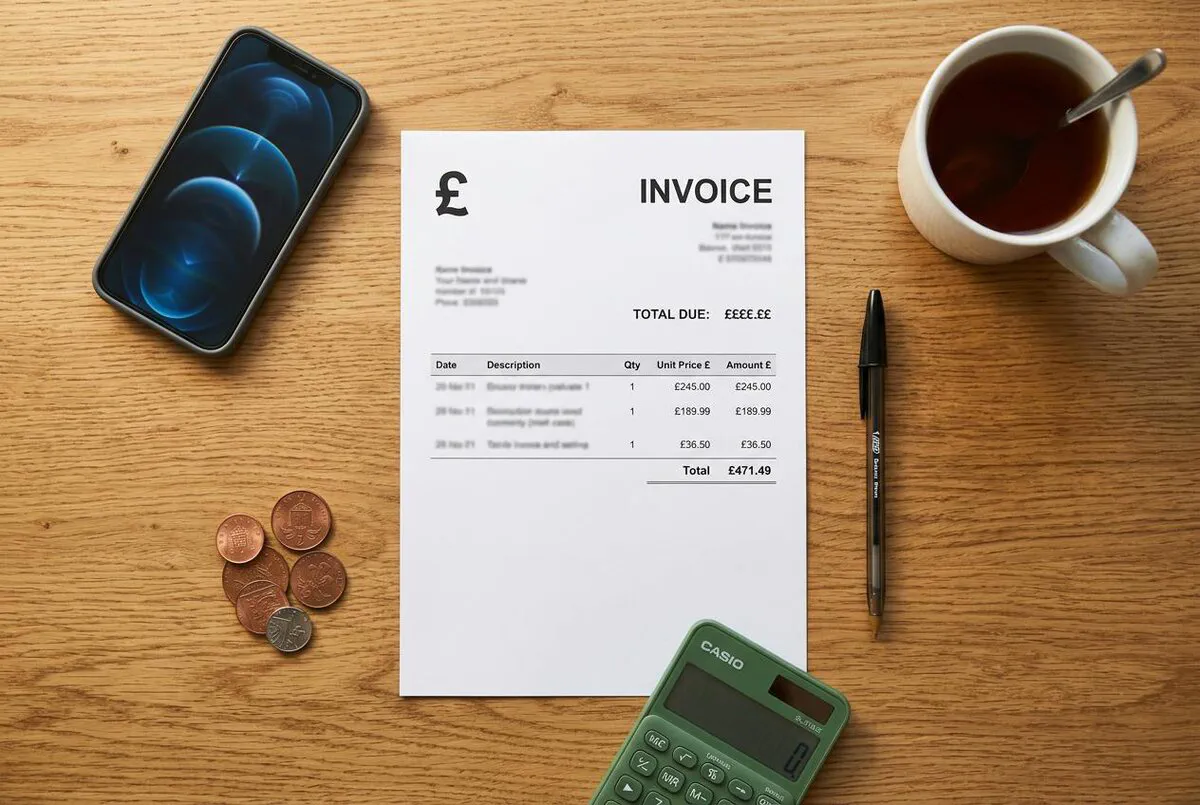
We have built a free ServiceM8 invoice template designed specifically for UK VAT-registered tradespeople. It includes all 15 fields HMRC requires on a valid tax invoice, pre-loaded ServiceM8 merge tags for automatic data population, and clear payment terms. Download the Word (.docx) file below, upload it to ServiceM8 under Settings > Templates, and start sending professional, compliant invoices from site in under five minutes. You need the Growing plan (from ~£59/month) or higher to use custom document templates.

Table of Contents
- What HMRC Requires on a UK VAT Invoice
- What Is in Our Free ServiceM8 Invoice Template
- ServiceM8 Merge Fields: The Complete Reference
- How to Upload and Customise Your Template
- ServiceM8 Invoicing vs Manual Methods
- Which ServiceM8 Plan Do You Need?
- Videos: ServiceM8 Invoice Templates in Action
- What UK Tradespeople Say
- Frequently Asked Questions
- Key Takeaways
 ServiceM8
What HMRC Requires on a UK VAT Invoice
If you are VAT-registered, every invoice you send must meet HMRC’s legal requirements. Get it wrong and your customer cannot reclaim the VAT, which means they will push back on paying. Get it right and you look professional, stay compliant, and get paid faster.
Here is the full list of what HMRC demands on a valid VAT invoice:
Your Business Details
Your company or trading name, full postal address, and VAT registration number. All three must appear on every invoice, no exceptions.
Customer Details
The customer’s name (or company name) and their address. For domestic reverse charge (DRC) jobs, you also need their VAT number.
Invoice Identification
A unique, sequential invoice number and the date of issue. ServiceM8 generates both automatically via the job.generated_job_id and job.invoice_date merge fields.
Supply Description
An itemised list of goods or services supplied, including quantities, unit prices, and a clear description of each line item.
VAT Breakdown
The net amount (before VAT), the VAT rate applied to each item, the total VAT charged, and the gross total. For mixed-rate jobs, show each rate separately.
Payment Terms
While not strictly required by HMRC, clear payment terms (due date, accepted methods, late payment fees) are considered best practice and reduce disputes.
DRC Warning: Construction Subcontractors
If you work in construction and your customer is VAT-registered, the domestic reverse charge (DRC) may apply. Under DRC, you do not charge VAT; instead, your invoice must state "customer to account to HMRC for the reverse charge" and show the VAT amount that would have been charged. Our template includes a DRC note field for exactly this scenario.

What Is in Our Free ServiceM8 Invoice Template
Our template is a Word (.docx) file built around ServiceM8’s Handlebars merge syntax. When you upload it as a custom document template, ServiceM8 automatically fills in the job data, customer details, and line items every time you generate an invoice. No copy-pasting, no missed fields.
- Unlimited jobs during trial
- Custom invoice templates
- AI Auto-Invoice included
- No credit card required
- Vendor, customer, and job fields
- Line items loop syntax
- VAT and total calculations
- Copy-paste ready format
Template Layout
The template is structured into five clear sections:
- Header block – your company name, address, logo, phone number, email, and VAT registration number. The VAT number is hard-coded because ServiceM8 does not have a dedicated merge field for it.
- Customer block – pulls in the client’s name and billing address using
{{location.name}}and{{location.billing_address}}merge fields. - Invoice details strip – shows the invoice number (
{{job.generated_job_id}}), invoice date ({{job.invoice_date}}), and your payment terms. - Line items table – uses the
{{#each materials}}loop to list every service and material with description, quantity, unit price, and line total. Subtotal, VAT, and grand total are calculated automatically. - Footer – payment instructions (bank details, ServiceM8 Pay link), a thank-you note, and optional DRC reverse charge wording.
VAT Number: Why It Must Be Hard-Coded
ServiceM8 does not offer a merge field for your VAT registration number. You need to type it directly into the template file before uploading. If your VAT number changes (rare, but it happens), you will need to update the template manually.
ServiceM8 Merge Fields: The Complete Reference
These are the Handlebars merge tags used in our template. When ServiceM8 generates a PDF invoice, it replaces each tag with real data from the job card. If you want to customise the template further, here is every field you are likely to need.
| Merge Field | What It Pulls In | Example Output |
|---|---|---|
{{vendor.name}} | Your business/trading name | Smith Electrical Ltd |
{{vendor.address}} | Your business address | 14 Willow Road, Bristol BS3 4QT |
{{vendor.phone}} | Your phone number | 07912 345 678 |
{{vendor.email}} | Your email address | info@smithelectrical.co.uk |
{{location.name}} | Customer name | J. Thompson |
{{location.billing_address}} | Customer billing address | 22 Oak Lane, Bath BA1 2NP |
{{job.generated_job_id}} | Sequential invoice number | INV-00247 |
{{job.invoice_date}} | Date invoice was generated | 12/03/2026 |
{{job.description}} | Job description text | Full rewire, 3-bed semi |
{{#each materials}} | Starts the line items loop | (repeats for each item) |
{{jobMaterial.name}} | Item or service name | Consumer unit replacement |
{{jobMaterial.quantity}} | Quantity | 1 |
{{jobMaterial.totalPriceExTax}} | Line total excluding VAT | £340.00 |
{{jobMaterial.totalTax}} | VAT amount for the line | £68.00 |
{{job.subtotal_price}} | Invoice subtotal (ex VAT) | £1,420.00 |
{{job.total_tax_price}} | Total VAT charged | £284.00 |
{{job.total_price}} | Grand total (inc VAT) | £1,704.00 |
Custom Fields for Extra Data
Need to pull in data that is not listed above? ServiceM8 lets you create custom fields and reference them in templates. For example, you could add a "PO Number" custom field and insert {{job.custom_field_uuid}} to show it on every invoice. The Autom8ers YouTube channel has an excellent walkthrough of this process.

How to Upload and Customise Your Template
Getting the template into ServiceM8 takes about five minutes. Here is the step-by-step process.
- Download the template – grab the .docx file from the link above and save it to your computer.
- Open in Word – open the file in Microsoft Word, Google Docs, or any editor that handles .docx files. Replace the placeholder company details (name, address, phone, email) with your own.
- Add your VAT number – find the "VAT Reg: [YOUR VAT NUMBER]" text in the header and replace it with your actual VAT registration number.
- Add your logo – replace the placeholder logo image with your company logo. Keep it under 200px wide for clean formatting.
- Set your payment terms – update the payment terms section with your preferred terms (7 days, 14 days, 30 days) and your bank details or payment link.
- Save as .docx – save the file. ServiceM8 requires Word format; do not convert to PDF.
- Upload to ServiceM8 – log in to the ServiceM8 Online Dashboard, go to Settings > Document Templates > Invoice, and upload your customised .docx file.
- Test it – open any completed job, tap Invoice, and check that all merge fields populate correctly. Send yourself a test invoice to review the final PDF.
Do Not Edit Merge Tags
The curly-brace merge tags (like {{vendor.name}}) must remain exactly as written. If you accidentally delete a brace or change the field name, that section will appear blank on your invoices. If in doubt, download a fresh copy and start again.
ServiceM8 Invoicing vs Manual Methods
Still writing invoices by hand or using a basic Word template without merge fields? Here is what you gain by moving to ServiceM8’s template system.
| Feature | Manual / Basic Word | ServiceM8 Template |
|---|---|---|
| Customer details | Type manually every time | Auto-filled from job card |
| Line items | Copy from notes or memory | Pulled from items/services database |
| VAT calculation | Manual with calculator | Automatic subtotal, VAT, and total |
| Invoice numbering | Track in a spreadsheet | Sequential, auto-generated |
| Send from site | Must wait until back in the office | Email or SMS directly from the app |
| Payment tracking | Manual follow-up | Automatic reminders, live statements |
| Accounting sync | Re-enter into Xero/QuickBooks | Syncs invoices and payments automatically |
| Time per invoice | 10-15 minutes | Under 2 minutes |

Which ServiceM8 Plan Do You Need?
Custom document templates, including invoice templates, require the Growing plan or higher. Here is a quick breakdown of the plans relevant to invoicing.
| Feature | Free / Starter | Growing (~£59/mo) | Premium (~£119/mo) |
|---|---|---|---|
| Basic invoicing | Yes | Yes | Yes |
| Custom invoice templates | No | Yes | Yes |
| AI Auto-Invoice | Limited (10/day on Free) | Unlimited | Unlimited |
| Form builder | No | Yes | Yes |
| Monthly jobs | 30 (Free) / 50 (Starter) | 150 | 500 |
| Branded SMS | No | No | Yes |
Is the Upgrade Worth It?
If you send 20+ invoices a month and each one takes 10 minutes to write manually, that is over 3 hours of admin time. At £40/hour, you are spending £120/month on invoicing alone. The Growing plan at ~£59/month pays for itself in the first fortnight, and you get forms, asset management, and bundles thrown in.
Videos: ServiceM8 Invoice Templates in Action
These walkthroughs cover everything from initial template setup to advanced customisation with custom fields.
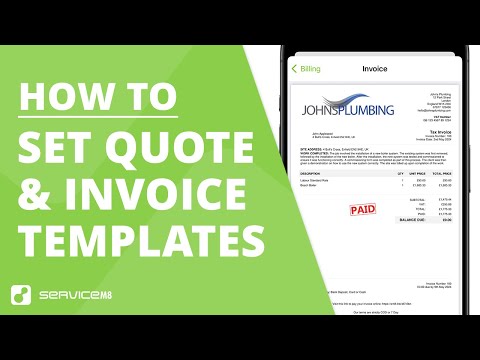
How to Set Up Quote & Invoice Templates in ServiceM8
ServiceM8 (Official)
How Do the Quote and Invoice Templates Work?
ServiceM8 (Official)
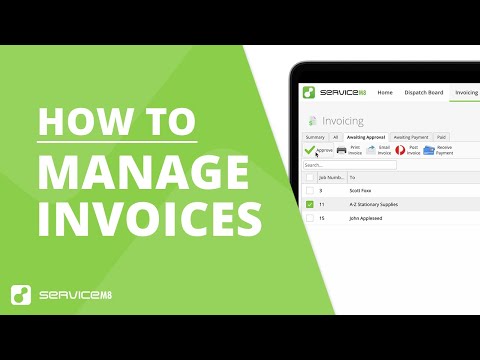
How to Invoice On Site & in the Office
ServiceM8 (Official)
How to Add Terms to Invoice Template on ServiceM8
Simple Answers
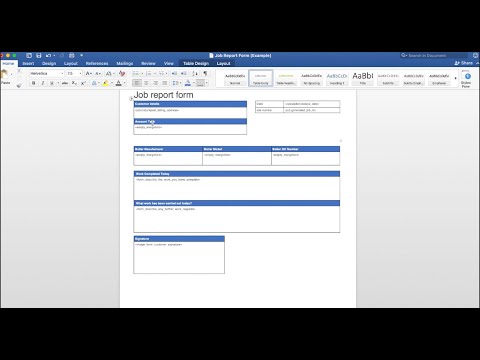
Custom Fields to Autofill Document Templates
Autom8ers
Making Changes to Your Invoice Template
Hazel Whicher
What UK Tradespeople Say
Real reviews and forum posts from tradespeople who use ServiceM8 for invoicing every day.
Frequently Asked Questions
No. Custom document templates require the Growing plan (~£59/month) or higher. On Free and Starter, you can still send invoices, but they use ServiceM8’s default template which you cannot customise.
The template includes standard VAT fields, but CIS deductions require additional calculations (labour vs materials split, CIS deduction rate). You would need to add a CIS section manually or use a dedicated CIS invoicing tool alongside ServiceM8.
Open the .docx file in Word, click on the placeholder logo image, and replace it with your own. Keep the image under 200px wide and use PNG format for the cleanest result. Save and re-upload to ServiceM8.
Yes. ServiceM8 supports multiple document templates. You could have one template for standard VAT invoices, another for DRC reverse charge jobs, and a third for maintenance contracts. Upload each as a separate template under Settings > Document Templates.
The template controls how the PDF invoice looks. The data behind it (amounts, customer details, line items) syncs to Xero or QuickBooks automatically through ServiceM8’s accounting integrations. The template does not affect the sync; it only affects the customer-facing document.
Key Takeaways
- HMRC compliance is non-negotiable. A valid VAT invoice needs 15 specific fields. Our template includes all of them, pre-mapped to ServiceM8 merge tags.
- ServiceM8 has no VAT number merge field. You must hard-code your VAT registration number directly into the Word template before uploading.
- Custom templates need the Growing plan. At ~£59/month, it pays for itself if you send more than 15 invoices a month (compared to manual invoicing time).
- The template uses Handlebars merge syntax. Tags like
{{vendor.name}}and{{#each materials}}auto-populate from job card data. Do not edit them. - Invoice from site, not from the office. ServiceM8 lets you generate and send the invoice the moment you finish a job. Faster invoicing means faster payment.
- DRC jobs need special wording. If the domestic reverse charge applies, update the template footer with the required HMRC statement before sending.