

Quick Answer
A project timeline planner is a single-page spreadsheet that maps every task on a job against the calendar, with a coloured bar showing when each task runs. The Gantt-style layout makes overlaps, dependencies, and slipping deadlines obvious at a glance. This free template runs in Excel and Google Sheets, auto-shades the bars from start and duration values, and is built for small UK trades jobs: bathrooms, kitchens, rewires, boiler swaps, single-storey extensions, fit-outs. Download below, copy it for each job, and you have a programme of works you can actually show a customer.
Table of Contents
- Download the free template
- Why trades need a written timeline, not a memory
- What is inside the template
- How to use the template on your next job
- Common task dependencies trades trip over
- Customising the template for your trade
- Using AI to auto-populate the timeline
- What other UK trades and self-builders say
- Recommended videos
- Frequently asked questions
Download the free template

The TrainAR Project Timeline Planner is one spreadsheet with three sheets inside: the timeline itself, a worked example for a four-week bathroom refurb, and a blank version you copy for each new job. Task rows go down the left. Working days go across the top. You type a start date and a duration in days, and the cells between them shade themselves blue using a conditional formatting rule. No formula bar fiddling, no manual cell colouring.
Open the template in your browser. In Google Sheets, choose File > Make a copy to save your own private version in Google Drive. To use it in Excel, open the Sheets copy and choose File > Download > Microsoft Excel (.xlsx). The conditional formatting carries across, so the bars still shade themselves.
 Microsoft Excel
 Google Sheets
Open in Google Sheets, then File > Make a copy to save your own private version. For Excel, use File > Download > Microsoft Excel (.xlsx). The worked example tab walks through a 22-day bathroom refurb so you can see how the dates, durations, and dependency colours behave before clearing it for your own job.
Why trades need a written timeline, not a memory
Most small jobs run on memory and a phone call. The plasterer comes when the electrician says he is done. The bathroom fitter shows up the day after the boiler is in. Nobody writes any of this down, and most of the time it works. Until it does not.
The day it does not work, you find the plasterer has another job booked because nobody told him the electrician slipped two days. The customer is sat in a stripped-out bathroom for a long weekend with no shower. The tile order arrives on Tuesday and there is nowhere to put 18 boxes because the floor screed has not been done.
A one-page timeline fixes most of this. It does not need fancy software. It needs five columns: task, who does it, start date, duration, finish date. The Gantt-style bars make the overlaps visible. You print it, pin it to the back of the van door, and every subbie can see when they are needed and what has to be finished before they start.
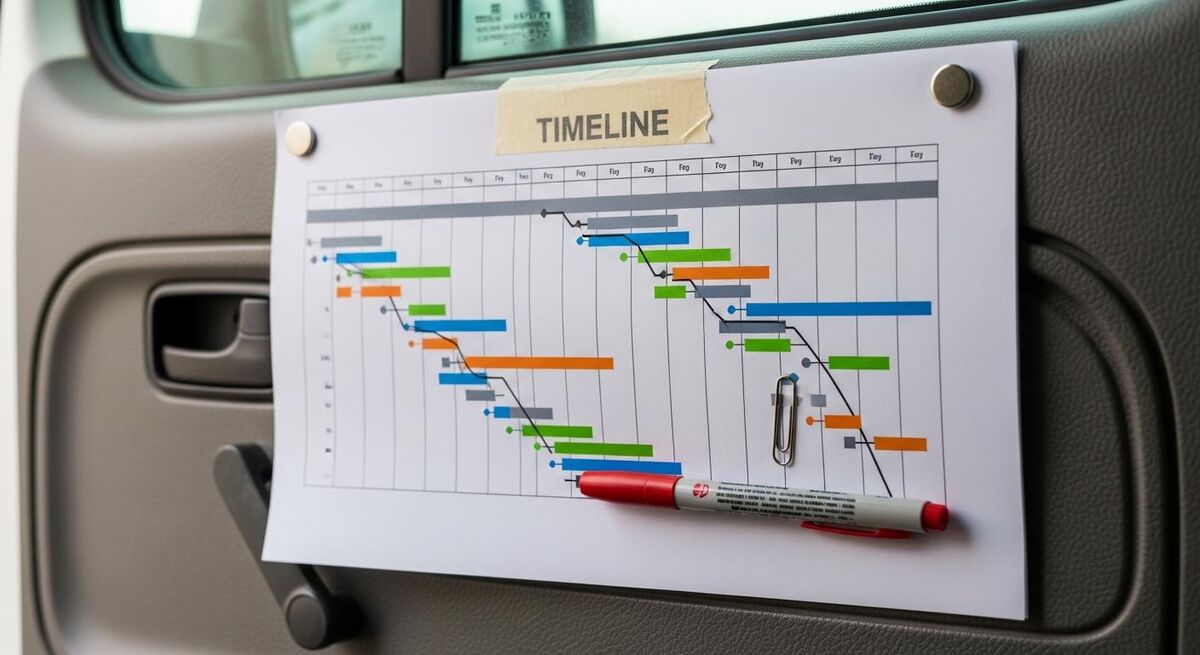
The template uses four colour codes by default: structural and first fix in blue, second fix and trades in orange, finishes and decoration in green, and snag and sign-off in grey. You change them in the conditional formatting rules if your jobs need a different split.
Customers respond to a printed timeline in a way they never respond to a verbal one. The moment you slide a printed sheet across the kitchen table, you stop being "a builder who said three weeks" and become "a contractor with a programme". That shift alone has won jobs from competitors who quoted on a torn-out page from a notepad.
What is inside the template
The template has 60 task rows, 90 day columns across the top, and a small header section at the top with job title, customer name, address, start date, and target finish date. The header pulls into the printed footer so every page is labelled.
The left side of the sheet has five columns:
- Task description: the job in plain words ("first fix electrics", "lay floor screed", "plaster ceiling and walls").
- Trade or person: who is doing it. Leave blank if you are doing it yourself.
- Start date: a real calendar date, typed in. The template uses UK date format (dd/mm/yyyy) by default.
- Duration: working days. The template skips Saturdays and Sundays in the bar shading. Edit one rule if you work weekends.
- Finish date: calculated automatically from start plus duration, minus weekends.
To the right of these columns sits the calendar grid. Each cell is one working day. The bar that runs across from start to finish is the visible timeline. Sundays are shaded light grey so they read as non-working without you having to think about them.
The bottom of each task row has a tiny progress field, a number from 0 to 100. Type a percentage in and a second darker bar overlays the lighter one to show how far through the task you are. On a Friday afternoon, fill these in for every active task. It takes four minutes and gives you a one-glance answer to "are we on track".
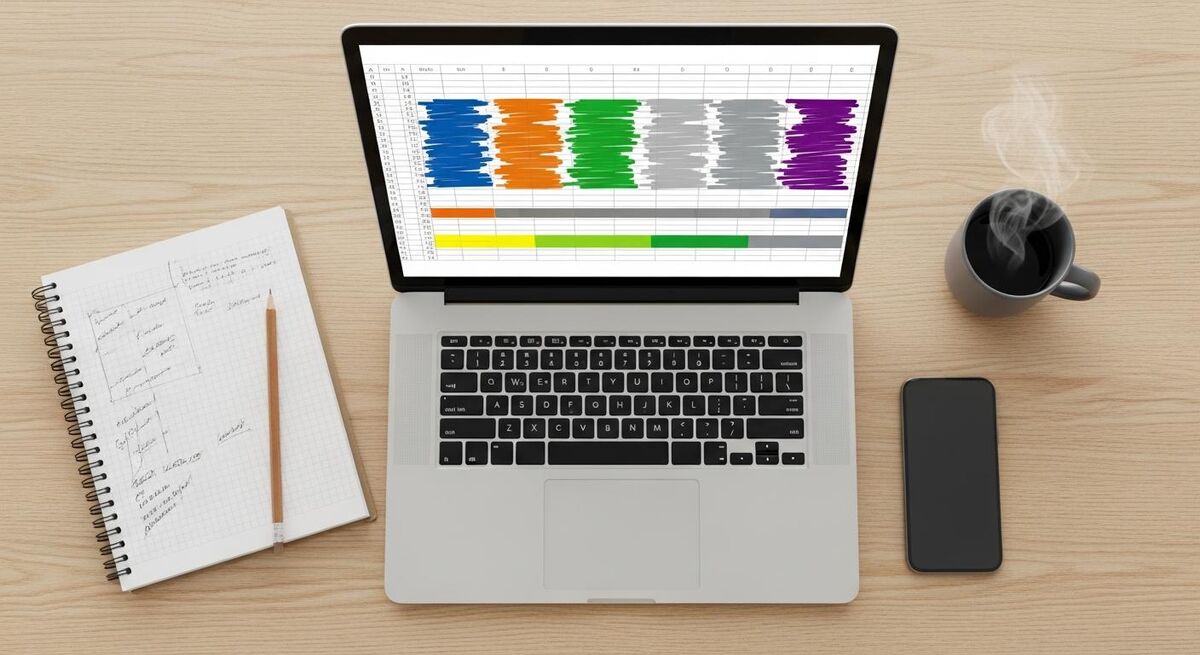
The template also has a milestone column. Tick a box, and that row becomes a single diamond marker rather than a bar. Use it for things like "council inspection", "first stage payment", "customer walkthrough": single-day events that need to land on the timeline but do not run as tasks.
Finally, the top right of the sheet has a critical date strip. Three cells, three dates: customer move-in, payment milestone, snag list deadline. The cells turn red automatically if any task on the timeline is scheduled to finish after one of those dates. That is the early warning that something is about to overrun.
How to use the template on your next job
The first time you use it on a real job, work backwards from the customer's finish date. They want to be back in the bathroom by the 28th. You count working days backwards: snag and clean (1 day), grout and silicone (1), tile (3), second fix plumbing and electrics (2), first fix plumbing and electrics (3), plaster and dry (4), strip out (1). That is fifteen working days, three calendar weeks.
Type those tasks into the rows top to bottom in the order they happen. The strip-out row gets the earliest start date. Each next row's start date is the previous row's finish date, unless tasks can run in parallel.
The tasks that can run in parallel are the ones that matter. Plumbing first fix and electrical first fix can both happen on the same days if the room is big enough for two people. Plaster has to dry before second fix can start, so do not overlap those. Tile cannot start until plaster is dry, and grout cannot start until tile is laid. Type each parallel pair with the same start date. The bars stack vertically in the same column range.
Add 20% to every duration estimate when you build the first version of the timeline. Trades estimates are almost always optimistic on small jobs. Materials arrive late, decorators add a day for an extra coat, drying time runs longer in winter. Add the slack at the start, not at the end. If you finish two days early, the customer thinks you are a hero. If you slip three days because you did not pad, you become every other builder who was late.
Once the rows are in, look at the bar chart on the right. If two trades are scheduled in the same room on the same day, change the start date on one of them so they do not clash. If a critical path task (the one nobody can start until it is done) sits in the middle of the chart, highlight it in red so you remember to chase it.
Save the file with the job number or customer name in the filename. Open it every Friday afternoon. Update the progress percentages. Move slipping task end dates forward in the start date column. The bars redraw themselves. Email a PDF to the customer if their dates have changed.
Common task dependencies trades trip over
The bit that catches most small contractors out is not the tasks. It is the gaps between them. A task is not finished the moment the trade walks off site. It is finished when the next trade can start.

| Task pair | Real gap to allow | Why |
|---|---|---|
| Plaster → tile | 5 to 7 days | Plaster has to be fully dry. Mist coat first if you are painting. Tile adhesive will not bond to damp plaster. |
| Floor screed → tile | 7 to 28 days | Traditional sand and cement screed needs 1 day per mm of depth. A 50mm screed needs 50 days unless you use a fast-dry alternative. |
| First fix → plaster | Same day or next morning | Plasterer needs the cables and pipes capped. Walk the room with the sparky before the plasterer arrives. |
| Tile → grout | 24 hours | Adhesive needs to cure or grout will pull tiles off the wall when it shrinks. |
| Paint → second fix sockets | Same day | Decorator paints the wall, sparky fits faceplates that afternoon. If you reverse this, paint will end up on the new chrome. |
| Boiler swap → commissioning | Same day if Gas Safe engineer is on site | Building control notification, benchmark log, certificate. Skipping this means a non-compliant install. |
The template has these dependencies built into the worked example. The bathroom refurb example shows the plaster to tile gap as a deliberate four-day blank space on the timeline, labelled "plaster drying". Customers see that blank space and understand the job is not paused. The plaster is doing its work.
For larger jobs, add a separate row for materials arrivals. Worktops are usually three to four weeks lead time. Custom doors are six to twelve. Heat pumps with MCS-grant paperwork can be eight to sixteen. None of these will be visible on the calendar unless you put them on. A row called "worktops fabricated and delivered" sitting on the chart three weeks before the install date is the difference between a smooth finish and a customer staring at unfinished cabinets.
Customising the template for your trade
The template is built generic. The bar colours, the row count, and the day columns all change with a few clicks. The default 90-day grid handles most jobs up to four months. For longer jobs, drag the column shading rule across to extend it.
Electrical rewires
Replace the four default colour bands with five: notification to DNO, first fix, plaster gap, second fix, EICR and certification. Add a row for Part P notification at the start and a row for the EICR sign-off at the end.
Heat pump installs
Add a "MCS paperwork" row that spans from quote to commissioning. Add three milestone diamonds: DNO G98 approval, MCS handover, BUS grant claim submission. Without these, the timeline is missing the critical bits that pay you.
Bathrooms and kitchens
The worked example is a bathroom. For kitchens, add a worktop template row (templating happens after carcasses are in, fabrication takes 2-4 weeks). Block out the gap between template and install as "worktops at fabricator".
Single-storey extensions
Extend the grid to 120 working days. Add rows for foundations inspection, drainage inspection, pre-plaster inspection, and final building control sign-off. Each is a milestone diamond, not a bar.
Boiler swaps and one-day jobs
Most of the template is overkill for a one-day job. Use the small-job tab instead. Five tasks, one column per hour rather than per day. Same template logic, different scale.
Fit-outs and shopfits
Commercial fit-outs run on shorter shifts and night work. Change the day-shading rule to skip Sundays only, and add a "night work" overlay colour for tasks scheduled outside 08:00-18:00. Customers and landlords often want a copy of this timeline for tenant or building manager sign-off.
If your business runs the same kind of job week in week out, build a master template with your standard task list pre-filled. A bathroom fitter knows the rows do not change much from job to job. Copy the master, change the start date, change the durations where the room is bigger, and the rest takes care of itself.
Using AI to auto-populate the timeline
The slow bit of any timeline is typing in the tasks. The faster bit, once you have a list, is letting the spreadsheet do the maths. AI sits in between: it can turn a description of a job into a task list with realistic durations, and you paste the result into the template.
Paste the customer's quote or scope of works into ChatGPT, Claude, or Gemini, with a prompt like "convert this scope into a project task list for a UK trades timeline, with realistic durations in working days, including drying and dependency gaps". The output is a usable first draft. Edit the durations down to your actual pace and paste into the template.

The technique that saves the most time is giving the AI your last three completed timelines as examples. Paste them in first, then ask it to generate a new one for the upcoming job. It picks up your durations, your trade language, and your dependency gaps. The output reads like you wrote it because, with three examples in front of it, the AI is copying your style.
One caveat. AI-generated durations are an estimate, not a quote. Always cross-check against your own experience before locking dates in with the customer. Two days for a plaster job in a small bathroom is fine. Two days for a full re-skim of a 1930s semi is not. The AI does not know which room it is.
What other UK trades and self-builders say
The discussion about Gantt charts for small UK construction jobs has been running on self-build and trades forums for years. The pattern is consistent: the planning helps, but only if the template is simple enough to actually update.
Recommended videos
Six tutorials that walk through building or customising Gantt-style timelines in Excel. The first is the closest match to the construction programme layout used in this template. Save the ones you find useful and copy the technique that fits your job size.
Excel Gantt Chart - Construction Programme
Rodrigue Kamdieun (VBA Explorer)
How to Make the BEST Gantt Chart in Excel
David McLachlan
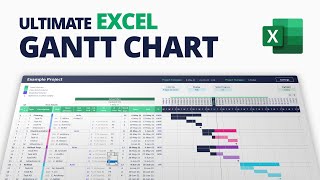
Ultimate Excel Gantt Chart with Dependency Engine
The Office Lab

The Excel Gantt Chart That Replaces Project Tools
MyOnlineTrainingHub

Create a Gantt Chart in Excel Like Microsoft Project
MyExcelOnline.com

Make This Awesome Gantt Chart in Excel
Kenji Explains
Frequently asked questions
Yes, anything from Excel 2016 onwards. The template uses standard conditional formatting and WORKDAY formulas that have been in Excel since 2010. If you are still on Excel 2007, the formula syntax is the same but you may need to re-create the conditional formatting rules manually.
Yes for editing. No for viewing. You can share the read-only link with a customer and they can open it on a phone or laptop without logging in. To make your own editable copy, you need a free Google account.
The default print layout fits a 30-day window on a single A4 landscape page. For longer jobs, the print area splits into multiple pages. Use File > Print > Fit to width in Sheets, or set the print scaling to "Fit all columns on one page" in Excel.
Export as PDF. In Sheets, File > Download > PDF, set the orientation to landscape and "Fit to width". Email the PDF or print it. Most customers prefer the PDF anyway. They can open it on a phone without faffing about with a Google account.
The default grid is one column per day. For hour-by-hour jobs like boiler swaps or commercial out-of-hours work, use the small-job tab in the template. It is the same logic but with one column per hour and a five-task limit, which is usually all a one-day job needs.
One file per job is the cleanest way to run it. For a high-level view across all your current jobs, build a second master spreadsheet with one row per job showing the start, end, and percentage complete from each job file. Use the IMPORTRANGE function in Sheets, or a simple link in Excel, to pull those numbers in automatically.
For jobs up to about 20 weeks and 10 trades, yes. Above that, you need proper software with resource levelling, critical path analysis, and cost loading. Buildertrend, Procore, and BuildBook all start where this template stops. But most small UK contractors never need to leave the spreadsheet.
The full set is in the Templates and Resources category. Most-used: the VAT-ready invoice template, the job estimate spreadsheet, and the 3-month cash flow forecast.
Key Takeaways
- A printed timeline turns "the builder who said three weeks" into "the contractor with a programme". Customers respond differently to a written schedule.
- Five columns is enough: task, trade, start date, duration, finish date. Everything else is dressing.
- The gaps between tasks matter more than the tasks themselves. Plaster drying, screed curing, materials lead times: put them on the chart.
- Add 20% to every duration the first time you use the template. Tighten the estimates as you build your own job-by-job baseline.
- Update progress every Friday. It takes four minutes and gives you the answer to "are we on track" without thinking.
- For jobs beyond 20 weeks, graduate to proper construction software. For everything smaller, a spreadsheet is enough.