Golden thread made simple: a practical setup for small contractors
Jump To...
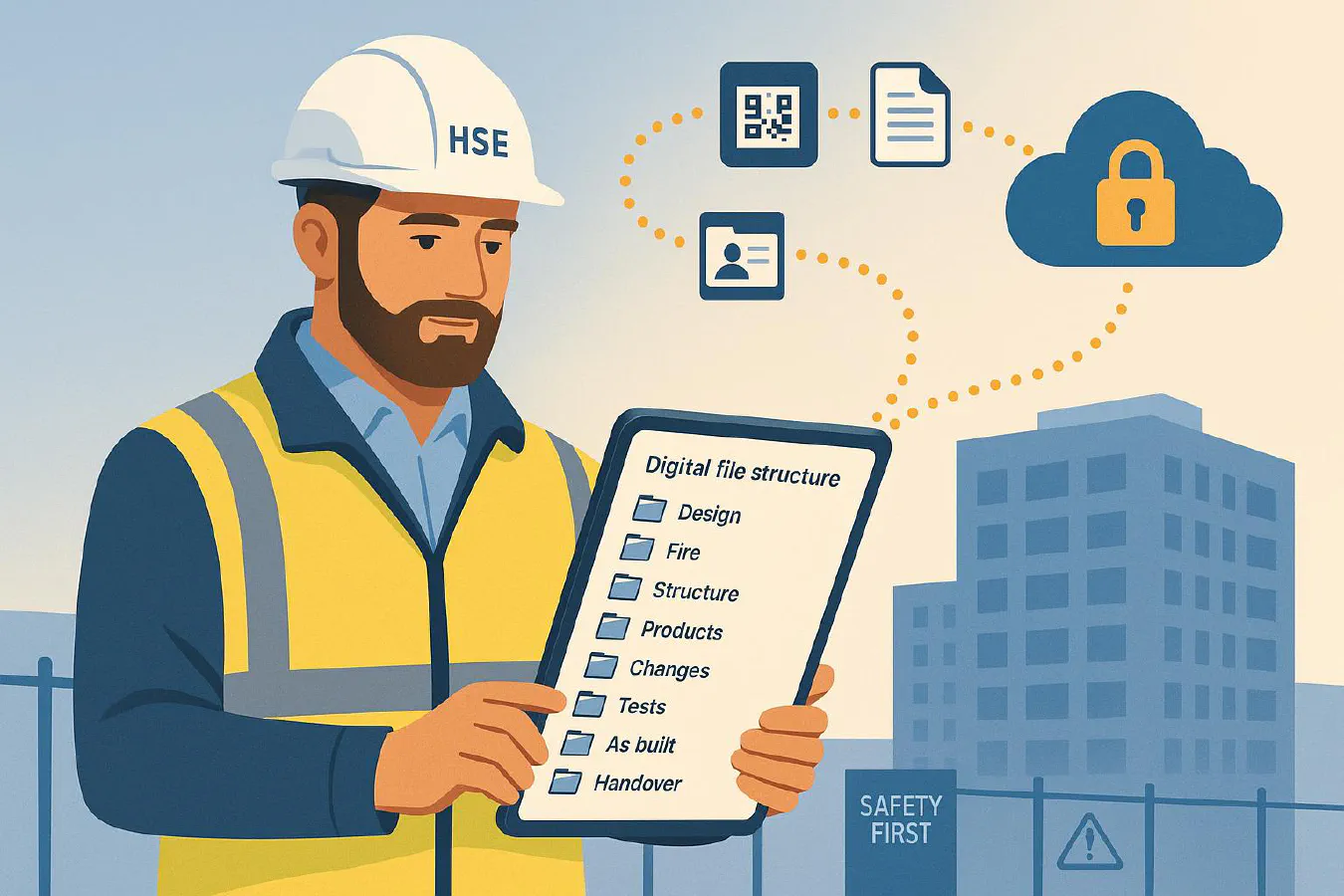
Site manager holding a tablet showing a clean digital file structure flowing into a secure cloud — the golden thread
Contents
- Quick answer
- Who this is for
- What the golden thread actually is
- The minimal tool stack that works
- Step-by-step: implement in a week
- File naming that passes sniff tests
- Capture the right evidence on site
- Share safely with clients and building control
- What good looks like: screenshots and flow
- FAQs
Quick answer
You don’t need expensive software to start the golden thread. For most small UK contractors, a structured shared drive, clear file naming, and a simple capture routine will get you 80 percent there. Use Google Drive or Microsoft SharePoint, a QR code for jobs/areas, and a consistent photo and voice-note workflow. Map your folders to the categories building control and the HSE expect.
Who this is for
- Principal contractors and specialists working on residential mid‑rise jobs
- Anyone who needs to hand over a clean, auditable pack without hiring a BIM manager
- Teams already using WhatsApp and Drive/SharePoint and want a tidy, compliant process
What the golden thread actually is
The golden thread is a digital, living record of a building so dutyholders can keep people safe. It’s required for higher‑risk buildings under the Building Safety Act (typically buildings with at least two residential units, 18 metres tall or 7+ storeys) and recommended as good practice elsewhere. In 2026, expect the requirements to stay tight: the Accountable Person is responsible for coordinating and keeping it updated with accurate, accessible information. Useful explainers: GOV.UK guidance and the HSE’s page above. Build UK also has a concise overview PDF worth bookmarking: Golden Thread — An Overview.
The minimal tool stack that works
- Storage: Google Drive or Microsoft SharePoint (shared drive with permissions)
- Capture: phone camera for photos/video, voice notes, QR scanner
- IDs: QR codes for zones/units/plant that link to the right folder
- Formats: PDF for formal packs, native files for working drafts
- Optional: a simple site diary process if you want automated daily logs. See our guide: Build an AI site diary from photos and voice notes
Step-by-step: implement in a week
- Create the folder skeleton in Drive/SharePoint
- 00 Admin
- 10 Design intent
- 20 Products and certificates
- 30 Fire safety details
- 40 Structure
- 50 Services (MEP)
- 60 Test and inspection records
- 70 Change control (RFI/VO)
- 80 As‑built drawings and models
- 90 Handover and O&M
- Set permissions
- Everyone can add to Photos Incoming and Voice Notes Incoming
- Only PM/QS can move files into final folders
- Generate QR tags
- Create a QR for each unit/zone/plant item that links to that zone’s Photos Incoming folder
- Print and stick near plant rooms, risers and key doors
- Teach the capture routine
- Photos: always include context, close‑up, label/serial, and a wide angle. Follow the 6 photo protocol
- Voice notes: 20–40 seconds, say date, location, what changed, who approved
- Snags: record a quick walkthrough then convert to a list. See One‑take snagging
- Daily triage (10 minutes)
- Move yesterday’s uploads from Incoming into the correct folder
- Rename using the convention below
- Flag anything that needs a designer/PC sign‑off
- Weekly health‑check
- Export a PDF pack from “60 Test and inspection records” and “70 Change control” for the client meeting
- Log decisions; keep a two‑line summary at the top of each folder
File naming that passes sniff tests
Use a light version of ISO 19650 so files are sortable and self‑explaining:
PROJECT‑ORIGINATOR‑ZONE‑TYPE‑DISCIPLINE‑NNNN.ext
- PROJECT: short code, e.g., MK‑24
- ORIGINATOR: your company code, e.g., ACME
- ZONE: building/level/flat, e.g., B01‑L02‑U07
- TYPE: DRW, PHOTO, CERT, TEST, RFI, VO, OMI
- DISCIPLINE: A, S, M, E, F, Q, PM
- NNNN: sequential number 0001, 0002
Examples:
- MK‑24‑ACME‑B01‑L02‑U07‑PHOTO‑M‑0012.jpg
- MK‑24‑ACME‑B01‑TEST‑F‑0044.pdf
Helpful references if you want the full detail: ISO 19650 file naming overview and UK Annex example.
Capture the right evidence on site
What to capture as you go:
- Fire stopping: before/after, label of product, installer, location marker
- Structural openings: lintel size, fixings, photos pre‑cover‑up
- Services: first fix routes, isolation points, test sheets, calibration certs
- Product data: DoPs, CE/UKCA, warranties, O&M sheets
- Changes: RFIs, variation orders, design markups
Related deep dives:
Share safely with clients and building control
- Use view‑only links for working folders; share PDF packs for milestones
- Keep a Distribution log.txt listing who saw what and when
- For higher‑risk buildings, align to the Building Safety Regulator guidance: Keeping information about a higher‑risk building
What good looks like: screenshots and flow
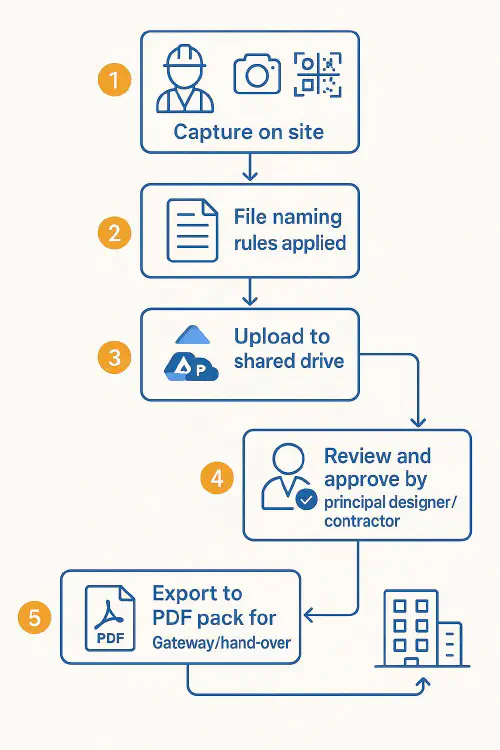
Simple flow showing capture, file naming, upload, review, PDF export and live record update
Tip: keep a single README.md in the project root that explains your folder codes and who approves what.
FAQs
Does the golden thread apply to every job?
Legally it applies to higher‑risk buildings in England. It’s still smart practice on other jobs and helps closeout.
Do I need a specialist platform?
Not to get started. Drive/SharePoint with discipline works. If you grow into a platform later, you can migrate a tidy structure.
How does this differ from the Health and Safety File?
The golden thread is broader and live. The H&S File is one part of it; golden thread spans design, construction and occupation.
How often should we update?
Daily capture, daily triage, weekly PDF export and review.
What about data security and resident access?
Restrict permissions on personal data. Share resident‑facing packs separately. Follow HSE and GOV.UK guidance above.
Ready to Transform Your Business?
Turn every engineer into your best engineer and solve recruitment bottlenecks
Join the TrainAR Waitlist