
Quick Answer
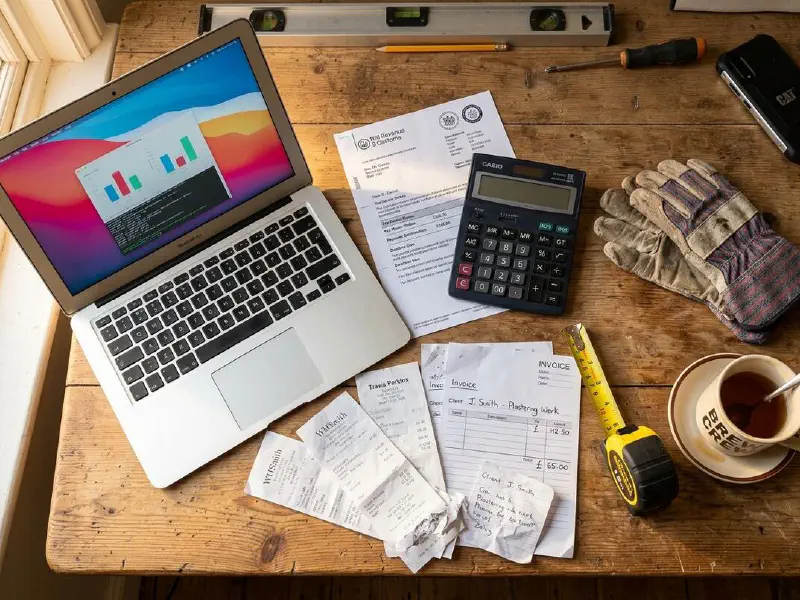
You photograph a receipt on your phone, drop it in a shared Google Drive folder, and a Make.com scenario does the rest. It runs OCR on the image, uses an AI module to pull out the supplier, total, VAT, and a sensible expense category, then creates a bank transaction or a draft bill in Xero with the original photo attached. The free Make plan gives you 1,000 operations a month, which covers around 250 receipts. Most trades sit under that comfortably. Build it once, and your shoebox becomes a clean digital record ready for MTD.
Table of Contents
- Why this is worth two hours of your time
- What you will build, end to end
- Before you start, checklist
- Step 1: set up the trigger from your phone
- Step 2: OCR and AI categorisation
- Step 3: filing into Xero correctly
- Edge cases, errors, and what breaks
- The cost and operations math
- Where this sits with MTD from April 2026
- Should you just use Hubdoc instead?
- What tradespeople are saying
- Recommended videos
- Frequently asked questions
- My verdict
 Make.com
 Xero
Xero HMRC, MTD
Why this is worth two hours of your time

The receipts pile up. Toolstation in the morning, Howdens at lunch, Wickes on the way home. By the end of a busy month, a sole trader has around fifty bits of curling thermal paper in the van, and a partner or accountant losing patience.
I ran a heating and plumbing firm for years before I built any of this kit. Receipts were the worst part of running the business. Not because they were hard to handle, but because they came in slow drips and got handled at the wrong time, usually at 11pm on a Sunday once a quarter. By then half had faded. Some were missing. The categorisation was guesswork.
The fix is not another app to download. It is a small automation that sits between your phone and Xero, doing three jobs for you: read the receipt, classify the spend, file it. Once you build it, you stop thinking about it. You take the photo, the receipt is done.
What it actually saves you
Two to three hours of admin a month for a busy sole trader. More if you currently dump everything on your accountant, who will charge you to do this work badly. The bigger win is the digital trail itself. You have a date-stamped photo, a structured record, and a draft transaction in Xero, all without manual entry.
What you will build, end to end
The scenario has five modules. None of them require code.
- Trigger: Google Drive watches a folder called /Receipts/Inbox. The phone uploads to it.
- OCR: a vision-capable module reads the image and returns structured text.
- AI parse and categorise: a second AI step turns that text into clean fields. Supplier, date, gross total, VAT, suggested expense category.
- Xero: create a bank transaction or a draft bill, depending on how you paid.
- File and notify: move the photo into a dated subfolder, attach it to the Xero record, send you a Telegram or WhatsApp confirmation.
That is the whole shape. Most receipts take four to five Make operations from snap to filed. On the free plan you can run that loop a few hundred times a month before you hit the ceiling.
Why Make over Zapier for this
Zapier counts every step as a task. The same receipt runs at five tasks. Make counts operations, which is similar, but Make is roughly an order of magnitude cheaper at the volumes we are talking about. UK reviewers on Trustpilot put it bluntly: 10,000 operations on Make Core costs about £8.50 a month, versus £100-plus on a comparable Zapier tier. For a sole trader, that maths is straightforward.
Before you start, checklist

You need five things before you open Make. Get these set up first, in this order, or you will burn an evening tabbing between sign-up pages.
- A Xero subscription, any plan. Even the Starter plan supports the same Make modules. Pricing in the UK starts around £15 a month and rises with features. The integration does not depend on tier.
- A Google Workspace or personal Google account. You only need Google Drive for the inbox folder. The folder will live in My Drive.
- A free Make account. Sign up at make.com. Free plan is fine to start. You get 1,000 operations a month, two active scenarios, and the 15-minute polling interval.
- An OpenAI or Anthropic API key. For the AI categorisation step. Pay-as-you-go, no subscription required. Expect to spend pennies per month at trades volumes.
- A consistent way to photograph receipts. Same lighting if you can, flat surface, the whole receipt visible. The OCR is good, but it is not magic. Garbage in, garbage out.
Do not skip the photography habit
I have watched plumbers automate the whole pipeline and then sabotage it by photographing receipts in their lap on a bumpy road. OCR confidence drops fast on blurry images. Five seconds against the dashboard mat is the difference between a clean automation and a manual fix-up later.
Step 1: set up the trigger from your phone
The trigger is the simple part. Make.com watches a Google Drive folder. Anything new shows up, the scenario fires.
- In Google Drive on the web, create a folder called Receipts, and a subfolder inside called Inbox. You will use the Inbox folder as the trigger watch path.
- On your phone, install the Google Drive app and pin that Inbox folder as a shortcut. Some tradespeople prefer the Files app on iOS pointing at the same folder, which works the same way.
- Snap a test receipt with your phone camera, then use the share sheet to upload it into Inbox. Do not bother renaming. Make will handle that.
- In Make, create a new scenario. Add a Google Drive module: Watch files in a folder. Point it at Inbox. Set it to return files only, not folders. Tick the trigger to fire on new files only.
- Set the schedule to every 15 minutes on the free tier, or every minute if you upgrade to Core. Most trades do not need real-time. By the time you have driven home, the receipts are filed.
Run the scenario once. The test receipt should pull through, with the file ID and download URL available to the next module. If it does not, the most common cause is that the Drive module is pointed at the wrong folder. Check the path on the right-hand side of the module config.
Step 2: OCR and AI categorisation

This is the step that does the heavy lifting. Two modules, in order.
2a, OCR. Make has several OCR options. Taggun is purpose-built for receipts and is free for low volume, but the simplest path for most trades is to use the OpenAI vision module that reads the image directly and returns structured JSON. That collapses what used to be two separate paid services into one.
Add an OpenAI module: Create a Completion (Prompt) using a vision-capable model. Feed it the file URL from the Drive module. Use a system prompt like this:
The OCR prompt that works
You are reading a UK trades receipt. Return a JSON object with the following keys: supplier, date in YYYY-MM-DD, gross_total, vat_amount, payment_method, line_items as an array. If a field is not visible, return null. Do not include any text outside the JSON. Use British spelling.
2b, AI categorise. Add a second AI module after the OCR step. This one takes the supplier name and the line items and decides on a Xero expense category. The prompt is short: "Given supplier {supplier} and items {items}, return one of: Materials, Fuel and Vehicle, Tools and Equipment, Subcontractor, Office Supplies, Travel and Subsistence. Reply with just the category."
You can do both jobs in one AI call to save operations, but splitting them makes the scenario easier to debug. Trust me on this. The first time the supplier comes back as Toolstation but the category comes back as Office Supplies, you will want to see which step got it wrong.
Step 3: filing into Xero correctly
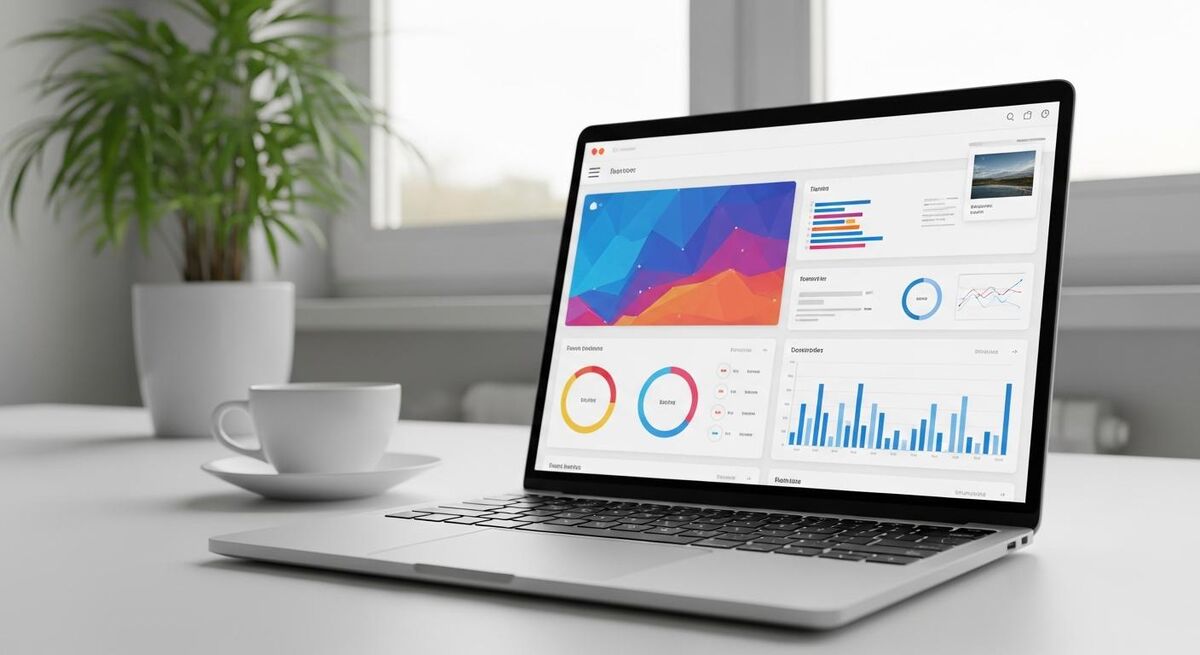
Xero has two modules that matter here, and the right one depends on how you paid.
If you paid by business card or bank transfer: use the Create Bank Transaction module. This creates a Spend Money transaction against your business bank account. When the bank feed brings the matching transaction through, Xero will offer to match them up. One click, reconciled.
If you paid by personal card and need to reimburse yourself: use the Create Bill module. Set the supplier to yourself or to the merchant, with a contact named something obvious like Owner Expenses. The bill sits in Awaiting Approval. You batch-pay them at the end of the month.
Either way, you must attach the original receipt photo. Use the Xero Upload Attachment module. Pass through the file from Drive. This is the bit that satisfies HMRC, your accountant, and your own sanity at year-end. The transaction without the photo is half the job.
- Map the supplier name from the OCR JSON to the Xero contact field. Set the module to find or create contact, so new suppliers get added automatically.
- Map the gross total to the Total field. Map the VAT amount to the Tax field. Use the Tax Rate field to set 20% VAT on Expenses, unless the receipt shows zero-rated or no VAT (Howdens VAT receipts are different to a Toolstation till slip, watch this).
- Map the category from the AI step to the Xero expense account. You will need to set up a mapping table once. I keep mine as a small Make data store.
- Add the attachment module last, pointing at the file ID from the Drive trigger.
Always run new automations as drafts first
For the first two weeks, set the Xero bills to Draft, not Authorised. Review each one in Xero before the end of the week. Once you have run twenty receipts without an issue, flip it to Authorised. Skipping this step is how people end up with three Howdens bills for the same delivery.
Edge cases, errors, and what breaks
No automation is bullet-proof. Here are the failure modes I have personally hit, in roughly the order you will hit them.
The supplier comes back wrong. Independent merchants often have logos and trading names that confuse OCR. Hilton's Plumbing & Heating can come back as Hilton's or HPH. Fix: maintain a small lookup table in Make's data store that maps known fuzzy hits to the right supplier name.
VAT is missing or zero. Some till receipts only show gross. Some merchants only give you a VAT-style invoice on request. If the VAT field is null, route the scenario to create the bill but flag it for manual review by adding a tag.
The image is a blurry mess. AI vision will admit defeat and return mostly nulls. Use a router with a filter: if confidence is low or fields are missing, do not file to Xero. Drop the photo into a Needs Review folder and tell yourself on Telegram. You handle a few of these manually, no big deal.
Duplicate receipts. You photographed the same receipt twice, or someone else also dropped one in the folder. Add a Make data store that records the OCR hash of every processed receipt. Skip duplicates. This caught me out once when my partner photographed a receipt from my van that I had already filed.
Wrong category. The AI will get categories wrong sometimes. Toolstation might come back as Materials when you treat it as Tools and Equipment. Your move is to run the scenario in draft mode for the first month and quietly tweak the AI prompt with a list of "For supplier X, always category Y" rules. After a few weeks, it stabilises.
The 95% rule
If 95% of receipts go through clean and 5% need a manual review, you have won. Anyone who promises 100% is selling. Build the review queue from day one and accept that fraction.
The cost and operations math
The brief from Make is generous. Let me show you how it actually works at trades volume.
| Volume | Operations per month | Make plan | Monthly cost |
|---|---|---|---|
| 30 receipts (light user) | ~150 | Free | £0 |
| 100 receipts (busy sole trader) | ~500 | Free | £0 |
| 250 receipts (multi-engineer) | ~1,250 | Core | £8.50 |
| 600 receipts (small firm) | ~3,000 | Core | £8.50 |
Each receipt typically uses about five operations across the scenario: one Drive trigger, one OCR step, one categorise step, one Xero create, one attachment. If you split OCR and categorise into one AI call, you drop to four operations.
The AI calls themselves cost roughly a third to half a penny per receipt at current OpenAI pricing. So 100 receipts a month is about thirty to fifty pence in AI fees, on top of the Make plan. The cheapest, most reliable bookkeeper you will ever have.
Where this sits with MTD from April 2026
Making Tax Digital for Income Tax begins on 6 April 2026 for sole traders and landlords with qualifying income above £50,000. The threshold drops to £30,000 in April 2027, and £20,000 in April 2028. Quarterly digital updates replace the annual self-assessment.
The key point most articles miss: HMRC does not require you to digitise the paper receipt itself. Your duty is to keep a digital record of the transaction (date, amount, category) in MTD-compatible software. Xero qualifies. The photographed receipt is for your records, not HMRC's.
You still need to keep the originals
HMRC can ask to see the source document for any claimed expense, going back at least five years. The photograph attached to the Xero transaction satisfies this. Throw the paper away once you are confident the photo is filed and legible. Until then, keep the paper.
The first 12 months of MTD include a soft-landing for missed quarterly updates, no penalty points. Beyond that, you accumulate points for late filings, with cash penalties stacking on top of those once a threshold is hit. The whole point of an automation like this is that you are never the person scrambling at quarter-end with a shoebox of receipts. If you are still working out the bigger MTD picture, our Xero MTD setup walkthrough covers the wider account setup.
Should you just use Hubdoc instead?
Fair question. Hubdoc is free with every Xero subscription. It does OCR on receipts and bills, pushes the data into Xero, and has a phone app. For a lot of trades, the honest answer is yes, start with Hubdoc.
Where the Make.com scenario beats it:
- AI categorisation. Hubdoc extracts data, but you still match it to your chart of accounts manually. Make plus AI does that for you.
- Custom routing. Receipts to one folder, supplier invoices to another, fuel receipts auto-tagged for mileage. Hubdoc is fine but rigid.
- Notifications. Telegram, WhatsApp, or email confirmation per receipt. Hubdoc dumps into Xero and goes quiet.
- Edge handling. The Make scenario routes blurry or low-confidence receipts to a review folder. Hubdoc just files them with whatever it managed to read.
If you are a sole trader doing thirty receipts a month and you already pay for Xero, Hubdoc covers it. If you are running a team, want categorisation rules, or want notifications baked in, Make.com is worth the two hours. For more involved AI builds for your business, our piece on building an AI customer service bot in two hours walks through a similar pattern. And if you have not picked your job management software yet, the weekend Tradify setup pairs well with this receipt flow.
What tradespeople are saying
Recommended videos

Make.com Tutorial for Beginners (2026), full guide
The clearest free Make introduction I have found this year. Start here if you have never built a scenario.

Invoice Automation with Xero in Make
Official-style walkthrough of the Xero modules in Make. The principles map directly to receipts.
Automate Xero Invoicing with Make.com
Practical end-to-end build, useful for understanding how Make connects to Xero in production.
Connect Xero Clients to Make.com in 2 Minutes
Short setup walkthrough showing the OAuth handshake between Xero and Make. Watch this once.
Automate bookkeeping in Make.com, inbox receipt extraction
Closer to our use case, inbox-based receipt pull. Same principles apply to a Drive-based trigger.

Snap receipts and save time with Xero Me
If you decide to skip Make and just use the built-in Xero phone capture, this is the official tour.

Starting out with Hubdoc
If you decide Make.com is overkill, Hubdoc covers a lot of this for nothing. Recent tutorial from September 2025.
Hubdoc and Xero, managing your business receipts
Worth watching to see exactly what Hubdoc does, so you can decide whether the Make build is worth it for you.
Frequently asked questions
If the scenario uses four operations per receipt, yes. 250 times 4 equals 1,000, right at the ceiling. Most sole traders sit comfortably under 100 receipts a month and the free tier is generous. If you start brushing the limit, the Core plan at around £8.50 a month gives you ten times the headroom.
HMRC does not formally require the paper, only the data. But until you trust the photo, the OCR, and the attachment in Xero, keep the originals. After a clean month with no manual fixes, you can start binning them. I would still keep VAT receipts above £250 on paper, out of pure caution.
It happens, mostly on faded thermal till receipts. Build a confidence check into the scenario: if the gross total looks implausible (zero, negative, or wildly above the supplier's typical spend), route to the review folder instead of into Xero. You handle a few a month manually, that is fine.
Yes. Make has an Anthropic module. Claude 4.x vision is excellent at structured extraction. Pick whichever API key you already have. The prompt structure is identical.
Add a router after the categorise step. If the category is Fuel and Vehicle, send to a different Xero account and tag the transaction with a mileage tracking note. If you use a mileage tool like Vimcar, you can also push the litres or amount into that tool with another Make module.
Yes, same scenario. The only difference is that limited companies handle director expenses through a separate director's loan or expenses account, and you might add a second route for receipts paid personally that need to be reimbursed. Same Make modules, slightly different Xero mapping.
Two options. Share the Google Drive inbox folder with each engineer so they can all upload to the same place. Or give each engineer their own subfolder, which lets the scenario tag the receipt to a job or person. The second is cleaner once you have more than two people.
The Xero side does, yes. Xero is MTD-compatible software. As long as your transactions land in Xero with date, amount, and category, you are meeting the digital record-keeping rule. The Make scenario is just the conveyor belt that gets receipts from your phone into that record.
My verdict
Build it in one rainy Saturday afternoon
If you already have Xero, the case is straightforward. Two hours of setup buys you back two hours a month, every month, and gives you a cleaner digital record when MTD lands properly. Start on the free Make plan, run everything as drafts for the first fortnight, and tune the categories until the AI gets it right four times out of five. After that, the only time you think about receipts is when you snap one. That is the goal.