

Quick Answer
You do not need to log in and pay suppliers one at a time. Get every bill into Xero, run a single weekly batch payment, and let n8n do the boring bit before you approve: pull the bills that are due, sort them by early-payment discount and cash position, and drop a tidy summary in front of you. You approve once. The money goes out as one BACS file or through Xero Bill Payments. What took a Friday afternoon now takes about ten minutes, and you stop missing 2 to 5 percent discounts because you paid late.
Table of Contents
- Why the weekly payment run eats your Friday
- What automating a payment run actually means
- What you will need before you start
- Step 1: Get your bills into Xero cleanly
- Step 2: Build the weekly batch in Xero
- Step 3: Let n8n prepare the run
- Step 4: Add smart prioritisation and the AI layer
- Step 5: Approve once and pay
- Common mistakes that cost you money
- What tradespeople and bookkeepers are saying
- Recommended videos
- Frequently asked questions
- My verdict
 Xero
Xero n8n
n8nWhy the weekly payment run eats your Friday
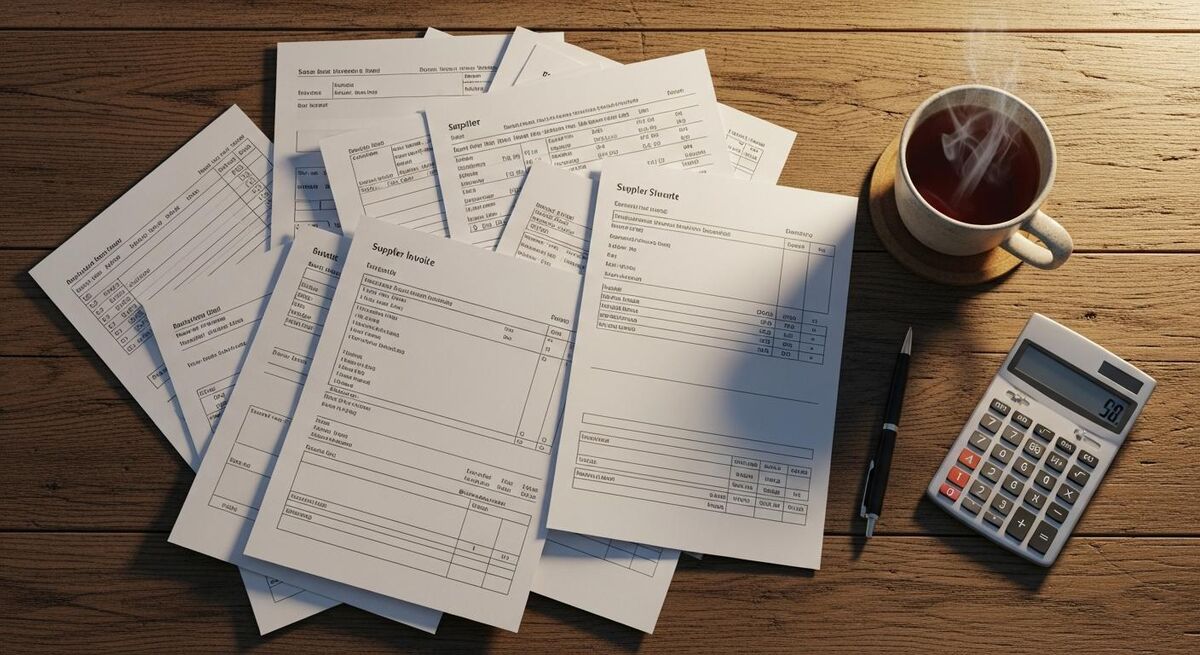
Most trades firms pay their merchants and subcontractors the same way. You wait until Friday, you log in to the bank, and you type in one payment after another. Twenty suppliers means twenty payees, twenty amounts, twenty references. Then you cross-check it against the statements to make sure you have not double paid the plumbers' merchant or forgotten the scaffolder.
It is slow, and slow is the smaller problem. The bigger one is what slow costs you.
The average UK trades business loses around 8 hours a week to repetitive admin, which works out at roughly 384 hours a year, or ten full working weeks. More than three quarters of trades owners do that admin in the evenings, after the tools are down. Paying bills and chasing payments sit right at the top of the list of jobs people want gone.
And when it comes to paying late because you were too busy, there is a real number attached. Suppliers often offer 2 percent off if you pay within 10 days instead of 30. That looks small. Annualised, a 2/10 net 30 discount is worth about 37 percent. Miss it across 20 suppliers, month after month, and you have handed back a proper chunk of margin for no reason other than the run was a faff.
The discount maths people ignore
Take a supplier billing you £4,000 a month on 2/10 net 30 terms. Paying inside 10 days saves £80 a month, or £960 a year, from one supplier. Do it across five merchants and you are looking at real money that never showed up because nobody had time to pay early.
What automating a payment run actually means
Let me be straight about this, because a lot of automation content is not. You are not going to hand n8n your bank login and let a robot fire money out unsupervised. You should not want that, and the safe setups do not work that way.
Here is the honest split of who does what.
Xero holds your bills and runs the actual batch. Its batch payment feature lets you tick every bill that is due, combine them, and produce one payment. You can add up to 200 bills to a single batch. Bills from the same supplier get combined, so each merchant receives one payment with one reference instead of five.
n8n does the preparation and the thinking. It pulls the list of bills due, works out what to pay and in what order, flags the discounts worth grabbing, checks the total against your cash position, and puts a clean summary in front of you. It is the assistant that gets the run ready. It does not move the money on its own.
You approve. Always. One look, one tap.
Know the tool's limits before you build
The built-in n8n Xero node is deliberately narrow. It handles Contacts and Invoices, and that is about it. It does not natively touch Bills or Bank Transactions, which is exactly what a payment run needs. To read bills and payments you use n8n's HTTP Request node to call the full Xero API directly. It is more fiddly, but it is the honest route, and it is the one that actually works.
The payment itself leaves Xero one of two ways. You export a BACS payment file and upload it to your online banking, or you use Xero Bill Payments, which in the UK runs on open banking through Crezco and lets you pay approved bills without leaving Xero. Either way, a human approves before a penny moves.
What you will need before you start
None of this needs a developer. It needs an afternoon and a bit of patience the first time. Here is the kit.
- A Xero subscription with bills: the Ignite plan at £16 a month caps you at 10 bills a month, which is too tight for a real payment run. Grow at £37 or Comprehensive at £50 is the realistic starting point. Prices exclude VAT.
- Supplier bank details in Xero: sort code and account number saved on each supplier's contact record. This is the bit everyone skips, and it is the bit that breaks the batch file. Do it once, properly.
- An n8n account: the Community Edition is free if you self-host it. Cloud starts at $20 a month for 2,500 executions. A weekly run barely dents that.
- A Xero developer app: free to create, gives you the OAuth2 credentials n8n needs to talk to the Xero API.
- Online banking that accepts payment files, or Xero Bill Payments switched on for open-banking payments.
- About two hours for the first build. After that, the run is minutes.
Get your books straight first
Automating a mess just gives you a faster mess. If your bills are not landing in Xero cleanly, sort that before you touch n8n. Our MTD Phase 2 automation playbook covers getting purchase invoices into Xero without hand-typing them.
Step 1: Get your bills into Xero cleanly
A payment run is only as good as the bills behind it. If half your supplier invoices are stuffed in a glovebox, the batch will be wrong, and no amount of automation fixes that.
Get every purchase invoice into Xero as a bill with the right due date, the right amount, and the right supplier. Use Xero's email-to-bills address so merchants' PDFs land automatically, or Hubdoc to capture the paper. Approve them as you go so they show in the Awaiting Payment tab.
One thing that trips construction firms up: if you are dealing with subcontractors, the domestic reverse charge changes how VAT sits on the bill. Get that wrong and your payment amount is wrong. Our reverse charge VAT guide spells out the invoice wording and the Xero setup.
Tag bills by supplier terms
Add a tracking category or a note on each supplier for their payment terms, so 2/10 net 30 suppliers are marked. n8n reads this later to decide what to pay early. Two minutes now, hours saved later.
Step 2: Build the weekly batch in Xero

Do this manually once so you understand what n8n is preparing. In Xero, go to the Purchases menu, select Bills, then the Awaiting Payment tab. Tick every bill you want to pay this week. Click Batch Payment.
Enter the payment date, pick the bank account the money leaves from, and check the total. Xero groups bills from the same supplier into one line, so your builders' merchant gets a single payment even if you had six deliveries that week. Click Make Payment and you land on the batch transaction, where you can export the payment file or print a remittance.
That exported file is the thing you upload to your bank. For many UK banks Xero produces the file in the correct format automatically; for the rest it makes a standard BACS file. Nothing moves until you upload it and authorise it in your banking, so this whole step is safe to practise with.
Run it like this by hand for a week or two. Once the shape is familiar, you automate the preparation around it.
Step 3: Let n8n prepare the run
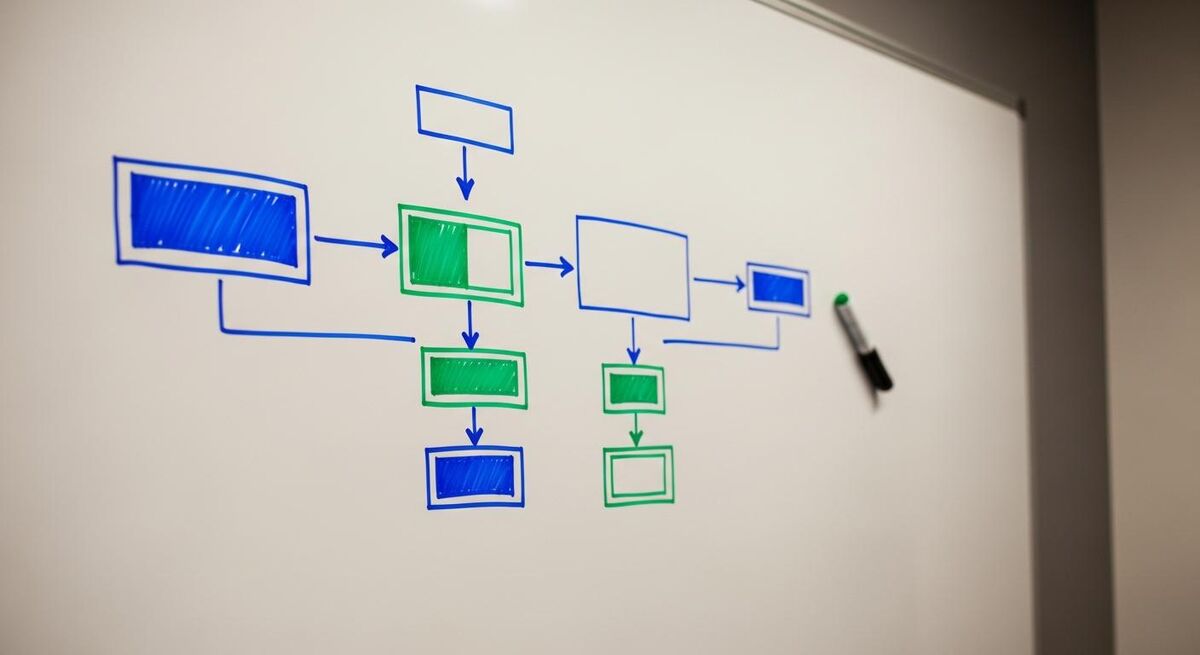
This is where you save the Friday afternoon. The n8n workflow does not pay anything. It gets the run ready and hands it to you.
Build it node by node. You are not writing code, you are dragging boxes and wiring them together.
- Schedule Trigger: set it to run every Thursday evening or Friday morning, whenever you like to do your run.
- HTTP Request to Xero: call the Xero Bills API to fetch every bill with a status of Awaiting Payment and a due date inside your window. Remember, the native Xero node will not do this, so use the HTTP Request node with your OAuth2 credentials and the xero-tenant-id header.
- Code node to sort and score: this is the brain. It ranks the bills, flags early-payment discounts, and totals the run. The snippet below does the heavy lifting.
- Notify node: send yourself the summary. Slack, email, or WhatsApp all work. You get a message that says what is due, what to pay early, and the total.
The scoring logic lives in the Code node. Here is a plain version you can paste in and adjust. It marks anything on early-payment terms as priority, then sorts by due date so nothing slips late.
// n8n Code node: score and sort this week's bills
const bills = $input.all().map(item => item.json);

const scored = bills.map(b => {
  const dueInDays = Math.round(
    (new Date(b.DueDate) - new Date()) / 86400000
  );
  const hasDiscount = (b.Reference || '').includes('2/10');
  return {
    supplier: b.Contact.Name,
    amount: b.AmountDue,
    dueInDays: dueInDays,
    payEarly: hasDiscount && dueInDays > 0,
  };
});

// discounts first, then most urgent by due date
scored.sort(function (a, b) {
  return (b.payEarly - a.payEarly) || (a.dueInDays - b.dueInDays);
});

const total = scored.reduce(function (s, b) { return s + b.amount; }, 0);
return [{ json: { total: total, count: scored.length, bills: scored } }];
Executions, not nodes
n8n charges per full workflow run, not per node. A weekly payment-prep run is four executions a month. You will not get near the 2,500 executions on the Starter plan, and on self-hosted Community it costs nothing.
Step 4: Add smart prioritisation and the AI layer

The basic flow pays attention to discounts and due dates. The next step is teaching it to think about your cash.
Add an HTTP Request node that reads your current bank balance from Xero, then feed the bill list and the balance into an AI node. n8n connects to the main models, so you can ask it plainly: here are this week's bills, here is my available cash, which do I pay now to protect the discounts without leaving me short before the next customer payment lands.
The AI does not move money. It gives you a ranked recommendation and a short reason for each call. On a tight week it might say pay the two discount suppliers and the subcontractors now, and hold the merchant invoice that is not due for another fortnight. That is the judgement a good bookkeeper makes, applied every week without you chasing it.
If you want your cash position to be more than a snapshot, pair this with a proper forecast. Our guide to the 90-day rolling cash flow forecast gives the workflow something reliable to reason against.
Keep the AI in an advisory seat
Let the model rank and explain. Do not let it decide the final list on its own, and never wire it straight to a payment. The value is a faster, clearer recommendation. The decision stays with a person, which is also what keeps you the right side of any fraud checks.
Step 5: Approve once and pay

The summary lands in your Slack or inbox. You read it. If it looks right, you approve.
Approval means going into Xero, ticking the recommended bills, and creating the batch payment exactly as in Step 2. Then either export the file and upload it to your bank, or use Xero Bill Payments to send the approved bills over open banking. The difference from before is that all the deciding, sorting, and discount-catching is already done. You are checking one total instead of building the run from scratch.
For extra safety on bigger runs, set a rule: any batch over a threshold you choose, say £10,000, needs a second person to release it in the bank. n8n can flag those in the summary so nothing large goes out on one signature.
Protect the run from fraud
Automated preparation makes you faster, and fast is where invoice fraud slips through. Before any run, verify new supplier bank details by phone using a number you already hold, never one from the invoice. Keep dual authorisation on large batches. The automation should make you quicker to pay the right people, not quicker to pay a fraudster.
Common mistakes that cost you money
A few things go wrong the first time. All of them are avoidable.
- Missing supplier bank details: the batch file fails or pays the wrong account. Fill in sort code and account number on every contact before you start.
- Trying to force it through the native Xero node: it does not do Bills. You will go round in circles. Use the HTTP Request node from the off.
- Automating a messy ledger: if bills are missing or duplicated in Xero, the run is wrong. Clean books first.
- Letting the automation pay: keep a person on the approval every single time. No exceptions.
- Ignoring the reverse charge: on construction subcontractor bills, wrong VAT means wrong payments. Check the treatment before it hits the batch.
- Chasing discounts you cannot afford: paying early is only smart if it does not leave you short. That is why the cash-position step matters.
If your suppliers include CIS subcontractors, the deduction has to be right before you pay, not after. Our CIS guide covers getting the deduction and the statement right so the payment run is clean. And if you want a monthly view of where the money went, Claude Cowork for management accounts turns your Xero exports into a proper pack.
What tradespeople and bookkeepers are saying
Recommended videos
How to create a batch payment file in Xero (pay multiple bills)
Xero Accounting Software

How to Pay Multiple Suppliers by Creating Batch Payments with Xero
Link HQ

How to Manage Bills and Payments in Xero (Step-by-Step Tutorial)
I Count Beans Accountants & Bookkeepers

How To Use Xero For Accounts Payable (Best Method)
Chris Tech Guide

How to Connect Xero to n8n, Step by Step
The West Reviews
I Fully Automated Xero Multi-Client Bookkeeping (in n8n)
Kris Turk

Accounts Payable Automation for Xero
Rillion
Frequently asked questions
No, and you should not want it to. n8n prepares the run: it reads the bills, sorts them, and hands you a summary. A person approves, and the money goes out through Xero's batch payment or Xero Bill Payments. Keeping a human on the approval is what keeps you safe.
The native Xero node only covers Contacts and Invoices. It does not handle Bills or Bank Transactions, which is what a payment run needs. You use n8n's HTTP Request node to call the full Xero API instead. It takes a bit more setup, but it is the route that works.
Xero Grow is £37 a month and Comprehensive is £50, both excluding VAT. n8n is free on self-hosted Community, or $20 a month on Cloud Starter. A weekly run is four executions a month, so the automation itself costs next to nothing.
Xero lets you add up to 200 bills to a single batch payment. Bills from the same supplier are combined into one payment with one reference, so a busy merchant account still shows as a single line.
It is safer than a rushed manual run if you keep the controls. Verify new supplier bank details by phone using a number you already hold. Keep dual authorisation on large batches. The automation should make you quicker to pay the right people, not quicker to pay a fraudster.
Mostly no. You drag and connect nodes. The one exception is a short Code node that sorts the bills, and you can paste the example in this guide and tweak the numbers. If you can follow a wiring diagram, you can build this.
Get the CIS deduction right in Xero before the bill enters the batch, so the payment reflects the amount after deduction. Our CIS guide covers the deduction and the statement. Do not try to fix it after the money has gone.
My verdict
My Verdict
This is one of the easier automation wins for a trades business, and one of the few that pays for itself in a fortnight. You are not chasing a shiny robot that pays your bills. You are taking a slow, error-prone Friday job and getting a good assistant to do the preparation, so you approve one clean run instead of typing twenty payments. The technology has a job, which is to extend what one person can get through, not replace the person. Get your bills into Xero cleanly, learn the batch payment by hand, then let n8n do the sorting and the discount-catching. Keep a human on the approval, always. Do that and you get your Friday back, and you stop handing suppliers money you did not need to spend.
Best for: firms paying 15 or more suppliers a month
Time saved: a 3 to 5 hour run down to about 10 minutes
Money saved: 2 to 5 percent on every discount you now catch
Setup time: about two hours once, then minutes a week