

Quick Answer
Powered Now's Xero connector pushes contacts, invoices, credit notes, and supplier invoices from Powered Now into Xero, and runs two-way sync on payments so a bank-feed match in Xero closes the invoice in Powered Now. Get there in seven steps: pick the Professional or Premium plan, switch on CIS and VAT in Xero, connect via Settings, map your tax rates, set the two payment toggles, test with one job, and then turn on Gas Safe and electrical certificates so the cert sits next to the invoice in the customer record. Plan on an hour with a brew if your books are tidy. Two if your account codes need a sort-out first.
Table of contents
- Why this integration earns its keep
- What you need before you start
- Step 1: Pick the right Powered Now plan
- Step 2: Pre-flight checks in Xero (CIS, VAT, accounts)
- Step 3: Connect Powered Now to Xero
- Step 4: Map tax rates and account codes
- Step 5: Configure the two payment sync toggles
- Step 6: Run a test invoice end-to-end
- Step 7: Turn on Gas Safe and electrical certificates
- Step 8: The daily workflow once it's running
- Common mistakes to avoid
- What tradespeople are saying
- Recommended videos
- Frequently asked questions
- My verdict
 Powered Now
 Xero
Xero HMRC
HMRCWhy this integration earns its keep

The reason this connector matters is not the sync itself. It is what stops happening once it is on. The invoice you raised at the kitchen table no longer needs typing into Xero on Sunday. The CIS deduction on a 20 percent subcontractor payment is calculated once, in Xero, and the figure on the customer invoice in Powered Now matches the figure on the CIS return. The boiler service certificate sits next to the invoice in the customer record instead of in a separate folder somebody has to find at the next service.
For a UK gas engineer or plumber running a single van or a small team, this is the difference between two systems that fight each other and one workflow where the field side and the back office actually agree on the numbers. Powered Now publishes a 4.5 Trustpilot rating from over 520 UK reviewers, and most of the five-star reviews say the same two things: invoices go out faster, and the evening paperwork shrinks.
Xero brings the other half. It is the UK accounting platform that calculates CIS deductions automatically the moment you raise a subcontractor invoice, and from 6 April 2026 it is the system that will be filing monthly CIS nil returns for you under the new rules. Pair the two and the back office stops being a person. It becomes a process.
What you need before you start
You need four things in place. Get these sorted now and the rest is clicking through screens.
- A Powered Now account on the Professional plan (£32/user/month) or Premium (£40/user/month). Xero integration is not on the entry-level Business plan.
- An active Xero UK subscription. Any paid Xero UK plan supports the connector. If you handle CIS, make sure CIS is switched on in Xero's organisation settings before you connect.
- Your chart of accounts in Xero finalised. Not perfect, just finalised. Labour income, materials income, expense codes for fuel, tools, materials. The connector posts straight to these codes, so renaming them later means rebuilding the mapping.
- An hour of uninterrupted time and a cup of tea. Maybe two if you have not configured CIS or VAT in Xero before. Do this in the morning when the brain works, not at the end of a long day.
Step 1: Pick the right Powered Now plan

Powered Now has three plans. Pricing is per user, billed monthly or annually (annual gives you two months free).
- Business at £28/user/month. Unlimited quotes and invoices, MTD compliance, supplier invoices, project management. Does not include the Xero connector. Skip this one if you have any intention of moving off paper books.
- Professional at £32/user/month. Adds the Xero integration, Forms and Certificates (Gas Safe, electrical, EICR), unlimited text and email, VAT return submission. This is the plan you want for the workflow in this guide.
- Premium at £40/user/month. Adds the customer portal, automatic invoice chasing, drag-and-drop staff scheduling, AI text features. Worth the extra £8 if you are already chasing invoices manually for 30 minutes a week.
For a single-van operation, Professional at £384 a year (£32 x 12) is the entry point. For a three-engineer outfit, you are at £1,152 a year. Compare that to one HMRC penalty for a late CIS return at £100 for one day late, rising to £300 plus 5 percent of the deductions for six months late, and the conversation gets shorter.
Step 2: Pre-flight checks in Xero (CIS, VAT, accounts)
Before the connector touches anything, Xero needs to be tidy. Three checks.
2.1 Switch on CIS if you need it
If you are a CIS contractor or subcontractor, go to Accounting menu > Advanced > Financial settings in Xero. Scroll to Construction Industry Scheme and enable it. Enter your contractor UTR. Choose your CIS deduction rate (20 percent for registered subcontractors, 30 percent for unregistered). Save.
This matters because Xero calculates the deduction the moment a CIS invoice is raised. When Powered Now pushes a sales invoice through, Xero applies the right deduction automatically. Without CIS switched on, the invoice posts but the deduction does not, and you spend Sunday afternoon back-correcting.
2.2 Confirm your VAT setup
Check Accounting > Advanced > Financial settings for your VAT registration number and scheme (standard, flat rate, cash). If you are on the domestic reverse charge for construction services, you will need the reverse charge tax rate set up in Xero. Powered Now's connector reads these rates, so they have to exist on the Xero side first.
2.3 Tidy the chart of accounts
Open Accounting > Chart of accounts. You want, as a minimum:
- One sales code for labour income (commonly 200)
- One sales code for materials passed through to customers
- Expense codes for fuel, tools, materials, training
- If you handle CIS: a CIS Labour income account (Xero adds this automatically when you switch on CIS)
Make a note of the four-digit code for each. The mapping step needs these.
Step 3: Connect Powered Now to Xero

Open Powered Now on the web (not the mobile app, this part is desktop-only). Top right corner, click the cog icon to open Settings.
- From the Settings menu, choose Tax and Accounting > Accounting integrations.
- Find the Xero row in the list of accounting providers. Click the cog opposite Xero.
- Toggle Enable Xero for accounting to on.
- Click Connect to Xero. A pop-up window asks you to log in to your Xero account.
- Sign in with your Xero credentials. If you have two-factor on (you should), enter the code.
- Xero shows a permission screen listing what Powered Now wants to access: contacts, invoices, payments, accounts, tax rates. Read it. Click Allow access.
- The pop-up closes and you are back in Powered Now. You should now see your Xero organisation name displayed next to the Xero logo.
That is the connection. The hard part is what comes next.
Step 4: Map tax rates and account codes
This is where most setup failures actually happen. Skip it and the sync runs, but every invoice lands in the wrong account in Xero and your accountant gets the same January email she always gets.
4.1 Pull the latest tax rates from Xero
Still on the Xero settings page in Powered Now, click Get latest tax rates from Xero. This downloads every tax rate that exists in your Xero file: Standard 20 percent, Zero rate, Exempt, Reverse charge if you have it.
For each Powered Now tax rate listed on the left, choose the matching Xero tax rate from the dropdown on the right. The defaults usually work. The ones to double-check are domestic reverse charge (it must point at the DRC rate, not standard 20 percent) and any zero-rated lines for energy-saving materials.
4.2 Map sales account codes
Below the tax rates, the Sales section shows the categories Powered Now uses for invoices: Labour, Materials, Travel, Call-out, and so on. Each one needs a Xero account code.
Most trades businesses map Labour to 200 (Sales) and create a separate 201 or 202 for Materials. If you are CIS-registered, Labour should go to the CIS Labour income code Xero created automatically. This is the single most important mapping. Get it wrong and every invoice posts to the wrong place.
4.3 Map supplier invoice and expense codes
The Supplier Invoice and Expense sections work the same way. A receipt photographed for a tank of diesel should map to Motor Expenses (449 or similar). A merchant invoice for copper pipe should map to Cost of Goods Sold (310). Use the codes you already use in Xero. Do not invent new ones.
Step 5: Configure the two payment sync toggles
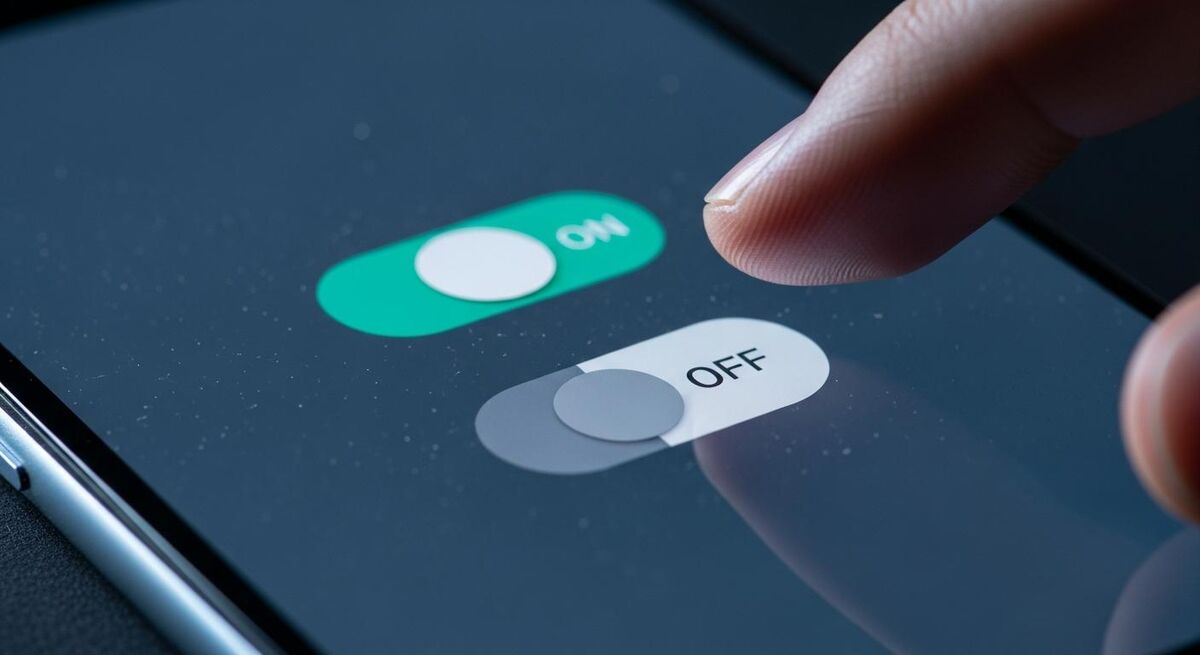
This is the only part of the connector that is truly two-way. Under Xero settings in Powered Now, find the Configure Payments section. There are two toggles.
- Send payments from Powered Now to Xero. Switch this on if you take card payments through Powered Now (via SumUp or Stripe), or you record cash payments in Powered Now while standing in the customer's kitchen.
- Send payments from Xero to Powered Now. Switch this on if you use Xero's bank feeds. When a customer pays into your bank, Xero matches the payment to the invoice, and that match flows back to Powered Now so the invoice shows as Paid in your diary.
For most single-van trades businesses, both toggles should be on. You take some payments on the doorstep (toggle one), and your bank feeds match the rest (toggle two).
What to do when the duplicate alert appears
You get an email titled "Too Many Payments". Open Powered Now, find the flagged invoice in your Diary, look at the payments list, and delete the one that is wrong. The sync resumes on the next cycle.
Step 6: Run a test invoice end-to-end
Do not turn this on for live customers without one full test. Create a test customer in Powered Now called something like "Zzz Test Customer" so it sorts to the bottom of the list. Use a real-looking address but flag it in the notes as test.
- In Powered Now, raise a quote for the test customer. Add one labour line at £200 ex-VAT and one materials line at £50 ex-VAT. Convert it to an invoice.
- Click the Xero sync icon (top right of the invoice). The invoice should sync within a few seconds.
- Open Xero in another tab. Go to Business > Invoices > Awaiting Payment. The invoice should be there.
- Open the invoice in Xero. Check the labour line is in the right account code (Sales or CIS Labour). Check the VAT is right. Check the customer name matches.
- If you have CIS turned on, check the CIS deduction line was added automatically by Xero. The invoice total should be reduced by 20 percent against the labour element only.
- Now test payment sync. Mark the invoice as paid in Xero (use the Receive Payment button). Wait 60 seconds. Go back to Powered Now and refresh. The invoice should now show as Paid.
- Delete the test invoice from both systems, or void it in Xero. Delete the test customer.
If any step fails, do not push live until you understand why. Check the mapping screen. Check the tax rate matching. The most common failure at this stage is the labour line landing in the wrong account because of a mismapping, and it takes thirty seconds to fix.
Step 7: Turn on Gas Safe and electrical certificates
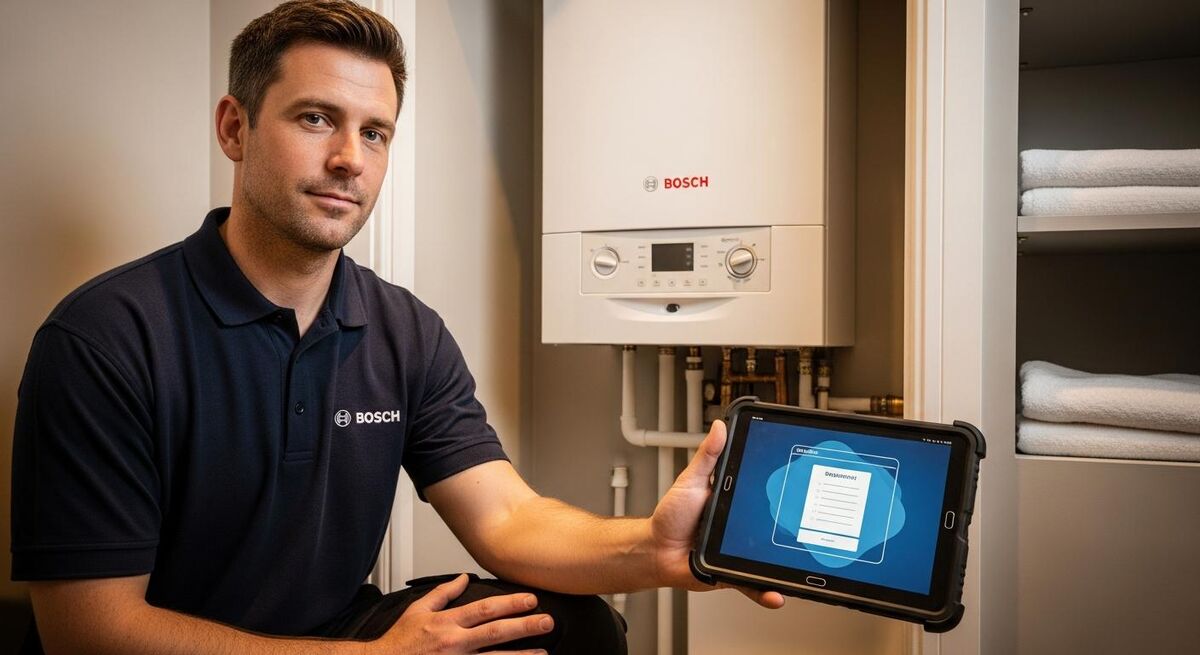
Forms and Certificates is a Professional plan feature. From the cog icon, go to Forms & Certificates > Template Library. Powered Now ships pre-built templates for the certificates UK trades actually need.
For gas engineers, the templates you want are:
- Gas Safe CD/10 Landlord Certificate (CP12)
- Domestic boiler installation certificate (CD/11)
- Domestic gas safety record (CP12)
- Service and commissioning records
For electricians, you want:
- NICEIC Electrical Installation Certificate (EIC)
- Electrical Installation Condition Report (EICR)
- Minor electrical works certificate
- EV charging installation certificate
Activate the templates you need. Open one, check it pulls in your company logo, your Gas Safe registration number or NICEIC enrolment, and your engineer details. Save.
Now when you complete a job, the certificate sits in the same Powered Now job record as the invoice. The customer gets it by email signed digitally. A copy is stored against the customer for the next service. The HMRC inspector or the Gas Safe Register auditor can be shown a complete history in two clicks. None of this paperwork has to be typed into Xero, because it is not financial. But it is permanently linked to the invoice that did go to Xero, so the audit trail holds.
Step 8: The daily workflow once it's running
Once setup is done, the daily rhythm is simple. This is what good looks like.
Morning
Open Powered Now on the phone. Check your diary. Drive to the first job. While the customer is making tea, open the job record. Complete the work.
On the job
Add line items to the invoice as you go: 90-minute call-out, replacement diverter valve, system flush. The price builds itself. If it is a boiler service, complete the digital certificate from the template, take the customer signature on the tablet, save.
Before leaving
Tap Invoice. Show the customer the screen for the figures. Tap Send. The PDF goes by email. The signed certificate goes with it. If they want to pay there and then, take it on the SumUp reader or send a Stripe link. Drive to the next job.
End of day
From the van, tap the Xero sync icon on the day's invoices. Or leave them to the automatic sync that runs through the night. Either works. The bookkeeper finds them in Xero in the morning.
End of week
Five minutes in Xero on a Friday. Check the bank feed has reconciled. Check the CIS Suffered report if you are a subcontractor. Check the VAT screen ticks the right number. Move on. You have a weekend back.
Common mistakes to avoid
Five things that catch people. Avoid these and the rest of the setup is straightforward.
Mistake 1: Connecting before CIS is enabled in Xero
Already covered above. If CIS is off when you connect and you turn it on later, you have to disconnect, fix Xero, and reconnect. Allow the time to do it in order.
Mistake 2: Mapping labour to a generic Sales account when CIS is on
If you are a CIS contractor, Powered Now's Labour category must map to the CIS Labour income code Xero created. If you map it to plain Sales, the deduction will not be applied to invoices coming through from Powered Now. The mapping screen is the one and only place this gets fixed.
Mistake 3: Recording payments in both systems by hand
Pick one. Either Powered Now is the source of truth for payments (record everything there, let the toggle push to Xero) or Xero's bank feed is (record nothing in Powered Now, let the feed match push back). Mixing the two creates the duplicate alerts described above.
Mistake 4: Editing a synced invoice in Powered Now
You cannot. The lock kicks in the moment Xero acknowledges receipt. If you need a change, do it in Xero. If Xero will not let you because the period is closed, raise a credit note in Xero and a new invoice in Powered Now.
Mistake 5: Ignoring the renewal email
Powered Now's annual auto-renewal kicks in at full list price unless you actively re-negotiate. Set a calendar reminder for two weeks out. Either accept it or have the conversation. Avoid the surprise charge.
What tradespeople are saying
The pattern across review platforms is consistent. UK trades praise the speed of invoicing, the certificate management, and the quality of support. The honest criticism is around occasional app stability and the subscription renewal experience. Worth knowing both before you commit.
Recommended videos

Powered Now Integrations: MTD for VAT, SumUp and Xero
Powered Now (official)

Powered Now and Xero: How to use the integration
Powered Now (official)

Powered Now and Xero initial setup walkthrough
Powered Now (official)

Powered Now demo: a beginner field service tutorial
Powered Now (official)

Powered Now new release full demo
Powered Now (official)

Powered Now: the benefits of managing your team
Powered Now (official)
Frequently asked questions
Not entirely. Contacts, invoices, credit notes, supplier invoices, and expenses sync one direction only: Powered Now to Xero. Payments sync both directions if you flip both toggles. So part of the integration is one-way and part is two-way. For most trades businesses, that combination is the right shape.
Xero handles the CIS calculation, not Powered Now. Once you have CIS switched on in Xero and your Powered Now labour category mapped to the CIS Labour income code, every invoice that arrives in Xero from Powered Now gets the 20 or 30 percent deduction applied automatically. You then file your monthly CIS return from Xero direct to HMRC.
Powered Now Professional at £32 per user per month, or Premium at £40. The cheaper Business plan does not include the Xero connector. On the Xero side, any paid UK plan supports the integration.
You can press the sync button manually whenever you want, or let the background sync run automatically. Most one-van operators sync at the end of the day. Larger teams leave it on automatic.
Powered Now locks synced invoices and will not let you edit or delete them. Any change has to be made in Xero. If you need a clean fix and Xero will let you, void and re-raise. If the period is closed, raise a credit note in Xero and a new invoice in Powered Now.
No. The integration syncs invoices created in Powered Now from the point of connection onwards. Old Xero invoices stay in Xero. Old Powered Now invoices can be synced through manually if needed, but they will appear in Xero as new invoices, which can confuse reconciliation. Best practice is to draw a line on a clean accounting period start and only push new work through.
No. The certificate is not financial, so it does not belong in Xero. It stays in Powered Now attached to the customer and the job, and is delivered to the customer by email. The financial side of the same job, the invoice, syncs to Xero. The two are linked by the Powered Now job number, which gives you a clean audit trail.
From 6 April 2026, CIS contractors must file a monthly return even if no subcontractors were paid that month, unless they notify HMRC in advance. Xero will handle the filing as it always has, but you need to remember to either submit or notify. Set a recurring reminder on the 12th of every month, the working day before the CIS deadline.
My verdict
For a UK trades business that already runs Xero (or should be), Powered Now's connector is one of the cleaner integrations on the market. The bit that matters, the payment two-way sync against the bank feed, works well once set up. The certificate management on top is what tips it past being just an invoicing app.
The hidden cost is the plan choice. You cannot do this on Business at £28; you need Professional at £32. The £4 a month is not the issue. The issue is people signing up to Business thinking they will upgrade later, then never doing it and pasting invoices into Xero by hand for a year. Get on Professional from the start. Take the hour to set up the mapping properly. Talk to your accountant first. And remember to renew at a sensible rate.
Pair this with a clean Xero setup for MTD Phase 2, and you have the back office of a one-van business running on twenty minutes a week instead of three hours an evening. That is the trade. Make it.
For deeper automation, look at automating expense receipts through Make.com into Xero, and if you are weighing job management platforms more broadly, our Tradify weekend setup guide covers the closest alternative.