

Quick Answer
BigChange can pull every line of an accepted quote straight into the engineer's digital job sheet, so nothing gets retyped between the office and the van. The setup takes about an afternoon: build a custom worksheet that mirrors your quote fields, link the worksheet to your job type, and switch on the workflow rule that fires when a quote moves to "Accepted". Engineers then arrive with parts, addresses, contacts, and scope already filled in. The result is faster jobs, fewer call-backs, and clean data flowing into invoices and reports without anyone touching a keyboard twice.
Table of Contents
- Why retyping job details is costing you margin
- How the BigChange data flow actually works
- Step 1: Map your quote-to-job-sheet field journey
- Step 2: Build a custom worksheet that mirrors your quote
- Step 3: Configure the workflow trigger from accepted quote
- Step 4: Test the auto-populate flow with a real job
- Step 5: Add AI field suggestions and conditional logic
- Common setup mistakes (and how to avoid them)
- What it costs and whether it's worth it
- What tradespeople are saying
- Recommended videos
- Frequently asked questions
- My verdict
 BigChange JobWatch
Why retyping job details is costing you margin

I came up through gas and heating. Before I built TrainAR I ran an installation company, and I can tell you exactly what kills a healthy gross margin: the quiet hour every morning when one person in the office takes accepted quotes from yesterday and rekeys them into job sheets for today. The same address, the same contact, the same parts list, the same scope of works. Typed once for the quote. Typed again for the job. Typed a third time when the engineer scribbles it onto the back of a worksheet on site.
This is not a small problem. It is a margin leak. Every retype is a chance for a postcode digit to slip, a boiler model to be wrong, or a fixed-price line to be missed when invoicing. Multiply that by 40 jobs a week and you have lost hours of admin time and at least one job where the engineer turned up without the right part.
The fix is straightforward and it has been sitting inside BigChange the whole time. The CRM, the quote, and the job sheet are the same record. You just need to wire them up. This guide walks through the exact setup so an accepted quote populates the engineer's digital job sheet automatically, with the right fields, the right parts, and the right pricing. No retyping, no lost data.
Plumbing, heating, electrical, HVAC, and facilities businesses already on BigChange JobWatch or JobWatch Plus. If you are still evaluating the platform, read this first to understand what the workflow actually delivers, then book a demo with the numbers in mind.
How the BigChange data flow actually works
BigChange is one database with five interfaces. The contact, the quote, the job, the worksheet, the invoice, all live as linked records inside the same system. That linkage is what lets data flow without retyping. When you understand the model, the setup makes sense.
The journey looks like this:
- CRM contact: The customer record holds the site address, billing address, contact people, and any default job preferences.
- Sales opportunity: Your enquiry becomes an opportunity. This is where the scope, parts, and pricing get added.
- Quotation: The opportunity produces a quote document. The line items here are structured data, not free text on a PDF.
- Job: When the quote is accepted, BigChange creates a job linked to the contact and the original quote.
- Worksheet: The custom worksheet attached to that job type pulls in the linked data and adds engineer-facing fields for photos, signatures, readings, and notes.
- Invoice: When the job is complete, the financial lines flow back from the quote and the worksheet straight into the invoice.
The mistake most businesses make is treating each stage as separate. They build quotes in one place, jobs in another, and worksheets as standalone PDFs the engineer fills in by hand. That is a paper process running on a digital platform. You get none of the benefit.
Think of the quote as the single source of truth for what was sold, and the worksheet as the record of what got delivered. The two should share the same fields, so the engineer is confirming and adding, not retyping.
Step 1: Map your quote-to-job-sheet field journey

Before you touch the BigChange admin screens, do this on paper. Take one of your standard jobs, say a boiler install or a fuse board replacement, and list every piece of information that needs to travel from the quote to the engineer's job sheet on the day.
For a typical heating job that will include:
- Customer name, site address, contact phone, access notes
- Boiler make and model, removal details, location in the property
- Flue type, gas pipe run details, condensate route
- Controls package, smart thermostat brand and model
- Power flush included yes or no, magnetic filter spec
- Fixed price for the install, separate price for any chargeable extras
- Warranty registered and benchmark certificate required yes or no
Now do the same for the engineer-only fields. These are the things the engineer adds on site that did not exist at quote stage:
- Photos before, during, after
- Gas tightness test result
- Flue gas analyser readings
- Customer signature on completion
- Any chargeable extras encountered
- Time on site, parts actually used, waste removed
You now have two lists. The first list is what should auto-populate. The second list is what the engineer adds. The worksheet you build in Step 2 will be the combination of both, with the first list locked or pre-filled and the second list as required entries the engineer cannot skip.
People who skip the mapping exercise end up building five different worksheets because they keep finding fields they forgot. One hour of paper mapping saves a full day of rework in the admin screens.
Step 2: Build a custom worksheet that mirrors your quote

In BigChange, custom worksheets are built under Admin then Worksheets then Create New. You name the worksheet, pick the job types it should attach to, and then add fields.
Fields come in types. The ones you will use most:
- Text and number fields: for things like meter readings, flue gas readings, parts used
- Pick list: for boiler make, control type, anything with a fixed set of options
- Photo capture: with watermark for before and after evidence
- Signature capture: for customer sign-off
- Calculated fields: for things like totals or test pass or fail logic
- Pre-populated fields: these are the ones that pull from the linked quote or job
The pre-populated fields are where the auto-population magic happens. When you add a field, you can set its default value to a token that BigChange substitutes at runtime. Common tokens for our use case include the customer name, site address, job number, scope text from the quote, and any line items mapped to specific job templates.
Build the worksheet in the same order the engineer will use it. Pre-populated quote data at the top so the engineer can confirm. Then the engineer-only fields below, grouped into pre-job, on-job, and post-job sections. Mandatory fields get a red asterisk and BigChange will not let the engineer mark the job complete until they are filled.
BigChange lets you design your job sheet output as a Word document with merge fields. If you already have a printable job sheet template, you can import the layout and BigChange will populate the merge fields automatically when the engineer completes the worksheet. This is the fastest way to keep the look you already have.
Mapping quote line items to worksheet fields
For products you fit regularly, set up a job template. The template includes the worksheet, the parts list, the standard time on site, and the default engineer skill requirement. When the quote uses one of these template products, the job inherits the template and the worksheet inherits the parts list as pre-populated rows.
For one-off jobs, the worksheet still pulls customer and address data from the quote, but the parts list is empty for the engineer to add as they go. That is fine. The point is to remove all the data that does not need to be retyped, not to force a template onto every job.
Step 3: Configure the workflow trigger from accepted quote

Now we need the trigger that fires the whole thing. Under Admin then Workflow Rules, create a new rule.
- Trigger event: Quotation Status Changed
- Condition: New Status equals Accepted
- Action 1: Create Job, with job type set to match the worksheet you built in Step 2
- Action 2: Copy quote line items to job parts list
- Action 3: Notify scheduler, send a task to the planner inbox
- Action 4: Copy custom quote fields, mapped to the corresponding worksheet fields
The fourth action is the one most people miss. Custom fields on the quote, things like flue type, control package, access notes, do not flow automatically. You have to map them. In the rule, expand Action 4 and pair each quote field to the worksheet field it should land in. This takes ten minutes and it is the difference between a worksheet that arrives half-empty and one that arrives ready to use.
BigChange does not have a true sandbox, but you can use a test customer record with a "TEST" prefix to dry-run workflow rules without polluting your live data. Build the workflow as inactive, test it twice with a dummy quote, and only activate it for real customers when both tests pass cleanly.
Step 4: Test the auto-populate flow with a real job
Pick a low-stakes job. A boiler service, a minor plumbing repair, something where the worksheet is short and the engineer will not be on site for long. Run it through the full flow end to end.
- Build a quote on the test customer using your standard job type
- Send the quote through the normal customer-facing channel
- Mark the quote Accepted manually in BigChange to trigger the rule
- Check the job was created with the correct job type and worksheet attached
- Open the worksheet on the engineer's tablet and confirm the pre-populated fields look right
- Have the engineer complete the job as if it were a real one
- Check the invoice generated at the end pulls the quoted price plus any engineer-added extras
Things to look for during the test:
- Are all expected fields pre-populated, or are some still blank?
- Does the engineer have to scroll past read-only fields to reach the data entry fields? If so, reorder the layout.
- Are mandatory fields blocking job completion correctly?
- Does the customer signature appear on the auto-generated PDF for the customer?
- Does the invoice pull from the quote total or has it defaulted to time and materials?
The person who schedules jobs in your business will be the first to spot if the workflow is creating problems. Have them shadow the test so they can flag anything that breaks their planning process.
Step 5: Add AI field suggestions and conditional logic

BigChange has added AI-powered field suggestions to its newer worksheet builder. The feature looks at the engineer's recent worksheets and suggests likely values for the next field based on context. For repeatable work like servicing, where the same boiler make and model comes up across estates and landlords, this knocks meaningful time off each job.
To switch it on, open the worksheet in the builder, go to Advanced Settings, and tick AI Field Assist. You can set it per-field so it applies to the things where suggestions are useful (boiler model, control package, gas meter location) and stays off for the things where you do not want suggestions (gas tightness readings, flue gas readings, anything with a compliance implication).
Conditional logic is the other lever. You can configure a worksheet so that selecting a certain value in one field reveals or hides a section below. Example: if the engineer ticks "Boiler not commissioned", the worksheet hides the benchmark certificate section and shows a reason-code dropdown. The job sheet stays clean and the engineer is not scrolling past fields that do not apply.
Build conditional logic last. Get the base worksheet stable first, run it for a couple of weeks, then layer the logic on once you know which combinations come up most often.
Conditional logic means you can run a single boiler worksheet that covers installs, services, repairs, and warranty visits, rather than four separate sheets. Easier to maintain, easier to train new engineers on.
Common setup mistakes (and how to avoid them)
I have watched a few businesses set this up and most make the same handful of mistakes. Catch them early.
Building the worksheet before mapping the fields
You will end up with seventeen iterations of the same worksheet, each one with a new field someone forgot. Do the mapping exercise in Step 1 on paper first. An hour with a pen saves a week with the admin screens.
Skipping the custom field mapping in the workflow rule
If you only set up the basic actions and ignore custom field mapping, the engineer's worksheet will arrive with the customer name and address filled in but everything else blank. The engineer assumes the auto-populate did not work and starts retyping. The whole point of the exercise is lost. Spend the ten minutes on the mapping.
Making everything mandatory
If too many fields are mandatory, engineers find workarounds. They tap dummy values to get past the screen. The data you collect becomes worthless. Make mandatory the things that matter for safety, compliance, and billing, and leave the rest optional. You can always upgrade an optional field to mandatory later.
Not training the scheduler on the new flow
The scheduler is the gatekeeper. If they keep building jobs the old way, manually, the workflow rule never fires and the auto-populate never happens. The scheduler needs to understand that their job is now to confirm and schedule, not to copy and recreate. Half an hour of training, then check in after a week.
If you build the workflow rule wrong, marking a quote as accepted twice (which happens when an admin clicks Accept, then a customer signs the quote in the portal) can create two jobs. Add a condition to the rule that checks whether a job already exists for the quote and skips creation if it does. BigChange support can show you the syntax for this check.
What it costs and whether it's worth it
BigChange is not cheap. Pricing in 2026 sits at £14.95 per vehicle per month for the entry Vehicle Tracking tier, £69.95 per vehicle per month for JobWatch (the main product), and £99.95 per vehicle per month for JobWatch Plus, which adds the more advanced finance and reporting features. The custom worksheets and workflow rules described in this guide are included in JobWatch and JobWatch Plus, but not in the entry Vehicle Tracking tier.
For a five-engineer business, JobWatch comes in at roughly £350 per month, or £4,200 per year. That is the platform cost. There is also an onboarding fee, which BigChange will quote based on the complexity of your setup.
The return on investment depends on how much time you currently spend on quote-to-job-sheet retyping and on chasing missing information. If an admin spends two hours a day on this work, at a fully-loaded cost of £15 per hour, that is £150 a week, or £7,800 a year. Recovering even half of that, and reducing the cost of repeat visits caused by missing info, pays for the platform.
If your business is smaller (two or three engineers), the per-vehicle pricing makes BigChange less attractive than lighter-weight alternatives, and you may want to look at simpler quoting tools instead. We covered a few of those in our guide to automating your quoting with AI.
BigChange contracts typically run for 36 months. If you sign and find the platform is wrong for you, breaking out is expensive. Treat the onboarding period as a hard test. If the workflow described here cannot be made to work within 90 days, escalate before you are too deep into the commitment.
What tradespeople are saying
Recommended videos

BigChange Tutorial for Beginners: All-in-One Job Management Guide
BigChange
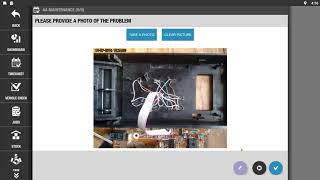
JobWatch app: Job Completion with digital checklist
BigChange

BigChange Feature Focus: Scheduling
BigChange

How To Administrate Your System Like A Pro
BigChange

BigChange: The Complete Job Management Platform
BigChange

BigChange: The all-in-one Job Management System
BigChange
Frequently asked questions
About half a day for the mapping exercise and the first worksheet, then another half day for the workflow rule and testing. Plan a full day end to end. If you have a complex business with multiple job types, expect a couple of days because each job type needs its own worksheet.
No. The admin screens are designed for end users, not developers. If you have used Excel and can map columns to fields, you can build a worksheet. BigChange support will help with the workflow rule syntax if you get stuck.
Then this setup will not work for you yet. The whole flow depends on quotes being structured data inside BigChange. Move your quoting into the platform first. The CRM and Sales Opportunity modules are designed for exactly this.
Yes. BigChange has native integrations with Xero and Sage. Once the worksheet is complete and the job marked finished, the invoice pushes to your accounting platform automatically. We covered the Xero side of this in our AI tools for tradespeople guide.
JobWatch is built offline-first. The pre-populated worksheet downloads to the tablet when the engineer accepts the job for the day. They can complete it underground or in a plant room with no signal, and it syncs back to the office as soon as the device finds a connection.
You decide. Each field can be set to read-only or editable. For things like customer address you want read-only so the engineer cannot accidentally alter the record. For things like quoted boiler model you might want editable, so if you turn up and a different model is needed you can change it on the fly and the change flows back to the office.
Partially. Suggestions based on the engineer's previous worksheets work offline, because that data is cached locally. Suggestions that reference fleet-wide patterns need a connection. In practice, the most useful suggestions (boiler model, control package) work offline.
Commusoft and Joblogic both offer custom worksheets and quote-to-job workflows. The BigChange version is more configurable, but also more time to set up. If you are starting from scratch with a smaller team, the lighter platforms are easier to get running. If you have an established business with complex job types, BigChange has the depth.
My verdict
Worth doing if you are already on BigChange
If you are paying for JobWatch and your team are still retyping job details from quotes onto worksheets, you are leaving the platform's biggest benefit on the table. The setup described in this guide is genuine afternoon's work for someone who has used the admin screens before, and the payback for a five-engineer business is measured in weeks, not years.
Best for: Established trades businesses with 5+ engineers on BigChange JobWatch already
Setup time: Half a day to a full day depending on complexity
Time saved: 1-2 admin hours per day, plus fewer call-backs from missing data
Investment: No new cost if you are already on JobWatch, included in £69.95 per vehicle per month
If you are not on BigChange yet, do not buy the platform just to get this workflow. The auto-populate flow can be built in Commusoft, Joblogic, Workever, and several other UK field service platforms. Pick the one that fits your business size and your team's comfort with software, and apply the same five-step approach. The principles travel.
For the smaller end of the market, our guide to building an AI customer service bot in two hours covers a lighter-weight starting point that can be combined with simpler quoting tools to achieve a similar end result without the BigChange contract length.