Read temporary power meter from a photo: WhatsApp to Google Drive and Sheets (with OCR)
Jump To...

Quick answer
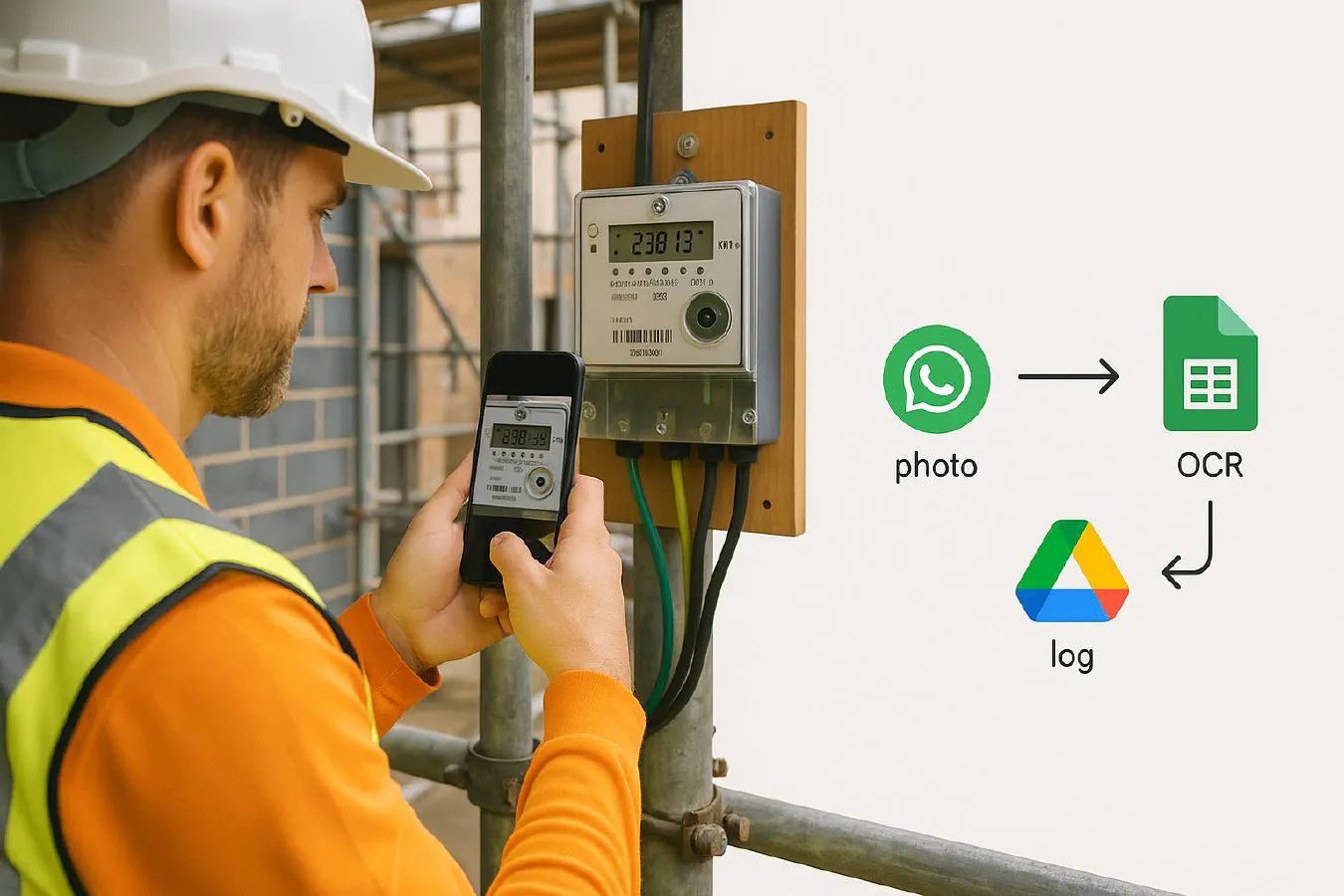
You can let operatives WhatsApp a clear photo of the temporary power meter. An automation saves the image into Google Drive, reads the digits with OCR, and logs the reading into a Google Sheet for billing and audits. If confidence is low or the number drops below the last reading, the bot asks for confirmation.
- Capture: WhatsApp Business API (Twilio, MessageBird or 360dialog)
- Store: Google Drive (job/site folder)
- OCR: Google Cloud Vision Text Detection
- Log: Google Sheets row with timestamp, site code, meter serial, register (e.g., 1.8.0), kWh, link to photo
Who this is for
- Small contractors, temp power users, facilities teams and subcontractors who need monthly or weekly meter readings without sending someone to site with a clipboard.
- Anyone building a Building Safety Act evidence trail and wanting dated photos plus a clean log.
How it works
- Operative sends a meter photo to your WhatsApp Business number, optionally with a caption like: SITE=E14 Docklands | METER=K123456 | REG=1.8.0.
- Your WhatsApp provider triggers a webhook in Make.com or Zapier.
- The image is stored in Google Drive using a consistent path, then Google Cloud Vision extracts the numbers.
- A Google Sheet logs the reading with the photo link. If the OCR confidence is low, the bot replies on WhatsApp asking the user to confirm or resend a clearer photo.
Simple flow
- WhatsApp photo
- Google Drive upload
- OCR reading
- Append to Google Sheets
Step-by-step setup in Make.com
Prerequisites
- WhatsApp Business API number via Twilio or 360dialog
- Google Workspace account
- Google Cloud project with Vision API enabled
- A Google Drive root folder, e.g. Drive/Construction Power
- A Google Sheet called Meter Readings Log
Steps
- Trigger: WhatsApp New Media Message
- Provider: Twilio or 360dialog
- Output fields: media URL, sender, caption, timestamp
- Download media
- HTTP Get a File from media URL
- Upload to Google Drive
- Path: Drive/Construction Power/{{SITE}}/{{METER}}/{{YYYY-MM}}/
- Filename: READING_{{YYYYMMDD-HHMMSS}}_{{phone}}.jpg
- Save fileId to pass to later steps
- OCR with Google Cloud Vision
- Feature: TEXT_DETECTION
- Parse output for the register and the numeric value (4–8 digits). Keep the confidence score
- Build data
- Fields: timestamp_utc, site_code, meter_serial, register_code, reading_kwh, ocr_confidence, whatsapp_number, image_drive_link (fileId URL)
- If caption is missing data, try to detect site/meter from folder path or a small reference list
- Append to Google Sheets
- Sheet: Meter Readings Log
- Add a header row once: Timestamp, Site, Meter Serial, Register, Reading kWh, Confidence, WhatsApp, Drive Link
- Validate and reply on WhatsApp
- Look up the last reading for that meter in the Sheet
- If reading < last or confidence < 0.7, send a WhatsApp reply: “I read 012345 for meter K123456 (1.8.0). Reply Y to confirm or send a clearer photo.”
- If user replies Y, mark reading_source=user_confirmed
- Notify exceptions (optional)
- Send Slack or email if reading jumps more than your threshold (e.g., > 2x last period)
Code-first option (Cloud Run)
If you prefer a small codebase for more control, host a webhook on Cloud Run.
What the service does:
- Receives the WhatsApp webhook JSON, downloads the photo
- Uploads to Drive, calls Vision, parses text
- Checks against last reading in the Sheet
- Writes the new row and replies to the user for low-confidence cases
Minimal pseudocode outline
app.post('/whatsapp-webhook', async (req, res) => {
 const { mediaUrl, from, caption, timestamp } = parseWhatsApp(req.body);
 const image = await fetch(mediaUrl).then(r => r.arrayBuffer());
 const fileId = await drive.upload(image, makePathFrom(caption));
 const vision = await cloudVision.text(fileId);
 const parsed = parseMeterText(vision.text);
 const last = await sheets.getLastReading(parsed.meterSerial, parsed.register);
 const needsConfirm = parsed.conf < 0.7 || parsed.value < last;
 await sheets.append({ timestamp, ...parsed, from, fileId });
 if (needsConfirm) await whatsapp.reply(from, `I read ${parsed.value} for ${parsed.meterSerial} (${parsed.register}). Reply Y to confirm.`);
 res.sendStatus(200);
});
Data model and folder structure
Recommended Google Sheet columns
- Timestamp (UTC and local)
- Site code
- Meter serial
- Register code (1.8.0 import total; 1.8.1 day; 1.8.2 night; 2.8.0 export)
- Reading kWh
- Reading source (ocr, user_confirmed, manual)
- OCR confidence (0–1)
- WhatsApp number
- Drive link
- Notes
Drive structure
- Drive/Construction Power/SITE_CODE/METER_SERIAL/YYYY-MM/
- Keep raw photos immutable. Use Drive permissions, not public links
Quality checks for UK meters
Reduce misreads and get consistent results on UK sites:
- Teach operatives to select the correct register before taking the photo
- Shoot square-on, no glare, fill the frame with the LCD or odometer
- For cycling displays, wait for the exact register screen
- For dial meters, add a text message with the reading as a backup
- Ask for a WhatsApp location share to tag the reading to the site
Useful guidance
- OBIS codes explained: 1.8.0 import, 2.8.0 export, 1.8.1 day, 1.8.2 night
- Time-stamps: phone EXIF plus WhatsApp timestamp; keep both in the log
- Proof for clients: link the Sheet and Drive folder in your monthly application for payment
Costs and limits
- WhatsApp Business API: typically pence per conversation depending on provider
- Make.com or Zapier: plan-based operations pricing
- Google Cloud Vision: pay per image; low cost at small volumes
- Google Drive/Sheets: included with Workspace
Troubleshooting
- Photo is blurry or glare: reply asking for a new shot, remind user to turn off flash
- OCR picks the wrong number: add a rule to ignore numbers with decimal points if your meter should be whole kWh
- Reading lower than last month: flag for review, possible meter rollover or wrong register
- Multiple registers: add a short menu in WhatsApp or use keywords in the caption like REG=1.8.0
Related articles
- Extract data from certificate PDFs straight into a Google Sheets compliance register (no code)
- Subcontractor compliance tracker: free Google Sheets template with QR capture and expiry alerts
- Turn supplier delivery notes and photo PODs into van stock updates automatically (Tradify or Simpro)
FAQ
Is this acceptable for invoicing clients?
Yes, many clients accept dated photo evidence and a consistent log, especially for temporary builders’ supplies. Check your contract requirements and keep the original images versioned in Drive.
What about data protection?
Use a dedicated WhatsApp Business number, restrict Drive access to your team, and include this workflow in your staff privacy notice. Avoid public links.
Do I need a developer?
No. Make.com can handle the full flow. If you’ve higher volumes or complex validation, a small Cloud Run service gives more control.
Ready to Transform Your Business?
Turn every engineer into your best engineer and solve recruitment bottlenecks
Join the TrainAR Waitlist