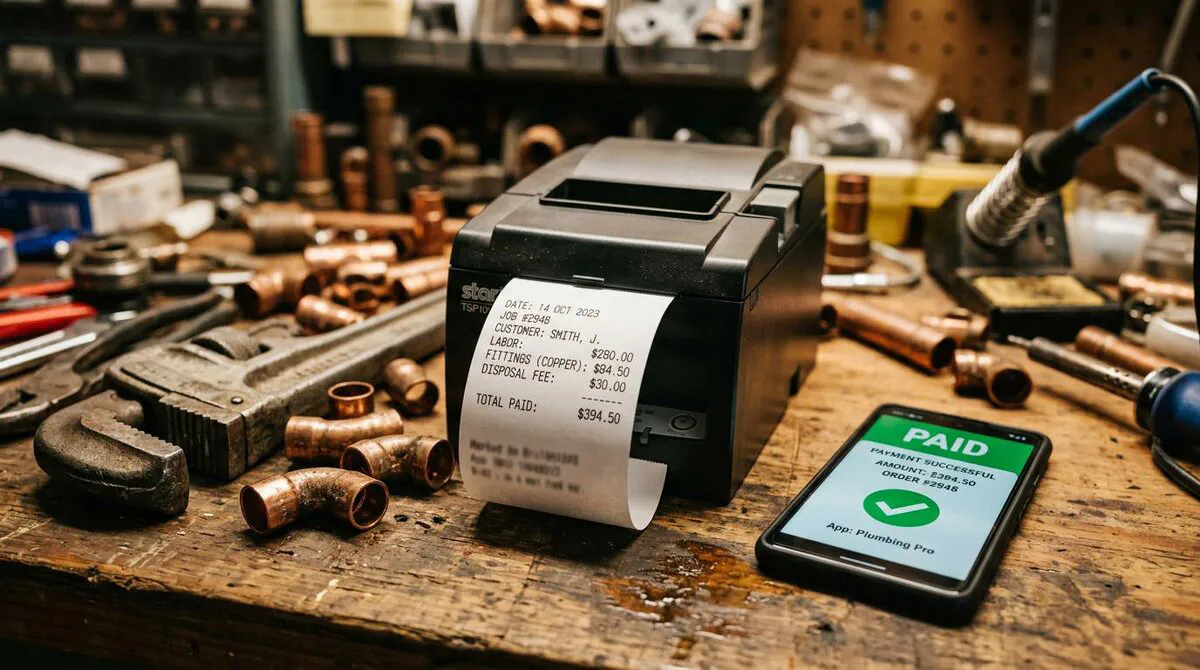
Quick Answer
Connect ServiceM8 to Xero via Make.com using a webhook that fires the moment a job is marked complete. Make fetches the job and client details from ServiceM8, uses GPT-5.2 to generate professional line items, creates or updates the Xero contact, raises an authorised invoice, and emails the client with a payment link, all without you touching a thing. Setup takes around two hours and saves most trades businesses 5 to 8 hours a week in admin.

Table of Contents
Why every trades business should automate invoicing
Most sole traders and small trades businesses lose between five and ten hours a week to invoicing admin. You finish a job, pack up the van, drive home, then spend 45 minutes pulling together notes, typing up a description, creating the invoice in Xero, emailing it across, and hoping the client pays within 30 days. Multiply that by 20 jobs a month and you have a serious problem.
ServiceM8 and Xero are already the go-to combination for UK trades. ServiceM8 handles job scheduling, on-site notes, photos, and client management. Xero handles your accounts, VAT returns, and payment reconciliation. The gap between the two, getting a completed job into an authorised invoice without human intervention, is exactly where Make.com comes in.
This guide builds a single Make.com scenario that does the whole job automatically. The moment a ServiceM8 job status changes to "Work Order - Invoice", a webhook fires, the scenario pulls all the job and client data, uses AI to write the invoice line items, creates the invoice in Xero, and sends the client a branded email with a payment link. You walk away from the job. The invoice sends itself.
 ServiceM8
 Make.com
 Xero
XeroThe numbers make sense
If your billable rate is £50/hour and you save six hours a week, that is £300 worth of time recovered every week, or roughly £15,600 a year. Not sure where your biggest time drains are? Our automation audit playbook helps you identify exactly which tasks to automate first. Make.com's Core plan costs £9/month. The payback period is about 16 hours of saved admin. For a broader look at automation platforms, our n8n automation stack guide covers a free self-hosted alternative with seven ready-made workflows.

What you need before you start
You do not need to be a developer to set this up, but you do need to have a few things in place before you begin. If you need a professional invoice template for ServiceM8, grab our free UK VAT-ready ServiceM8 invoice template before you start.
- ServiceM8 account (any paid plan): The webhook feature is available on all paid ServiceM8 plans. You will need your API credentials from
app.servicem8.com/settings/api. Generate a bearer token and keep it somewhere safe. - Xero account (Starter or above): The free Xero trial includes full API access. Connect your Xero account to Make.com using the built-in OAuth2 connection; no manual API keys needed.
- Make.com account (free tier works to start): The free plan gives you 1,000 operations per month. At one invoice per job, that covers up to 1,000 jobs before you need the Core plan at £9/month. Create your account at make.com.
- OpenAI account (pay-as-you-go): The AI line item generation uses GPT-5.2. Cost is roughly £0.001 per invoice at current pricing. Connect your OpenAI key in Make.com's connections panel.
- Gmail or Google Workspace account: The email step uses Gmail via Google's OAuth2. Any personal Gmail works, but a branded Google Workspace address looks more professional.
No developer required
Make.com uses a visual drag-and-drop interface. All the connections in this scenario are handled through Make's built-in OAuth2 flows: you click "Authorise", log in, and Make does the rest. You will not need to write code or use command-line tools.
The Make.com scenario: all 8 modules explained
The scenario runs in sequence. Each module passes data to the next. If any module fails (bad API response, missing field), Make logs the error and stops the scenario for that run. It does not silently skip or corrupt your data.
ServiceM8 to Xero: Zero-Touch Invoice Pipeline
8 modulesModules in This Scenario
- Webhooks: ServiceM8 Job Completed Webhook Triggers instantly when a ServiceM8 job status changes to complete. Receives the job UUID as the payload.
- HTTP: Fetch Job Details (ServiceM8) Calls the ServiceM8 REST API to retrieve full job details including work description, total value, and linked client UUID.
- HTTP: Fetch Client Details (ServiceM8) Calls the ServiceM8 company endpoint to get the client name, email, phone, and address needed to create the Xero contact.
- OpenAI GPT-5.2: Generate Invoice Line Items Sends the job description and total value to GPT-5.2, which returns a JSON array of professional invoice line items with descriptions, quantities, unit amounts, and account codes.
- JSON: Parse AI Line Items Parses the GPT-5.2 JSON response into a structured array that the Xero module can use directly as line items.
- Xero: Create/Update Contact Creates a new Xero contact for the client using their ServiceM8 details, or updates the existing contact if one already exists with the same name.
- Xero: Create Invoice Creates an authorised ACCREC invoice in Xero linked to the contact, with the AI-generated line items, today's date, and a 14-day payment term.
- Gmail: Email Invoice to Client Sends a branded email to the client with the invoice total, due date, and a direct payment link from Xero. The subject line includes the invoice number and due date.
How to import this scenario into Make
Click "Download Scenario JSON" above to save the blueprint file. Then log in to Make.com, go to Scenarios, and click "Create a new scenario". Click the three-dot menu in the top right and select "Import Blueprint". Upload the JSON file you downloaded, then configure your connections: ServiceM8 API bearer token (HTTP module headers), OpenAI API key, Xero OAuth2, and Gmail OAuth2. Test the scenario by marking a ServiceM8 job complete, then activate it when you are happy with the results.

Step-by-step setup guide
Follow these steps in order. The whole setup should take around two hours, including testing your first live job.
Step 1: Set up the ServiceM8 webhook
Log in to ServiceM8 and go to Settings > API > Webhooks. Click "Add Webhook" and set the trigger to the job object, filtering on the status field. Leave the endpoint URL blank for now. You will paste the Make.com webhook URL here once the scenario is created. Save the webhook configuration.
Step 2: Create the Make.com scenario and connect services
In Make.com, create a new scenario and import the JSON blueprint you downloaded above. Make will ask you to configure four connections. Work through them in order:
- ServiceM8 API: Add your bearer token as a header value in both HTTP modules. Use the format
Bearer your_token_here. - OpenAI: Connect your OpenAI account via the built-in connector. Paste your API key when prompted.
- Xero: Click "Add" next to the Xero connection and follow the OAuth2 flow. Make will redirect you to Xero for authorisation.
- Gmail: Same OAuth2 flow: click "Add", authorise with your Google account, and you are done.
Step 3: Paste the webhook URL into ServiceM8
Once the scenario is saved in Make, click on the Webhooks module (Module 1). Make will display a unique webhook URL for this scenario. Copy it and paste it back into ServiceM8's webhook configuration from Step 1. Save.
Step 4: Configure your business name variable
The email subject line uses a getVariable('business_name') expression. In Make.com, go to Scenario Settings > Variables and add a variable called business_name with your trading name as the value. This is what appears in the email subject line.
Step 5: Test with a real job
In ServiceM8, find a test job (or create a dummy one). Change its status to "Work Order - Invoice". Watch the Make.com scenario run in real time under Scenarios > History. Within a few seconds you should see all 8 modules turn green. Check your Xero account for the new contact and invoice, and check the client email address for the invoice email.
Check your Xero account codes before going live
The GPT-5.2 prompt uses account code 200 for labour and 400 for materials. These are standard codes in a new Xero account. If your chart of accounts uses different codes, update the system prompt in Module 4 before activating the scenario; otherwise invoices will still be created but will be coded incorrectly.

Step 6: Activate the scenario
Once you are happy with the test results, click the toggle in Make.com to activate the scenario. From this point forward, every ServiceM8 job completion triggers the pipeline automatically. You do not need to do anything else.
What happens if a job has no description?
If the work_done_description field in ServiceM8 is empty, GPT-5.2 will still attempt to generate line items based on the job total alone. The result will be generic. To get the best line items, make sure your field staff complete the work description before marking jobs as done. You can enforce this with a ServiceM8 form requirement.
Manual vs automated: the real comparison
Here is what the process looks like before and after this automation. The time difference is significant, but so is the consistency. Manual invoicing depends on your energy levels at the end of a long day. The automation runs identically every time, regardless of whether it is 7am or 11pm. If you prefer Zapier over Make.com, our Zapier for trades guide covers 10 essential zaps that achieve similar results.
| Step | Manual process | With this automation |
|---|---|---|
| Trigger | You remember to do it (or forget) | Fires instantly when job is marked complete |
| Job details | Type from memory or paper notes | Fetched automatically via ServiceM8 API |
| Client details | Look up in ServiceM8, retype into Xero | Fetched and synced automatically |
| Line items | Type each line manually, 10–20 mins | AI-generated in under 10 seconds |
| Invoice creation | Manual entry in Xero, 15–30 mins | Automated, 0 mins |
| Client email | Write email, attach invoice, send, 10 mins | Automated with payment link, 0 mins |
| Errors | Typos, wrong amounts, forgotten invoices | Consistent data direct from source systems |
| Total time per invoice | 45–60 minutes | Under 10 minutes (waiting for API responses) |
Where the time goes every week
Based on a typical sole trader doing 20 jobs a month, here is what the time breakdown looks like before and after automation. The chart shows weekly time spent on each invoicing task.

Tutorials and walkthroughs
These videos cover the tools in this pipeline in more depth. Worth watching before your first setup session.
ServiceM8 connects to Xero
ServiceM8
5:15
Invoice Automation with Xero in Make
Make
5:15

Automated Xero Invoice Processing with OpenAI
Kris Turk
15:37 · 5.6K views
How to create and send invoices in Xero
Xero
6:16 · 2.7K views
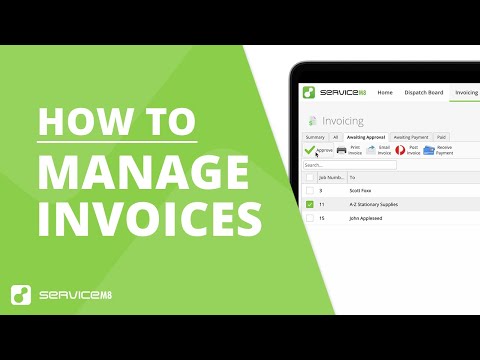
How to invoice on site and in the office
ServiceM8
8:39 · 1.2K views

Send and Track Invoices Automatically in Make.com
Nick Saraev
26:59 · 15K views
What other trades are saying
The ServiceM8 + Xero combination has a strong following among UK tradespeople. Here is what people are saying across Reddit, Instagram, and TikTok about automating the invoicing gap between the two platforms.
Our Verdict
The ServiceM8 + Make.com + Xero pipeline is one of the most practical automations a trades business can build. It solves a real, daily pain point: the gap between finishing a job and getting paid for it, and it does so using tools that are already in most trades businesses' stacks. The two-hour setup investment pays back within the first week of operation.
Best for: Sole traders and small teams doing 10 or more jobs a week who are currently invoicing manually in Xero after the fact.
Time saved: 5 to 8 hours per week for a typical sole trader doing 20 jobs a month. More for larger teams.
Cost to run: Approximately £9 to £14 per month for Make.com Core plus minimal OpenAI costs (under £1/month at 20 jobs). Return on investment is immediate.
Skill level required: No coding needed. If you can follow a recipe, you can set this up. Allow two hours and follow this guide step by step.