Quick Answer
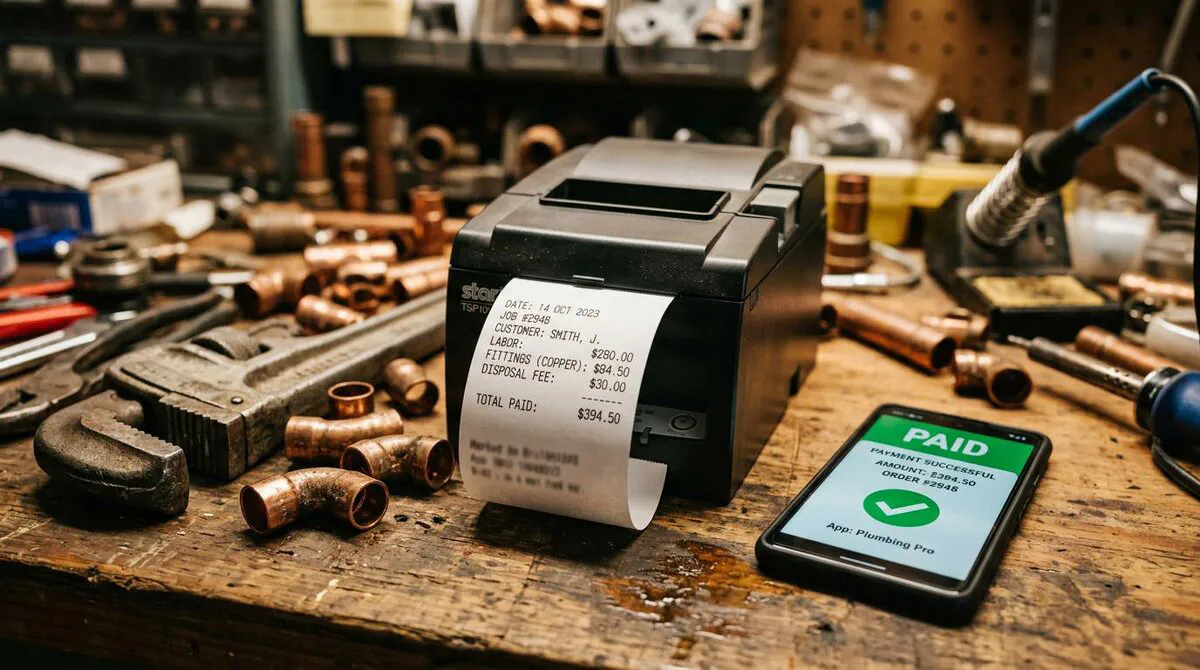
ServiceM8 already has a built-in Xero integration, and for a lot of trades businesses it does a decent job. Contacts sync both ways, payments reconcile, and invoices push across to Xero. By default, invoices land in an "Awaiting Approval" queue, but there is a global setting that auto-approves them so the sync happens automatically when a job is completed. With that turned on and Xero's own invoice emailing configured, the native sync covers most of the basics. Where it falls short is the quality of what gets sent: your field staff's raw job notes become the invoice line items, and there is no branded email with a direct payment link. This guide builds a Make.com automation that adds those missing pieces. The moment a job is marked complete, a webhook fires, Make pulls the job and client data, uses AI to write professional line items, creates the invoice in Xero, and emails the client a payment link. No approval queue, no delay, no forgotten invoices. Setup takes about two hours.
Table of Contents
- Why every UK trades business should automate invoicing
- What ServiceM8's built-in Xero sync does (and where it stops)
- What you need before you start
- The Make.com scenario: all 8 modules explained
- Step-by-step setup guide
- Manual vs native sync vs Make.com: the real comparison
- Where the time goes every week
- My verdict on the zero-touch invoice pipeline
- What other UK trades are saying
- ServiceM8, Xero and Make.com tutorials
- ServiceM8 + Xero + Make.com invoice automation FAQ
Why every UK trades business should automate invoicing
How many invoices did you forget to send last month? If the honest answer is more than zero, you are not alone. As a ServiceM8 Gold Partner, I have worked with hundreds of trades businesses over the years, and this is the single most common pain point I hear: invoicing falls off the radar because you are too busy doing the actual work. The Federation of Small Businesses found that 54% of UK small firms were paid late in just the last three months, and construction is consistently one of the hardest-hit sectors. The average UK small business is sat on more than £21,000 in unpaid invoices at any given time. A big chunk of that delay starts before the invoice even goes out, and that is the bit you can actually fix.
Most sole traders and small trades businesses lose three to five hours a week to invoicing admin when they are doing everything by hand. You finish a job, pack up the van, drive home, then spend 45 minutes pulling together notes, typing up a description, creating the invoice in Xero, emailing it across, and hoping the client pays within 30 days. Multiply that by 20 jobs a month and you have got invoices backing up, cash flow getting tighter, and the whole cycle feeding itself. QuickBooks research on over a thousand UK small businesses found that firms with immediate payment terms see more than double the quarterly sales growth of those offering longer terms. The pattern is straightforward: the faster you follow up with a professional invoice and a payment link, the faster you get paid.
ServiceM8 and Xero are already the go-to combination for UK trades. ServiceM8 handles job scheduling, on-site notes, photos, and client management. Xero handles your accounts, VAT returns, and payment reconciliation. ServiceM8 has a built-in native integration with Xero that handles a lot of the basics, and for many businesses it is a solid starting point. But there is a gap between what the native sync does and what a truly hands-off invoicing pipeline looks like, and bridging that gap between the digital systems and the personal follow-through is exactly what this guide is about.
We start by covering what the native ServiceM8-Xero integration actually does, so you can decide whether the built-in sync is enough for your business. Then we walk through a Make.com scenario that takes it further: automatic invoice creation, AI-written line items, and a branded client email with payment link, all triggered the moment you mark a job complete.
 ServiceM8
 Make.com
 Xero
XeroThe numbers make sense
If your billable rate is £50/hour and you can fill even three extra hours a week with paid work, that is £150 worth of time recovered every week, or roughly £7,800 a year. Not sure where your biggest time drains are? Our automation audit playbook helps you identify exactly which tasks to automate first. Make.com's Core plan costs about £7/month ($9 USD). The payback period is about 16 hours of saved admin. For a broader look at automation platforms, our n8n automation stack guide covers a free self-hosted alternative with seven ready-made workflows.

What ServiceM8's built-in Xero sync does (and where it stops)
Before we get into the Make.com pipeline, it is worth understanding what ServiceM8's native Xero integration already handles. I get asked about this constantly. Someone will come to MCG saying "I need to automate my invoicing" and half the time the answer is "have you actually turned on the built-in Xero sync yet?" For smaller operations, it can be enough on its own.
What the native integration does well
When you connect ServiceM8 to Xero through Settings > ServiceM8 Add-ons, you get a semi-automatic sync that covers the core data types:
- Contacts sync both ways. Existing Xero contacts import into ServiceM8 on connection. New contacts created in either platform sync to the other within about 30 minutes. One caveat: new ServiceM8 contacts only reach Xero when they appear on an approved invoice, not when you first create them.
- Invoices push from ServiceM8 to Xero. When a job is marked complete, ServiceM8 generates an invoice and places it in the Awaiting Approval queue. Once you approve it, the invoice transmits to Xero. If the amount changes in ServiceM8 after approval, the line items re-sync and update in Xero.
- Payments reconcile in both directions. Payments recorded in ServiceM8 push to Xero on invoice approval. Payments entered in Xero sync back to ServiceM8 within about 30 minutes, and once fully paid in Xero the invoice is marked paid in ServiceM8.
- Inventory items import from Xero. Your Xero inventory items populate as "Materials" in ServiceM8, and ongoing changes sync both ways.
- Tax rates import from Xero. All your Xero tax rates come across on connection and stay updated.
You can skip the approval queue entirely
ServiceM8 actually gives you two ways to bypass the Awaiting Approval queue. First, there is an account-level setting at Settings > Invoicing > Xero that lets you send all invoices to Xero as "Approved" by default, so they sync automatically when a job is completed. Second, the iOS app has a per-device auto-approve toggle during job checkout. If you turn on the global setting, the approval bottleneck disappears entirely. I set this up for most of my MCG clients who use the native sync and it works well. The trade-off is that you lose the review step, so whatever your field staff wrote in the job description goes straight to Xero as-is.
Where the native sync falls short (even with auto-approve)
Even with auto-approve turned on, there are gaps in the native integration that become noticeable as your business grows:
- No intelligent line items. Whatever your field staff write in the job description is what appears on the invoice. If they type "fixed boiler, replaced valve, bled rads" that is exactly what your client sees. There is no step to turn shorthand job notes into professional line items with proper account codes.
- No automatic client emails with payment links. The native sync pushes the invoice to Xero, and you can use Xero's own invoice emailing to send it from there. But that is a separate step to configure, and it does not include a branded email with a direct payment link the way the Make.com pipeline does.
- 30-minute sync delays. Contact, payment, and item sync runs on a roughly 30-minute polling cycle. It is not real-time.
- No conditional logic. You cannot route different job types to different Xero accounts, apply different payment terms based on client type, or trigger different follow-up actions based on invoice value.
- Token expiry and sync errors. The Xero OAuth token can expire, blocking the sync until someone re-authenticates. Archived contacts in Xero can block invoice approval. Zero-value invoices fail silently.
When the native sync is enough
If you turn on the global auto-approve setting and configure Xero to email invoices, the native sync handles most of the invoicing flow without any third-party tools. The Make.com pipeline described in this guide adds value when you want AI-generated professional line items instead of raw job notes, branded client emails with direct payment links, or conditional routing based on job type or value.
Native sync vs Make.com pipeline: side by side
| Feature | Native Xero sync | Make.com pipeline |
|---|---|---|
| Invoice trigger | Automatic with auto-approve setting | Automatic via webhook |
| Line items | Raw job description text | AI-generated with account codes |
| Client email | Not included, send separately | Automatic with payment link |
| Contact sync speed | ~30 minutes | Instant on job completion |
| Conditional logic | None | Route by job type, value, client |
| Setup time | 5 minutes | About 2 hours |
| Ongoing cost | Free (included in ServiceM8) | ~£8/month (Make.com + AI) |
| Best for | Low volume, simple invoicing | High volume, zero-touch goal |
If you are already on the native sync and it is working for you, there is no need to change. But if invoices are going out late, your approval queue is backing up, or you want AI to handle the line items, the Make.com pipeline is the next step up.
What you need before you start
You do not need to be a developer to set this up, but you do need to have a few things in place before you begin. If you need a professional invoice template for ServiceM8, grab our free UK VAT-ready ServiceM8 invoice template before you start.
- ServiceM8 account (any paid plan): The webhook feature is available on all paid ServiceM8 plans. You will need API credentials from ServiceM8. The platform uses OAuth 2.0 authentication, which Make.com handles through its built-in ServiceM8 module.
- Xero account (Ignite or above): The free Xero trial includes full API access. Connect your Xero account to Make.com using the built-in OAuth2 connection; no manual API keys needed. If you have not set up Xero yet, our Xero MTD Phase 2 setup walkthrough covers everything from chart of accounts to HMRC connection.
- Make.com account (free tier works to start): The free plan gives you 1,000 credits per month. This scenario uses roughly 8 credits per invoice (one per module), so the free tier covers around 125 invoices a month. If you need more, the Core plan at roughly £7/month ($9 USD) gives you 10,000 credits. Create your account at make.com.
- OpenAI account (pay-as-you-go): The AI line item generation uses GPT-5.2. Cost is roughly £0.001 per invoice at current pricing. Connect your OpenAI key in Make.com's connections panel.
- Gmail or Google Workspace account: The email step uses Gmail via Google's OAuth2. Any personal Gmail works, but a branded Google Workspace address looks more professional.
No developer required
Make.com uses a visual drag-and-drop interface. All the connections in this scenario are handled through Make's built-in OAuth2 flows: you click "Authorise", log in, and Make does the rest. You will not need to write code or use command-line tools.
The Make.com scenario: all 8 modules explained
The scenario runs in sequence. Each module passes data to the next. If any module fails (bad API response, missing field), Make logs the error and stops the scenario for that run. It does not silently skip or corrupt your data.
ServiceM8 to Xero: Zero-Touch Invoice Pipeline
8 modulesModules in This Scenario
- Webhooks: ServiceM8 Job Completed Webhook Triggers instantly when a ServiceM8 job status changes to complete. Receives the job UUID as the payload.
- HTTP: Fetch Job Details (ServiceM8) Calls the ServiceM8 REST API to retrieve full job details including work description, total value, and linked client UUID.
- HTTP: Fetch Client Details (ServiceM8) Calls the ServiceM8 company endpoint to get the client name, email, phone, and address needed to create the Xero contact.
- OpenAI GPT-5.2: Generate Invoice Line Items Sends the job description and total value to GPT-5.2, which returns a JSON array of professional invoice line items with descriptions, quantities, unit amounts, and account codes.
- JSON: Parse AI Line Items Parses the GPT-5.2 JSON response into a structured array that the Xero module can use directly as line items.
- Xero: Create/Update Contact Creates a new Xero contact for the client using their ServiceM8 details, or updates the existing contact if one already exists with the same name.
- Xero: Create Invoice Creates an authorised ACCREC invoice in Xero linked to the contact, with the AI-generated line items, today's date, and a 14-day payment term.
- Gmail: Email Invoice to Client Sends a branded email to the client with the invoice total, due date, and a direct payment link from Xero. The subject line includes the invoice number and due date.
How to import this scenario into Make
Click "Download Scenario JSON" above to save the blueprint file. Then log in to Make.com, go to Scenarios, and click "Create a new scenario". Click the three-dot menu in the top right and select "Import Blueprint". Upload the JSON file you downloaded, then configure your connections: ServiceM8 (OAuth 2.0), OpenAI API key, Xero OAuth2, and Gmail OAuth2. Test the scenario by marking a ServiceM8 job complete, then activate it when you are happy with the results.
Check the OpenAI model setting after importing
After importing the blueprint, open Module 4 (AI: Generate Line Items) and check the model field. If it shows an older model, update it to GPT-5.2 or later. OpenAI periodically retires older models, so using the latest available version will give you the best results and avoid deprecation errors.

Step-by-step setup guide
At Mills Consulting Group, we help ServiceM8 users get this running alongside their Xero setup so the accounting side is sorted from day one. Follow these steps in order. The whole setup should take around two hours, including testing your first live job.
Step 1: Create the Make.com scenario and connect services
In Make.com, create a new scenario and import the JSON blueprint you downloaded above. Make.com's ServiceM8 module handles webhook setup automatically when you create the scenario, so there is no need to configure webhooks manually via the ServiceM8 API. Make will ask you to configure four connections. Work through them in order:
- ServiceM8: Connect your ServiceM8 account via Make.com's built-in ServiceM8 module. Follow the OAuth 2.0 authorisation flow when prompted.
- OpenAI: Connect your OpenAI account via the built-in connector. Paste your API key when prompted.
- Xero: Click "Add" next to the Xero connection and follow the OAuth2 flow. Make will redirect you to Xero for authorisation.
- Gmail: Same OAuth2 flow: click "Add", authorise with your Google account, and you are done.
Step 2: Verify the webhook is active
Once the scenario is saved and all connections are authorised, click on the Webhooks module (Module 1). Make will display a unique webhook URL and will have registered it with ServiceM8 automatically. Check that the webhook status shows as active.
Step 3: Configure your business name variable
The email subject line uses a getVariable('business_name') expression. In Make.com, go to Scenario Settings > Variables and add a variable called business_name with your trading name as the value. This is what appears in the email subject line.
Step 4: Test with a real job
In ServiceM8, find a test job (or create a dummy one). Change its status to "Completed". Watch the Make.com scenario run in real time under Scenarios > History. Within a few seconds you should see all 8 modules turn green. Check your Xero account for the new contact and invoice, and check the client email address for the invoice email.
Check your Xero account codes before going live
The GPT-5.2 prompt uses account code 200 for labour and 260 (Other Revenue) for materials. Your Xero chart of accounts may use different codes, so check your own revenue accounts before going live. Update the system prompt in Module 4 to match the codes you actually use; otherwise invoices will still be created but will be coded incorrectly.

Step 5: Activate the scenario
Once you are happy with the test results, click the toggle in Make.com to activate the scenario. From this point forward, every ServiceM8 job completion triggers the pipeline automatically. You do not need to do anything else.
What happens if a job has no description?
If the work_done_description field in ServiceM8 is empty, GPT-5.2 will still attempt to generate line items based on the job total alone. The result will be generic. To get the best line items, make sure your field staff complete the work description before marking jobs as done. You can enforce this with a ServiceM8 form requirement.
Manual vs native sync vs Make.com: the real comparison
In my eyes, this comparison is what gets tradespeople over the line. Here is what the process looks like across the three approaches: fully manual, using ServiceM8's native Xero sync with auto-approve turned on, and using the Make.com pipeline from this guide. The native sync with auto-approve handles the invoice creation automatically, but you still need to sort out line items and client emails yourself. The Make.com pipeline adds AI line items and automatic branded emails on top. Manual invoicing depends on your energy levels at the end of a long day, and I have seen invoices go unsent for weeks because the business owner was too busy on the tools. If you prefer Zapier over Make.com, our Zapier for trades guide covers 10 essential zaps that achieve similar results.
| Step | Fully manual | Native Xero sync | Make.com pipeline |
|---|---|---|---|
| Trigger | You remember to do it (or forget) | Automatic with auto-approve enabled | Automatic with webhook trigger |
| Job details | Type from memory or paper notes | Carried over from ServiceM8 job | Fetched automatically via ServiceM8 API |
| Client details | Look up in ServiceM8, retype into Xero | Synced to Xero on invoice approval | Fetched and synced instantly |
| Line items | Type each line manually, 10 to 20 mins | Raw job description, no formatting | AI-generated with proper account codes |
| Invoice creation | Manual entry in Xero, 15 to 30 mins | Created on approval, 1 to 2 mins per job | Automated, 0 mins |
| Client email | Write email, attach invoice, send, 10 mins | Xero can email invoices, but separate setup | Branded email with payment link, automatic |
| Errors | Typos, wrong amounts, forgotten invoices | Fewer errors, data comes from ServiceM8 | Consistent data plus AI-formatted line items |
| Total time per invoice | 45 to 60 minutes | Under 2 minutes with auto-approve and Xero email | Under 1 minute (fully automatic) |
Where the time goes every week
Based on a typical sole trader doing 20 jobs a month (roughly 5 a week), here is what the weekly time breakdown looks like when you are invoicing fully manually, without the native sync or any automation.

The time savings add up fast. If you run a growing team and want to take this further with automated job scheduling, our digital transformation roadmap maps out the full journey from paper diaries to AI-powered operations. For a ready-made plumbing-specific version of this workflow, the plumbing automation playbook covers the complete stack from manual to digital in 90 days.
My Verdict
Start with the native ServiceM8-Xero sync. It is free, takes five minutes to set up, and for a lot of businesses it handles the basics perfectly well. If you are doing fewer than 10 jobs a week and do not mind clicking approve on each invoice, the built-in integration is genuinely good enough. Where the Make.com pipeline earns its keep is when the approval queue starts backing up, when invoices go out days late because you were too busy on the tools to sit down and process them, or when you want professional AI-generated line items instead of raw job notes on your invoices. That is the gap this automation bridges: between having the right tools and actually getting the invoices out the door without thinking about it. The two-hour setup pays back within the first week.
Start here: Connect the native ServiceM8-Xero sync first. It is free and handles contacts, payments, and basic invoice flow.
Upgrade when: You are doing 10 or more jobs a week, your approval queue is backing up, or invoices are going out late.
Time saved with Make.com: 3 to 5 hours per week compared to fully manual invoicing. Compared to the native sync with auto-approve, the main gain is AI line items and automatic client emails rather than raw time saved.
Cost to run: Native sync is free. Make.com pipeline is roughly £8/month ($9 Make.com Core plus minimal AI costs). Return on investment is immediate either way.
What other UK trades are saying
The ServiceM8 + Xero combination has a strong following among UK tradespeople. Here is what people are saying across Reddit, Instagram, and TikTok about automating the invoicing gap between the two platforms.
ServiceM8, Xero and Make.com tutorials
These videos cover the tools in this pipeline in more depth. Worth watching before your first setup session. If you are also exploring AI tools for other parts of your business, our complete AI tools guide for UK trades covers the full landscape.
ServiceM8 connects to Xero
ServiceM8
5:15
Invoice Automation with Xero in Make
Make
5:15

Automated Xero Invoice Processing with OpenAI
Kris Turk
15:37 · 5.6K views
How to create and send invoices in Xero
Xero
6:16 · 2.7K views
How to invoice on site and in the office
ServiceM8
8:39 · 1.2K views

Automate Xero Invoicing with Make.com
Automation Helpers
3.1K views
Ready to automate your trades business?
TrainAR Academy has dozens of free guides on automation, invoicing, and digital tools for UK tradespeople. Whether you are looking at setting up Xero for MTD Phase 2 or exploring AI-powered lead response with Make.com, there is a guide for your next step.
Explore TrainAR AcademyServiceM8 + Xero + Make.com invoice automation FAQ
Honestly, you should. I tell most of my MCG clients to start there. The native integration handles contact sync, payment reconciliation, and invoice push to Xero. Turn on the global auto-approve setting (Settings > Invoicing > Xero) and invoices sync to Xero automatically when a job is completed, no manual clicks needed. Configure Xero to email invoices and you have a working pipeline for free. The Make.com automation adds two things the native sync cannot do: AI-generated professional line items from your field staff's shorthand job notes, and branded client emails with direct payment links. If you are doing a handful of jobs a week, the native sync with auto-approve is probably all you need.
Not with this exact blueprint, no. The scenario is built around Xero's API for contacts and invoices. Make.com does have a QuickBooks module, so the logic is the same but the field mappings are different and you would need to rebuild modules 6 and 7. If you are still deciding between accounting platforms, our Xero vs QuickBooks vs Sage comparison breaks down the key differences including API access.
The Core plan is roughly £7/month ($9 USD) and gives you 10,000 credits. Each invoice run uses roughly 8 credits (one per module), so 10,000 credits covers about 1,250 invoices a month. Most sole traders and small teams never go past that.
It happens, especially when your field staff write something vague like "fixed boiler" with no other detail. The fix is to tighten the system prompt in Module 4: give GPT-5.2 a list of your most common job types and the line items you expect for each. You can also add a router module after the JSON parse that checks for missing fields and sends you a Slack or email alert instead of creating the invoice. One thing to be aware of: this scenario creates the invoice in Xero and emails the client in the same run. If you want a human review step before the client sees anything, remove the Gmail module (Module 8) and send invoices manually from Xero after checking the line items. I would recommend running the full automated version for a couple of weeks with the Gmail module disabled until you are confident the AI is generating the right line items for your typical jobs.
Absolutely. n8n has native Xero and HTTP nodes, so the same logic works. The trade-off is that n8n is self-hosted and free but you need to run it on a server, while Make.com is cloud-hosted and just works out of the box. If you are comfortable with a bit of server setup, n8n is a great option. Our n8n automation stack guide includes a similar invoicing workflow you can adapt.