

Quick Answer
Enable CIS in Account and Settings, Advanced tab, then enter your UTR, PAYE reference, and Accounts Office reference. Add contractors as customers (tick "Is CIS contractor"). Add subcontractors as suppliers and verify each one through HMRC inside QuickBooks. Switch on the 20% and 5% RC CIS VAT codes for reverse charge. File CIS300 returns by the 19th of each month. Set it up properly on day one and you save yourself thousands in penalties and bookkeeping headaches later.
Table of Contents
- Why getting CIS setup right matters
- What you will need before you start
- Step 1: Turn on CIS in QuickBooks
- Step 2: Add contractors as CIS customers
- Step 3: Add and verify subcontractors
- Step 4: Enable the VAT domestic reverse charge codes
- Step 5: Raise CIS invoices and record subcontractor bills
- Step 6: File the monthly CIS300 return
- Step 7: Layer AI on top of QuickBooks CIS
- Common mistakes that cost trades real money
- What tradespeople are saying about CIS in QuickBooks
- Recommended videos
- Frequently asked questions
- My verdict
 QuickBooks
 HMRC
HMRCWhy getting CIS setup right matters

I spent twelve years on the tools as a Gas and Heating engineer before I ever opened a piece of accounting software in anger. CIS was the first bit of admin that actually scared me. The penalties stack up fast, the rules around reverse charge VAT confuse people who have been doing this for thirty years, and HMRC does not care whether you knew or not.
The reality is that QuickBooks handles CIS well, but only if you configure it properly on day one. Most of the trades businesses I see have one of three problems: CIS was switched on without entering the right HMRC references, subcontractors were added as customers instead of suppliers, or the reverse charge VAT codes were never activated. Each of those takes ten minutes to fix when the file is empty. They become a month of rework once you have six months of transactions sitting in the wrong accounts.
The numbers tell the story. CIS late filing penalties start at £100 on day one, no grace period, and they escalate at two, six, and twelve months. Around 87% of construction businesses get the VAT reverse charge wrong on their first attempt according to industry surveys. From 6 April 2026, the rules tightened further: nil returns are mandatory every month even when you have paid no subcontractors, and HMRC can now strip Gross Payment Status from any business connected to fraud, with a 30% penalty on top.
This guide walks you through the QuickBooks Online setup the way I wish someone had walked me through it the first time. No theory, no padding. Each step is something you do, in the order you do it.
What you will need before you start
Have these to hand before you touch the software. Hunting for them halfway through is what causes the half-finished setups I keep seeing.
- A QuickBooks Online subscription on Simple Start (£16 a month), Essentials (£33), or Plus (£47). All three plans include CIS at no extra cost.
- Your company UTR (Unique Taxpayer Reference). Ten digits, on every HMRC letter.
- Your Employer's PAYE reference. Format like 123/AB45678.
- Your Accounts Office reference. Format like 123PA00012345.
- Your Government Gateway user ID and password for HMRC filing.
- The UTRs of any subcontractors you have paid or plan to pay.
- VAT registration confirmed (only relevant if you are also handling reverse charge).
If you are a sole trader subcontractor with no PAYE scheme, you only need the UTR, the gateway login, and the tick-box for "I am a CIS subcontractor". You will not be filing returns, only recording deductions suffered.
Step 1: Turn on CIS in QuickBooks
This is the foundation. Get it right and everything else falls into place. Get it wrong and you will be ringing QuickBooks support for the next month.
- From any screen in QuickBooks Online, click the cog icon in the top right.
- Select Account and settings.
- Open the Advanced tab in the left sidebar.
- Scroll to the Construction Industry Scheme (CIS) section.
- Click the pencil icon to edit, then toggle Enable CIS on.
- Enter your UTR, Employer's PAYE reference, and Accounts Office reference in the three fields that appear.
- If you operate as a subcontractor as well as a contractor, tick I am a CIS subcontractor and select your deduction rate from the dropdown (20% if registered, 30% if not).
- Click Save, then Done.
QuickBooks will now create the CIS-specific accounts in your chart of accounts automatically: CIS Payable, CIS Suffered, and CIS Withheld. Do not rename or delete these. The CIS reports break if you do.
Step 2: Add contractors as CIS customers

A contractor is anyone who pays you for construction work that falls under CIS. In QuickBooks they go in as customers, not suppliers. This trips a lot of people up.
- Go to Sales, then Customers.
- Click New customer.
- Enter the contractor's company name, contact details, and VAT registration number.
- Scroll down and tick Is CIS contractor.
- Enter the contractor's UTR in the field that appears.
- Save the record.
Now when you raise an invoice to that customer and add a CIS-tagged service item, QuickBooks calculates the deduction automatically. The invoice shows the gross amount, the CIS deduction in a "Less CIS" field, and the net amount due. The contractor pays you the net figure and remits the deduction to HMRC on your behalf.
That deduction is not lost. It sits as a payment on account against your year-end tax bill. You see it accumulate in the CIS Suffered report inside QuickBooks. Most subcontractors end up owed a refund at the year-end because the 20% deduction is heavier than their actual liability once expenses are taken into account.
Step 3: Add and verify subcontractors
If you are the contractor paying others, subcontractors go in as suppliers. Same logic in reverse: you are paying them, so they are a supplier in your books. You also need to verify each one with HMRC before you can pay them legitimately. QuickBooks does this in the background, but only if you set it up properly.
- Go to Expenses, then Suppliers.
- Click New supplier.
- Enter the subcontractor's name, contact details, and trading name.
- Tick Is CIS subcontractor.
- Enter their UTR and either their National Insurance number (sole traders) or company registration number (limited companies).
- Click Verify subcontractor.
- QuickBooks calls the HMRC API, fetches the verification number, and applies the correct deduction rate to the supplier record automatically.
Verification gives you one of three results: 0% (Gross Payment Status), 20% (standard registered), or 30% (unregistered). The rate determines what you withhold when you pay their bills. If a subcontractor cannot be verified, QuickBooks defaults to 30%. Do not change this manually. The default is correct.
Step 4: Enable the VAT domestic reverse charge codes
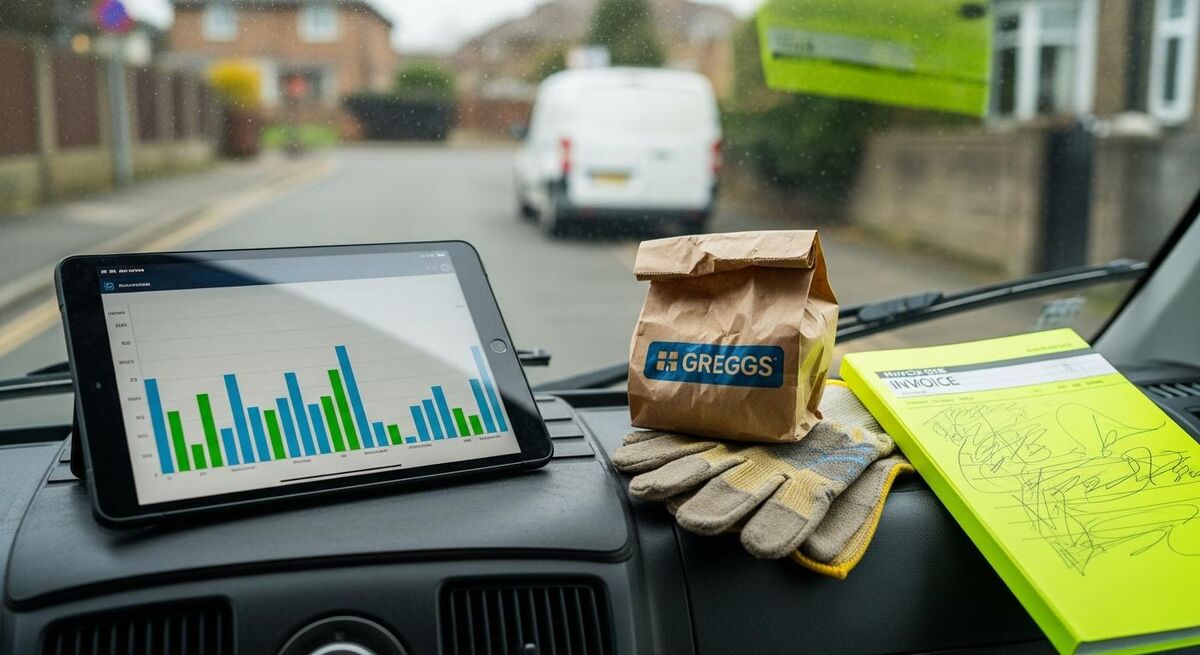
The VAT domestic reverse charge has applied to construction services since 1 March 2021. Under it, a VAT-registered subcontractor selling CIS-qualifying work to a VAT-registered contractor does not charge VAT. The contractor self-accounts for the VAT on their own VAT return. Cash never changes hands for the VAT element.
QuickBooks ships with the reverse charge codes hidden by default. You have to enable them manually.
- Go to Taxes in the left menu.
- Click Edit VAT, then Edit rates.
- Click the small cog above the rates list and tick Include inactive.
- Find 20% RC CIS and 5% RC CIS in the list.
- Toggle each one on.
Now those codes appear in the VAT dropdown when you raise an invoice or enter a bill. Use 20% RC CIS for standard-rated construction services. Use 5% RC CIS for reduced-rated work (residential energy-efficient improvements, mostly). The QuickBooks software handles the bookkeeping correctly: net amount in Box 7 of the VAT return, and on the contractor side, the VAT is posted to Box 1 (output) and Box 4 (input) so it cancels out and remains revenue-neutral.
The hardest part is knowing when reverse charge applies. The conditions are: both parties VAT-registered, both parties CIS-registered, the supply is a specified construction service, and the customer is not the end-user. If any one of those is false, you charge VAT as normal. The customer being an end-user is the usual catch. A property developer building flats to sell on is not an end-user. A homeowner having an extension is. Get this confirmed in writing from the customer before you raise the first invoice. A simple email saying "we confirm we are or are not the end-user for this project" is enough.
Step 5: Raise CIS invoices and record subcontractor bills
With the foundations in place, day-to-day use is straightforward.
Raising a CIS sales invoice
- Go to Sales, Invoices, New invoice.
- Select the contractor from the customer dropdown.
- Add a service line item. Use a service category that QuickBooks recognises as CIS-applicable (Subcontractors, Construction Services, or whatever you have set up).
- Enter the labour value in the amount field.
- Add a second line for materials if applicable. Materials are not CIS-deductible.
- Select the VAT code: 20% RC CIS if reverse charge applies, or 20% Standard if it does not.
- QuickBooks shows the gross, the CIS deduction (on labour only), and the net amount the contractor will pay you.
- Add the wording "Reverse charge: VAT Act 1994 Section 55A applies" in the message field if reverse charge applies.
- Save and send.
Recording a subcontractor bill
- Go to Expenses, Suppliers, find the subcontractor, click New transaction, Bill.
- Add a category line: Subcontractors (20%) or Subcontractors (30%) matching their verified rate.
- Enter the labour amount.
- Add a separate line for materials at the cost they invoiced you. Use a Materials category. No CIS on materials.
- Select the VAT code matching what they invoiced (reverse charge or standard).
- QuickBooks calculates the CIS deduction in the "Less CIS" field automatically.
- Save the bill. When you pay it, the gross goes to the subcontractor, the CIS amount goes to the CIS Payable account, and you pay that to HMRC at month-end.
Step 6: File the monthly CIS300 return
The CIS300 monthly return is the formal statement to HMRC of who you paid, how much, and how much CIS you deducted. Deadline is the 19th of the month following the tax month. So payments made between 6 March and 5 April must be reported by 19 April. Late by even one day costs £100 automatically.
- Go to Taxes, then CIS.
- You will see a tile for the current period. Click File return.
- QuickBooks shows every subcontractor payment in the period, with verified rates and deduction amounts.
- Check each line. If anything is missing, go back and add the bill, then return.
- Tick the declaration box at the bottom.
- Click Submit to HMRC.
- Enter your Government Gateway user ID and password.
- Click Sign in and submit.
QuickBooks files the return through the HMRC API. Confirmation comes back within a few minutes, although HMRC's own portal can take up to 72 hours to show the same return as filed. That gap is normal and not a sign anything has gone wrong.
After filing, QuickBooks pushes you straight to a screen where you can generate the monthly Payment and Deduction Statements (PDS) for each subcontractor and email them in bulk. Send these within 14 days of the end of the tax month. It is a legal obligation. Skip it and you get fined.
Step 7: Layer AI on top of QuickBooks CIS

QuickBooks does the calculation. Where AI now helps is in everything that happens around it: capturing receipts, categorising transactions, flagging anomalies, and chasing the paperwork from subcontractors before deadline. None of this replaces an accountant. It removes the dull repetitive work that used to eat your Sunday evenings.
Three layers worth setting up:
Receipt capture. QuickBooks has built-in receipt capture via the mobile app. Photograph the receipt, the AI reads it, extracts supplier, date, total, VAT, and categorises it. Around 95% accuracy on UK suppliers in my testing. The 5% that need correction are usually obscure trade counters with unclear receipts. Materials receipts from a builder's merchant are not CIS-deductible but they still need categorising correctly for VAT.
Transaction categorisation. QuickBooks learns your patterns. After the first month of manually categorising bank transactions, the engine starts pre-suggesting categories with high confidence. Subcontractor payments get flagged automatically if you have set up the supplier records correctly in Step 3. Bank rules give you the same outcome without waiting for the AI to learn.
External AI workflows. This is where it gets interesting. Tools like ChatGPT or Claude can sit alongside QuickBooks and answer questions you would otherwise put to your accountant. "I just paid a subbie £4,000 in labour and £600 in materials. They are verified at 20%. What goes on the bill in QuickBooks?" An AI will walk you through the entries in 30 seconds. It is not a replacement for professional advice on complex cases, but for routine bookkeeping it shortcuts the mental load.
For more advanced automation, n8n or Make can pull data out of QuickBooks via the API and into spreadsheets, BI tools, or your CRM. Useful when you want a job-by-job profitability dashboard that QuickBooks does not produce natively. Overkill for a one-van operation. Sensible for any business with five-plus engineers. We cover the end-to-end automation patterns in our complete AI tools guide for tradespeople, and the quoting side in our piece on AI-powered quoting.
The point of all this technology is not to remove the human from the loop. It is to free the human up to do work that actually moves the business forward. Chasing subcontractor UTRs is not that work. Reading a verification number off a screen and pasting it into a supplier record is not that work. Let the software do those bits.
Common mistakes that cost trades real money

These are the ones I see again and again. Avoid them and you are most of the way to a clean CIS year. If you are also setting up Xero for Making Tax Digital in parallel, the same discipline applies.
- Adding subcontractors as customers. If you pay them, they are a supplier. If they pay you, they are a customer. Get it backwards and CIS deductions never apply.
- Forgetting to verify before paying. Pay a subcontractor without verifying them first, and you withhold 30% by default. Even if they are registered. You also get a flag from HMRC at month-end.
- Splitting reverse charge invoices. Materials and labour on one job is one supply. One VAT treatment.
- Charging VAT to end-users by mistake. If the customer says they are the end-user (homeowner, owner-occupier, public body), you charge VAT as normal. Reverse charge does not apply. Half the trades I see get this wrong on the first householder invoice they raise after a string of B2B work.
- Missing the 19th. Set a recurring calendar reminder for the 18th of every month. Two minutes inside QuickBooks beats £100 every time.
- Not sending PDS statements within 14 days. Legal obligation, often skipped. QuickBooks sends them in bulk after filing, but you have to click the button.
- Leaving subcontractors unverified for years. Verification expires. Re-run it annually.
- Trying to file historic returns inside QuickBooks. The software only files from the month you enabled CIS forward. Old months go through HMRC's portal directly.
What tradespeople are saying about CIS in QuickBooks
Recommended videos
The Construction Industry Scheme in QuickBooks
Intuit QuickBooks UK

Construction Industry Scheme (CIS) Explained, Complete 2025-26 UK Guide
Pro Tax Accountant
QuickBooks Online: How To Record CIS Subcontractor Payments
Aaron Patrick The QuickBooks Chap

How Does QuickBooks Work For CIS Subcontractors and Contractors
Aaron Patrick The QuickBooks Chap

CIS, Everything You Need to Know About the Construction Industry Scheme
Tax2u Limited

How to Register for CIS as a Limited Company in the UK, Step by Step
Pro Tax Accountant
Frequently asked questions
Yes. From the CIS section in Taxes, you click File return, log in with your Government Gateway credentials, and it submits via the HMRC API. Confirmation comes back in minutes. The HMRC portal itself can take up to 72 hours to show the same return as filed, which is normal.
Yes if you want QuickBooks to track the CIS you suffer. Tick the "I am a CIS subcontractor" box during setup and select your rate. The software then records every CIS deduction taken off your invoices and shows the accumulated total in a CIS Suffered report you can give to your accountant at year-end.
20% is the standard rate, used for almost all commercial construction work. 5% is the reduced rate, used for specific residential energy-efficient improvements and certain conversion work. Most trades will only ever use 20% RC CIS. If you are not sure which applies, default to 20% and ask your accountant before sending the invoice.
No. Once enabled, CIS is permanent on that QuickBooks file. You can stop using it, but the feature stays in the menus. So before flipping the switch, double-check you actually need it. Sole-trade plasterers paid only by householders, for example, do not need CIS at all.
When you click Verify subcontractor on the supplier record, QuickBooks calls the HMRC API and pulls back the verification result: 0%, 20%, or 30%. That rate is stored against the supplier and used automatically on every bill you enter for them. Re-verify annually.
Three things. Nil returns are mandatory every month even with no subcontractor payments. HMRC can now remove Gross Payment Status immediately if it finds fraud in your supply chain. And payments to most local authorities and certain public bodies are now CIS-exempt. The first one catches the most people. Set a calendar reminder for the 18th of every month and you are sorted.
All three QuickBooks Online paid plans include CIS at no extra cost: Simple Start (£16/month), Essentials (£33/month), and Plus (£47/month). Pricing is excluding VAT. If you only ever invoice a handful of customers and have no subcontractors, Simple Start is enough. If you employ subcontractors and need to manage multiple users or projects, Plus is the realistic choice.
My verdict
QuickBooks handles CIS competently, including the awkward reverse charge VAT codes and direct HMRC filing. The software is not the problem. The problem is that most trades businesses race through setup, miss a field, then spend months unpicking the consequences. Block two hours on a quiet morning. Walk through the seven steps in this guide. Get your UTRs, references, and supplier records in once, properly, then trust the software to do its job. The penalties only catch people who treat the setup as an afterthought. Treat it as the foundation, and the next twelve months take care of themselves.