Compliance & Safety
Automate HSE safety alerts into WhatsApp and Teams: set-up, scripts and a tidy audit trail
TrainAR Team
4 months ago
5 min read
Jump To...
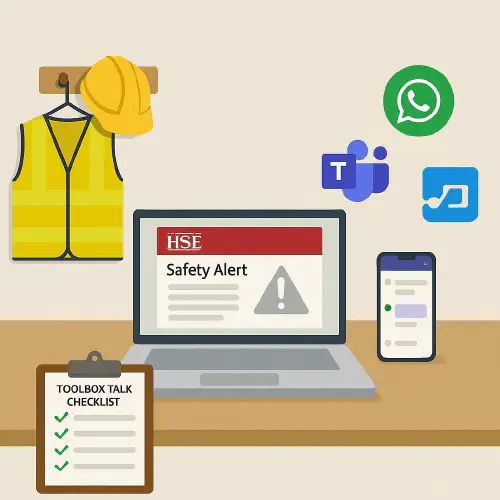
Laptop showing an HSE safety alert alongside Teams and WhatsApp icons in a UK site office scene
Quick answer
Subscribe to the HSE Safety alerts and notices eBulletin, route the emails into a shared mailbox, then use Microsoft Power Automate to push each new alert into a Teams channel (and optionally a WhatsApp group via a connector). Store the original email and a PDF of the post in SharePoint for your audit trail and apply automatic retention.
- HSE Safety alerts and notices hub: https://www.hse.gov.uk/safetybulletins/
- Subscribe to HSE alerts eBulletin: https://www.hse.gov.uk/news/subscribe/index.htm
Who this is for
- Site managers and QSs who need safety alerts in front of crews fast.
- SME contractors that already use Microsoft 365/Teams.
- Anyone who wants a clean, searchable record for audits without extra admin.
How it works
At a glance:
- HSE publishes a new Safety alert or notice. The eBulletin email lands in your shared mailbox.
- Power Automate flow triggers on those emails, saves the message and links, and posts a summary to a chosen Teams channel.
- Optionally, the flow also relays the alert to a WhatsApp group for on-the-go crews.
- SharePoint keeps the originals with retention, giving you a tidy audit trail.
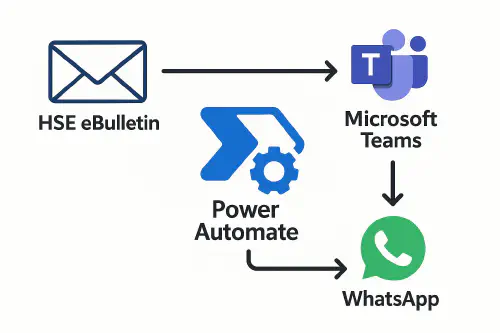
Flowchart: HSE email to Power Automate, then into Teams and WhatsApp
Step-by-step: Microsoft 365 and Power Automate
What you need
- A Microsoft 365 tenant with Exchange Online, SharePoint and Teams.
- A shared mailbox such as hse-alerts@yourcompany.co.uk.
- Power Automate licensing (most business plans include standard connectors).
Set up the inputs
- Subscribe the shared mailbox to the HSE Safety alerts and notices eBulletin on the HSE site: https://www.hse.gov.uk/news/subscribe/index.htm. Choose Safety alerts and notices.
- In Outlook, create a rule that moves emails where From contains “news@public.govdelivery.com” and Subject contains “HSE Safety alert” or “HSE Safety notice” into a folder called HSE Alerts.
Build the flow
- Trigger: “When a new email arrives in a shared mailbox (V3)”. Scope the Folder to /HSE Alerts.
- Condition: Subject contains “HSE Safety alert” OR “HSE Safety notice”.
- Actions:
- Save original .eml to SharePoint: /Safety/HSE Alerts/YYYY/MM/Subject.eml
- Convert body to HTML and create a clean PDF snapshot using “Convert file” (OneDrive for Business) and save alongside the .eml
- Extract title, date and the HSE page URL from the email body
- Post an Adaptive Card to Teams with: title, one-sentence summary, “View on HSE” button (link), and “View PDF snapshot” (SharePoint link)
- Add a Planner task “Review HSE alert” in your Safety board, assigned to the H&S lead, due in 2 days
Example Teams post text
“New HSE Safety alert: [
Useful HSE pages
- Safety alerts and notices hub: https://www.hse.gov.uk/safetybulletins/
- What safety alerts and notices are: https://www.hse.gov.uk/safetybulletins/whatarebulletins.htm
Troubleshooting
- No emails arriving: Subscribe again and check the shared mailbox can receive external email. Some tenants block external mail to shared mailboxes.
- Flow not triggering: Ensure the Outlook trigger points to the right folder in the shared mailbox, not your own inbox.
- Broken links: HSE sometimes updates pages. Keep the “View on HSE” button in Teams as the source of truth, and treat the PDF as evidence only.
- Teams card fails: If Adaptive Cards fail due to permissions, use “Post message in a chat or channel” as a fallback.
Handy links
- HSE Safety alerts and notices: https://www.hse.gov.uk/safetybulletins/
- HSE subscribe page: https://www.hse.gov.uk/news/subscribe/index.htm
- Related Academy articles:
- Toolbox talks UK: what HSE expects, free 5‑minute scripts and a printable sign‑in sheet
- How to set up QR code site induction and CSCS Smart Check that records checks
- Lone worker check-in system for construction: QR and WhatsApp setup, intervals and HSE rules
FAQ
Ready to Transform Your Business?
Turn every engineer into your best engineer and solve recruitment bottlenecks
Join the TrainAR Waitlist